Recognition: people & faces
The foundation pipeline — face detection, the People page, the registry.
This is the feature that makes SnapFlow special for sports and event work: it looks at your photos and automatically finds the people in them, then groups every shot of the same person together. For team and race events it goes further — reading jersey, bib and car numbers, matching team kits, and clustering vehicles and helmets. That turns "2,000 photos" into "here's every shot of athlete #23" in a few minutes.
Recognition is five pipelines that build on each other. This chapter covers the foundation — face detection and the People page. The other four pipelines each have their own chapter:
- Numbers — jersey, bib, car, sail and bike numbers.
- Teams & kits — uniforms and liveries.
- Vehicles — cars, motorbikes, bikes, boats and horses.
- Helmets — drivers and riders by helmet paint.
Recognition is a Studio feature on solo plans
On the solo photographer plans, People detection (and the number, vehicle and helmet pipelines) is Studio-tier. On Free or Pro the toggle is greyed out behind a Studio upgrade pill, and the People destination stays hidden. Organisations get recognition on the corporate Pro tier and up, and on all agency tiers. So if People looks empty or locked, check your plan first — it's the most common reason.
Turn on People detection
Face detection runs per album. You switch it on in the album's settings, not in a global menu. Here's the whole thing, click by click. Web Studio
- From your Dashboard, click the album you want, then click More ▾ (top-right) → Edit album…. — the Edit album page opens in two columns.
- Look at the right-hand column. Find the Workflows card (it's the first card on the right). — inside it is a tile headed People detection.
- Tick People detection. — an amber box drops in just below it reading "I have a legal basis to process biometric data in this album."
- Tick that amber box. — the box is required; if you leave it unticked, Save is rejected (error 422) and nothing turns on.
- Click Save changes (bottom-left). — you're back on the album page, and from now on SnapFlow detects and groups faces on every photo as it ingests.
- Open the album and click the People link in the album's action row (it only appears once detection is on and the album has photos). — the per-album People page opens and starts filling with the faces it finds.
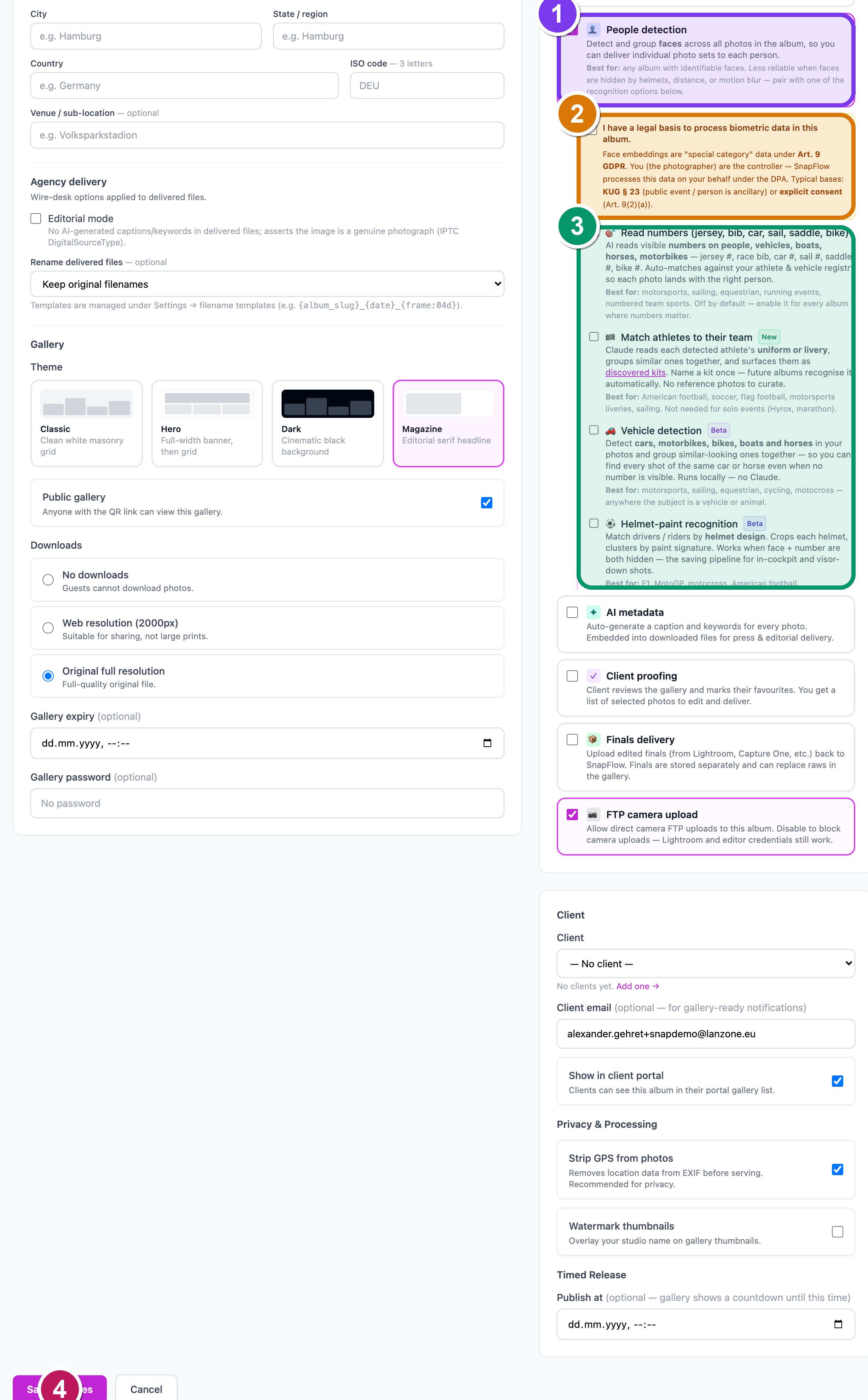 The right-hand Workflows card on Edit album. ① the People detection tile, ② the amber "I have a legal basis to process biometric data in this album." box that you must tick, ③ the nested recognition sub-options that appear once People detection is on, ④ the Save changes button.
Face detection needs a legal basis
Faces are "special category" biometric data under Art. 9 GDPR. The first time you enable People detection on an album, SnapFlow makes you confirm a legal basis exists before any processing runs. The two typical bases the box names are KUG § 23 (public event, or the person is incidental) and explicit consent (Art. 9(2)(a)). SnapFlow doesn't decide your basis for you — it just records that you confirmed one, with a date. Turning People detection back off clears the nested sub-toggles too. See Album settings & workflows.
The four recognition sub-options
Once People detection is ticked, four nested sub-toggles appear, indented under it on a blue line. They only switch on once People detection is on, because they all build on the face/subject detector. By exact label:
- 🎯 Read numbers (jersey, bib, car, sail, saddle, bike) Studio — AI reads visible numbers on people and vehicles and matches them to your registry. Full chapter: Numbers.
- 🎽 Match athletes to their team New — Claude reads each athlete's uniform or livery and groups similar kits. Full chapter: Teams & kits.
- 🚗 Vehicle detection Studio Beta — detects cars, motorbikes, bikes, boats and horses and groups similar ones. Runs locally, no Claude. Full chapter: Vehicles.
- ⚽ Helmet-paint recognition Studio Beta — matches drivers and riders by helmet design when face and number are both hidden. Full chapter: Helmets.
Edit → Workflows is one card, not a menu
Some older notes call this the "Edit → Workflows page" as if it were a two-level menu. It isn't. It's the Workflows card in the right column of the single Edit album page. Everything above happens on that one page.
The People page
Open an album and click People in its action row. As photos come in, SnapFlow scans each one and this page fills with the people it finds — here it's detected faces and grouped them into clusters.
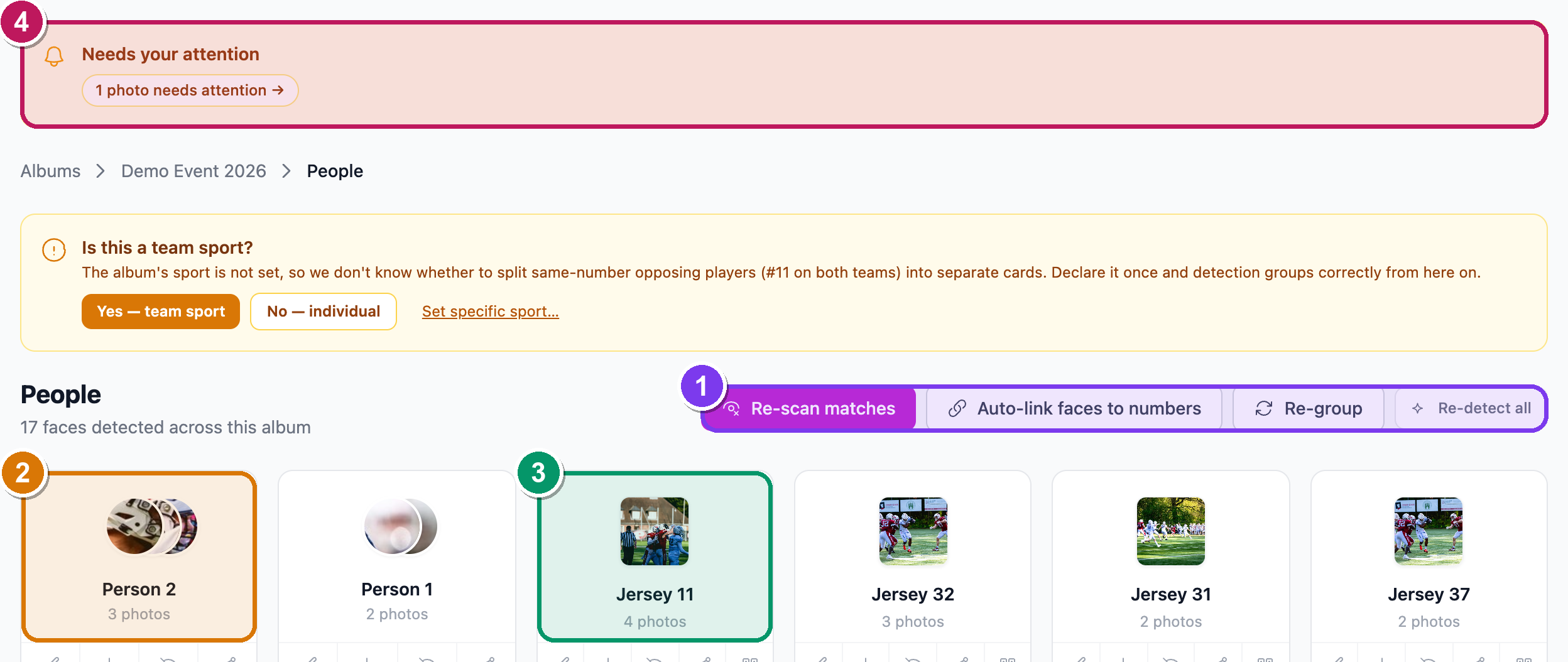 The album People page. ① the header action row (Re-scan matches, Auto-link faces to numbers, Re-group, Re-detect all), ② a face cluster card, ③ a number-card group header lower down, ④ the amber Needs your attention banner that collects photos SnapFlow is unsure about.
Each card is a face cluster — every shot of the same person, grouped onto one card. The buttons across the top of the page let you re-run or tidy the detection. By exact label:
- Re-scan matches — re-checks the faces that are still unmatched against your named people and athlete registry. Fast and non-destructive; nothing is deleted. Run it after you add or rename someone. — you'll see a green "Re-scan queued…" banner.
- Auto-link faces to numbers — when two pipelines are on, this binds a face cluster to a number group that keeps showing up in the same photos (so a face picks up the right car or bib number). Co-occurrence does the work.
- Re-group — re-clusters the faces when the same person got split across two cards, or two people landed on one card. Keeps the detections, just regroups them.
- Resume detection (N) — only appears when some photos still have numbers left to read (for example if the AI ran out of credits mid-run). Finishes the number-reading pass on just the missed photos — it never re-processes what already succeeded.
- Re-detect all — starts the whole pipeline over from scratch. SnapFlow asks you to confirm first, because it re-spends AI detection calls and takes several minutes. Anything you corrected by hand — named clusters, confirmed athlete links, manual reassignments, pinned faces — is preserved; only the uncurated auto-groupings are rebuilt. New uploads are recognised automatically, so you rarely need this.
Photos SnapFlow isn't confident about collect under the amber Needs your attention banner near the top, so you can confirm them all in one place.
Per-album People vs the global People nav
There are two People places, and they're different:
- The People link inside an album (
/dashboard/albums/{id}/people) is this album's faces, clusters and number cards. - The People item in the main left nav (
/dashboard/people) is your athlete registry — your saved people across every album.
Naming a face in one album lives in that album. "Save as athlete" (below) promotes it to the global registry.
Naming and correcting faces
SnapFlow does the heavy lifting; you stay in control. Click any face cluster to open its detail page, where the action buttons live across the top.
 A face cluster detail page. ① Rename, ② Tag (queues the cluster's photos for an Instagram tag), ③ either Save as athlete (unnamed) or the Yes, this is {name} / Not this person confirm pair (when SnapFlow has suggested a match), ④ Set team, ⑤ Ignore, ⑥ Merge into….
On a cluster's detail page you can:
- Rename — name the face group once and it labels every photo of that person in this album.
- Tag — queue this person's photos for an Instagram tag when you post them (see Social posting).
- Yes, this is {name} / Not this person — when SnapFlow has suggested a match (because the face looks like someone in your registry), this confirm pair appears. Yes locks the match; Not this person rejects it.
- Save as athlete — promotes an unnamed cluster to your global registry so the match follows that person across every future album.
- Set team — pins the face to a team (see Teams & kits). Once set, the button shows Set team · {team name}.
- Ignore — hides a cluster you don't care about (a bystander, a marshal). The button then reads Un-ignore so you can bring it back.
- Merge into… — combines two clusters that are really the same person split across two cards.
Fix a single stray photo (Reassign)
Sometimes one frame lands in the wrong group. You fix that photo without touching the rest of the cluster.
- On the cluster detail page, hover the stray photo. — small buttons appear over it.
- Click the ↔ button (its tooltip reads Reassign face). — a small Move to dropdown opens with a filter box and your other people listed.
- Type to filter if you like, then click the person to move it to. — the photo leaves this cluster and joins the one you picked.
To disown a photo entirely instead, click the × on it (Not this person).
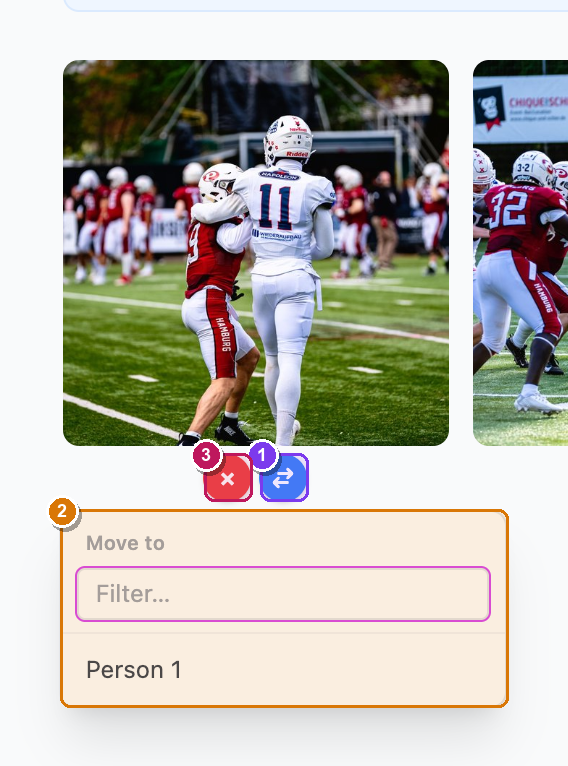 Hovering a photo on the cluster detail page. ① the ↔ Reassign face button, ② the Move to dropdown listing your other people with a filter box, ③ the × that disowns the photo outright.
Tag a face SnapFlow missed
If a face never got detected, you can draw a box around it and tag it yourself — from the cluster's full-screen viewer (the loupe — the big single-photo view), not the public gallery.
- Open a photo in the cluster's viewer, then click Tag person (bottom). — the prompt changes to "Draw a box around the person to tag."
- Click and drag a box around the person. — when you let go, the Tag a person in this photo panel opens.
- Choose one of three ways to assign the box, then click Assign:
- Existing person in this album — pick from the dropdown of this album's clusters.
- Known athlete — pick from your registry.
- Or type a new name — create a brand-new person on the spot.
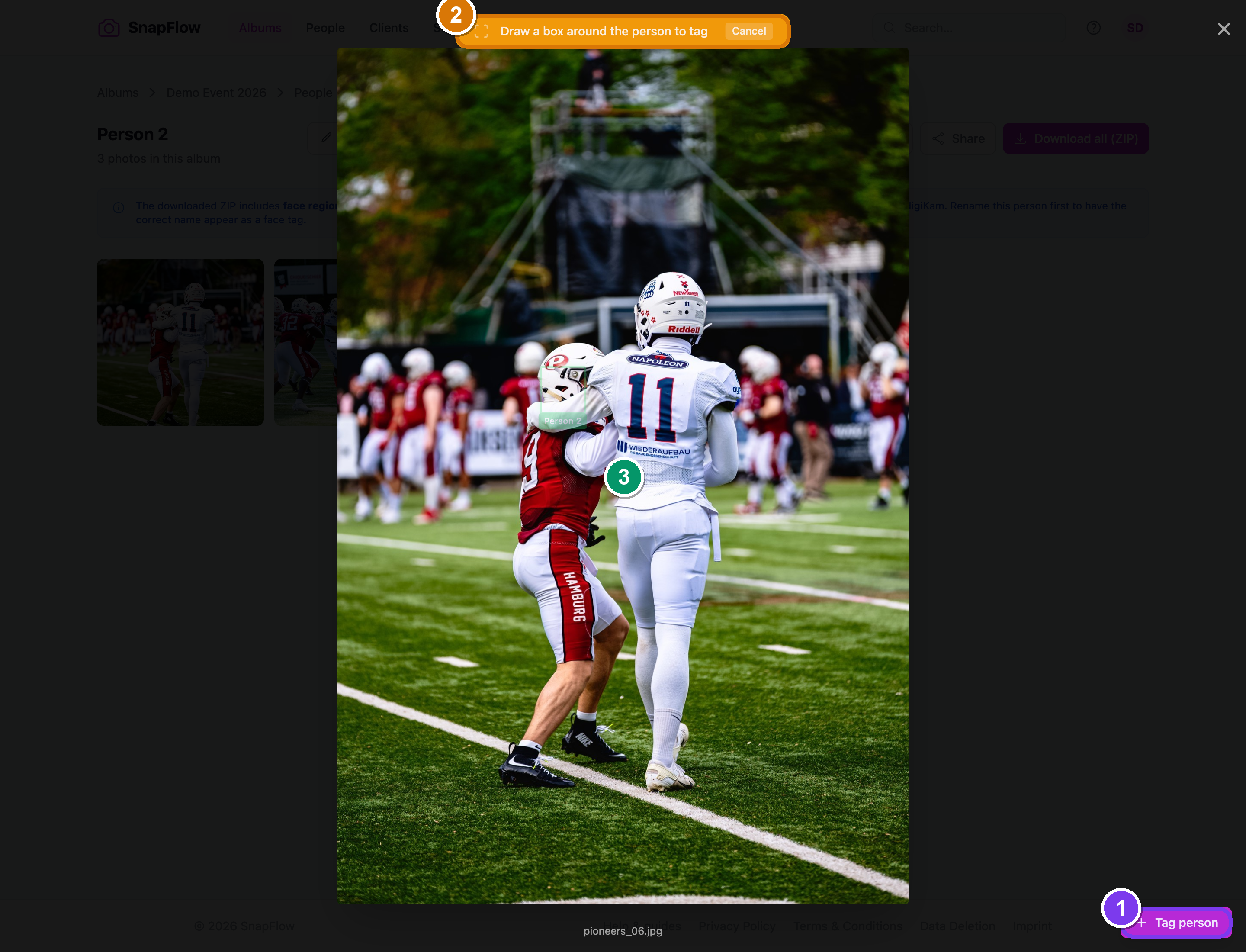 The cluster loupe in tag mode. ① the Tag person button, ② the prompt "Draw a box around the person to tag", ③ the box you drag around the face.
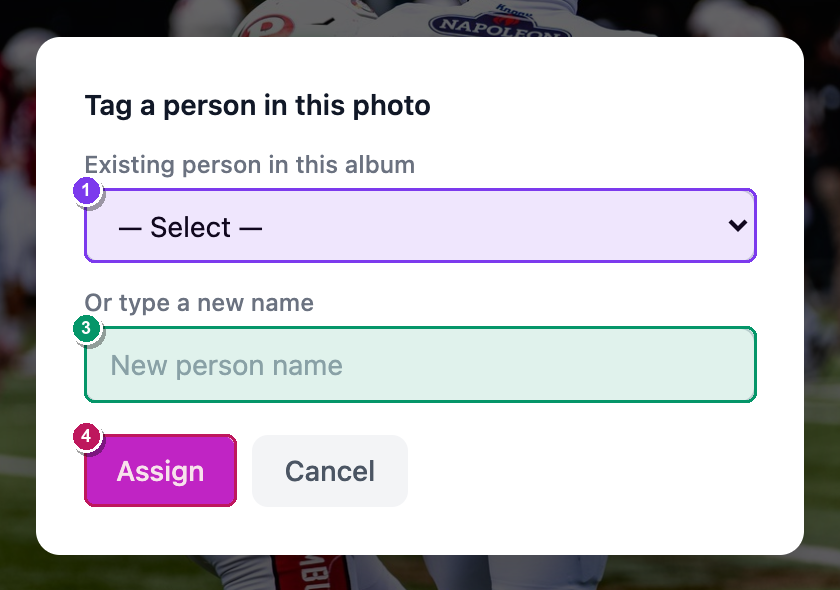 The Tag a person in this photo panel after you draw a box. ① Existing person in this album, ② Known athlete, ③ Or type a new name, ④ the Assign button.
The athlete registry
Naming a cluster labels it in this album only. Save as athlete promotes it
to the global People nav (/dashboard/people) so SnapFlow recognises that
person in future events too.
Open any registered athlete to see:
- Reference Faces (N) — the headshots the cross-album matcher anchors on. Add more with Upload a reference headshot, or pick a face from one of your albums.
- Appears in N albums — every album that person shows up in, with photo counts, so you can jump straight to their shots in any event.
More reference faces = better matches
A registered athlete with two or three clear Reference Faces is matched far more reliably across events than one with none. After a big shoot, it's worth pinning one good headshot of each athlete you'll see again.
Set the stage: expected athletes & teams
For a known fixture you can tell SnapFlow who to expect before you shoot. Two collapsible panels at the top of the People page let you pre-load the line-up.
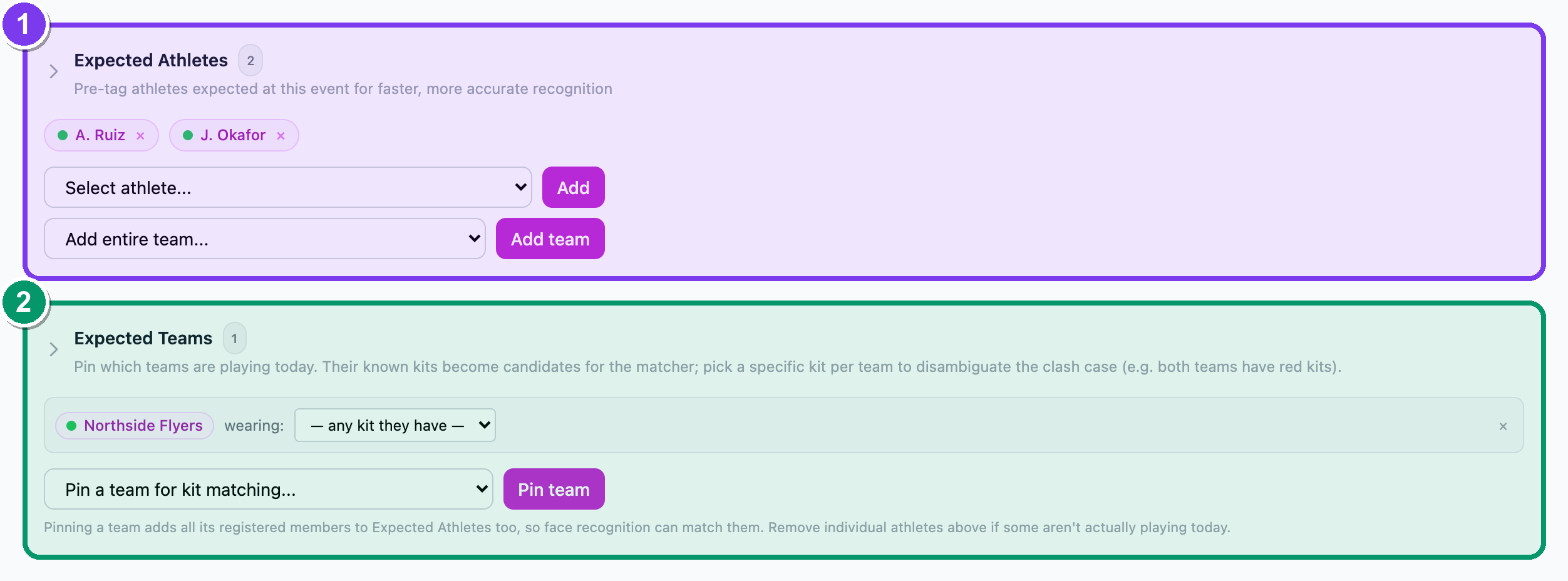 The two pre-shoot panels. ① Expected Athletes — a dropdown to pick athletes from your registry, plus Add team to pull in a whole squad. ② Expected Teams — pin a team and choose the kit it's wearing: today (default "— any kit they have —"), with Pin a team for kit matching… + Pin team.
- Expected Athletes — pre-tag athletes from your registry so they become priority matches. Add team pulls in a whole registered squad at once.
- Expected Teams — pin the teams playing today and, for each, choose the kit it's wearing: from the dropdown. This resolves clashes (e.g. both sides in red). Pinning a team also adds all its registered members to Expected Athletes automatically.
These panels need the athlete-recognition plan feature
The Expected Athletes and Expected Teams panels only appear when your plan includes athlete recognition (Studio on solo plans). They are gated on the plan feature — not on the per-album Read numbers toggle. If you don't see them, it's a plan question, not a settings one.
Also in the desktop & mobile apps
The same correction tools live in the other apps, so you can fix faces wherever you are:
- SnapFlow Sync (desktop) Desktop app has the recognition panel and corrections — see Recognition corrections (desktop).
- The iOS app iOS lets you name, confirm and share people on the go — see Recognition (iOS).
Why it's worth it
Once people are recognised you can deliver each athlete their own gallery, find every shot of one person instantly, and auto-caption and tag photos for social posting. Next: teaching SnapFlow to read numbers.