Recognition: teams & kits
Match uniforms and liveries; name kits once, reuse them.
Not every athlete shows a clear number, and a number alone doesn't tell you who they play for. Team matching looks at the kit — the uniform, jersey or livery a player is wearing — and groups everyone in the same kit together. You name a kit once ("Pioneers home", "Lions away") and SnapFlow tags every player wearing it. The next time you shoot the same team, it recognises the kit again on its own.
This chapter is the team-and-kit pipeline. Reading numbers off a jersey lives in numbers; grouping faces lives in faces & recognition. Web Studio
What you need first
Team matching is part of People detection, which is a Studio-plan feature. You also have to confirm a legal basis for processing biometric data on the album (a one-time tick). Both steps are spelled out below.
Turn it on
You switch team matching on inside the album's settings. It's a sub-option of People detection, so you turn People detection on first, then tick the team box underneath it.
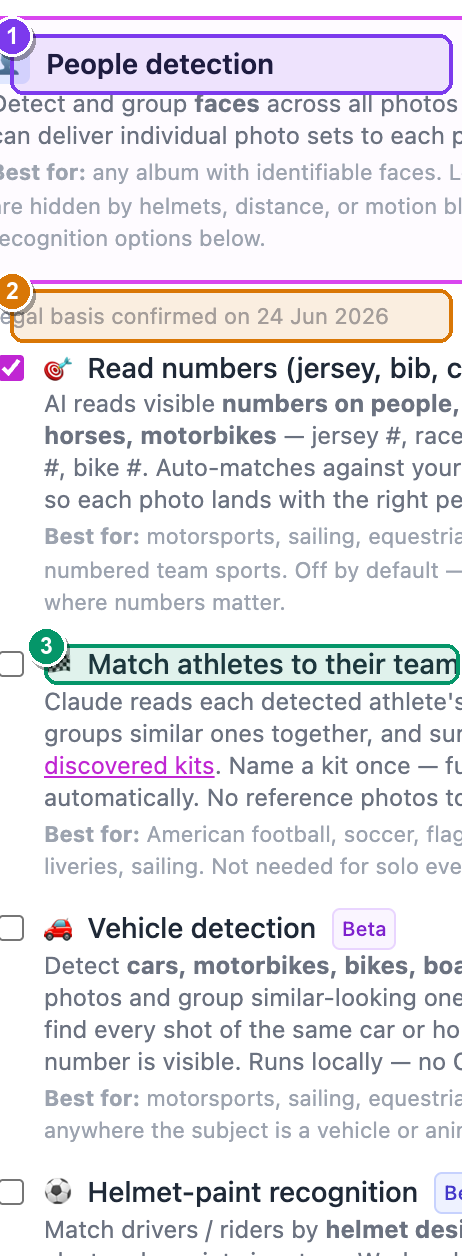 The right-hand Workflows card on the Edit album page. ① the People detection checkbox, ② the amber legal-basis box that appears when you tick it, ③ the indented 🎗 Match athletes to their team sub-option with its green New badge.
- From your dashboard, open the album you want. — the album page opens with its photo grid.
- Click More ▾ (top-right of the album page) → Edit album…. — the Edit album page opens in two columns.
- In the right-hand Workflows card, find People detection and tick its checkbox. — an amber box drops down reading "I have a legal basis to process biometric data in this album."
- Tick that amber box. — a short panel of sub-options appears underneath, indented and joined by a blue line.
- In that sub-option panel, tick 🎗 Match athletes to their team (it carries a green New badge). — the box stays ticked; nothing else changes on this page yet.
- Scroll down and click Save changes (bottom-left). — you return to the album. From now on, as photos come in, SnapFlow studies each athlete's kit and starts grouping the ones that match.
Studio plan + legal basis are both required
If People detection shows a grey Studio pill instead of a tickable box, your plan doesn't include it yet — see your plan & storage. And if you skip the amber legal-basis tick, Save changes fails. Face and kit data are "special category" data under Art. 9 GDPR, so SnapFlow won't process it until you confirm you're allowed to.
Why kits, not just numbers
Kits catch the players whose number never faces the camera. They're also how you build a team gallery — every shot of one side, ready to hand to the club. Numbers and faces miss the player who's turned away; the kit doesn't.
Name your discovered kits
You don't tell SnapFlow which kits to look for. It finds the distinct kits in the album by itself and shows each one as a card for you to name. Your only job is to put a name (and a team) on each card.
To get there: open your album → click People (next to the face count near the top, or the Open the People panel → link) → scroll to the Discovered kits panel.
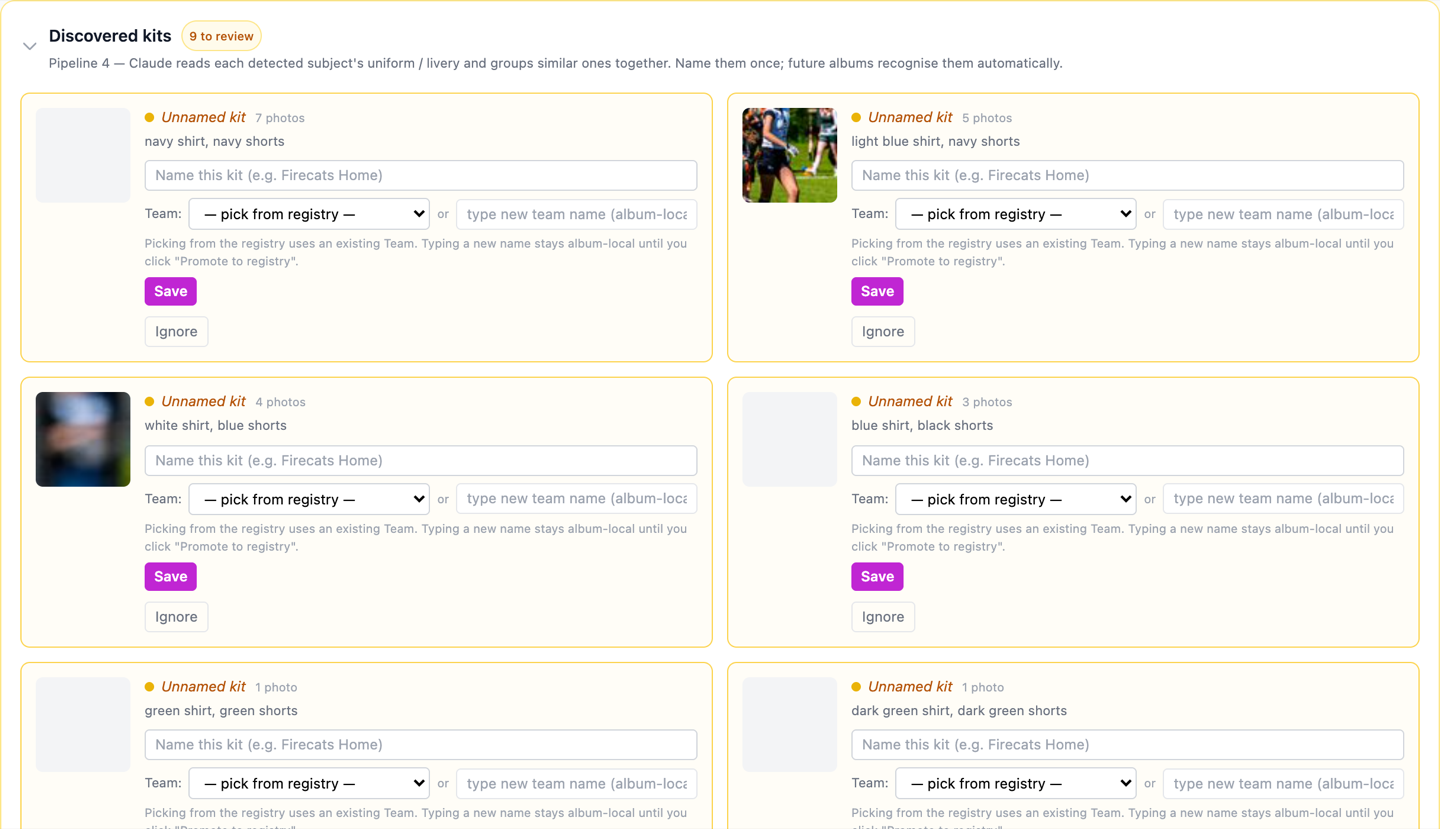 The Discovered kits panel. ① the "N to review" amber pill counting kits that still need a name, ② an Unnamed kit card in edit mode with its name field, Team: dropdown and Save / Cancel / Ignore buttons, ③ a saved card showing its team chip, a coloured scope dot and the Edit / Promote to registry buttons.
An unnamed kit card (amber, marked Unnamed kit) is one SnapFlow found but hasn't been told about yet. Each one shows a sample crop of what it saw. To name it:
- In the Discovered kits panel, find a card marked Unnamed kit. — it has an empty name field already showing.
- Click the name field (placeholder "Name this kit (e.g. Firecats Home)") and
type a name, e.g.
Pioneers home. — your text appears in the field. - Set the team. Either pick one from the Team: dropdown (which reads "— pick from registry —" until you choose), or type a fresh name in the "type new team name (album-local)" box next to it. — a new typed name stays album-local (it lives only in this album) until you promote it later.
- Click Save. — the card turns from amber to white, the "N to review" pill counts down by one, and every photo wearing that kit is now tagged with the team you set.
A card you've named (white, with a coloured scope dot before the name) is read-only. The dot tells you the scope at a glance: an album dot means the kit lives only here; a registry dot means it's backed by your Teams registry. To change a saved card:
- Click Edit to reopen the name and team fields, then Save again.
- Click Promote to registry (only shown when the kit has an album-local team label) to push the team into your Teams registry so you can reuse it at the next event.
Ignore a kit SnapFlow got wrong
Sometimes the matcher latches onto a stray patch of colour — a marshal's bib, a sponsor banner, a wall of crowd. Click Edit on that card, then Ignore to delete it. SnapFlow asks you to confirm; the photos that were bound to it fall back to "no kit", they are never deleted.
Album-scoped by default
A new kit, and any team name you type by hand, is album-local until you explicitly click Promote to registry. That stops one event's "Lions" from silently merging with a different "Lions" somewhere else — promotion is always a deliberate click.
Pin the teams playing today
A team usually owns more than one kit — home, away, third. The classic headache is when both sides wear red. You fix it on the Expected Teams panel, also on the People page: you pin the teams playing today, and tell SnapFlow which kit each one is wearing.
- On the People page, open the Expected Teams panel. — it lists any teams you've already pinned, each as a chip.
- To add one, open the dropdown that reads Pin a team for kit matching..., choose a team from your registry, then click Pin team. — the team appears as a chip in the list above, and all its registered members are added to Expected Athletes too so face recognition can match them.
- For each pinned team you'll see the word wearing: followed by a dropdown. Leave it on — any kit they have — if you're not sure, or pick the exact kit the team is in today. — the choice saves the moment you pick it.
- To remove a team you pinned by mistake, click the × at the right end of its row. — the chip disappears.
That's what untangles the red-vs-red clash: tell SnapFlow it's Pioneers in navy versus Lions in crimson today, and the matcher stops mixing them up.
Expected Teams needs athlete recognition
The Expected Teams panel only shows when your plan includes athlete recognition (the same feature that powers numbers). Without it you can still name discovered kits — you just won't get the per-team kit picker.
Fix a team by hand
You're never stuck with the automatic result. Wherever a player, a face cluster or a number appears, you can pin its team explicitly:
- On a number card's detail page, use Set team (it then shows "Team: X").
- On a face cluster, the same Set-team controls apply.
Once you correct a few, the rest of the album's team labels re-aggregate around your choices — SnapFlow treats your manual pins as the truth and lines everything else up behind them.
Team galleries
A named team isn't just a label — it's a ready-made gallery. Every photo of every player on one side lives at a single guest URL, so you can hand the whole set to the club in one link.
- The guest URL has the form
/gallery/<album-slug>/teams/<team-id>. Any guest who opens it sees only that team's photos from the album — drivers, reserves and crew included. - The Open public gallery button. On an album's team detail page, click Open public gallery to view (and copy) that guest link in a new tab.
- The Teams registry lives under the global People nav → Teams
(
/dashboard/people/teams). It lists every team you've promoted, so a team you name once at one fixture is there to reuse, with its members, at the next.
Promote, then reuse
Naming a kit tags this album. Promoting its team to the registry is what makes the team — and its kit — recognise itself automatically at your next event in the same sport. Do it once per team and the matching gets faster every fixture.
Next: clustering vehicles.