Notifications & profile
Push refresh, account, and the camera-upload album picker.
This chapter covers the two housekeeping bits of the iPhone app: the notifications iOS sends you, and the Profile sheet where you check your account, switch on AI processing, point your camera at the right album, and (if you ever need to) delete your account.
Everything here lives on the Albums, Posts and Reels tabs — tap the round avatar (your initials) in the top-left corner of any of those three tabs to open Profile. The fourth tab, Edit, has no avatar (its toolbar is for editing — see Editing on iPhone).
Push notifications
The first time you sign in, iOS pops up its standard "SnapFlow Would Like to Send You Notifications" box. Tap Allow — you'll see the box disappear and the app carry on to your album list. That's the only time you'll be asked.
After that, SnapFlow can send you a banner when something needs your eyes. The banner shows even if the app is already open in front of you, so you never miss it.
The one you'll see most often is the auto-style review banner:
- When you've set an Album Style and new photos come in, the app styles them automatically, then sends you a banner: "N photos styled — confirm the look."
- Tap the banner — the app jumps straight to the Confirm the look sheet for that album (the same review queue you can open by hand). There you can approve each photo (the green checkmark), reject one, or tap Reject all at the bottom. Guests don't see styled photos until you give the OK.
Confirm the look = your auto-styling safety net
SnapFlow never shows guests an auto-styled photo until you've approved it. The banner is just the quickest way in — you can always open the same Confirm the look review from the app whenever you have a moment. More on Album Styles lives on the desktop side, in Editing & styles.
The red dot on the Albums tab
Separately from push, the Albums tab can show a small red number badge. That count is client picks waiting for you — guests who have submitted their proofing selections. Open an album with proofing turned on to see and download their chosen photos. The badge updates on its own about once a minute while the app is open; it isn't a notification you have to allow.
Turning notifications off later
There's no on/off switch for notifications inside the app — it asks iOS once and remembers your answer. To change your mind, go to the iPhone's own Settings → SnapFlow → Notifications and flip the switch there. Turning them off only stops the banners; the Albums-tab pick badge still works.
Profile
Tap the avatar (the round button with your initials, top-left of the Albums, Posts or Reels tab). — the Profile sheet slides up. Pull down on it, or tap Done (top-left), to close it again.
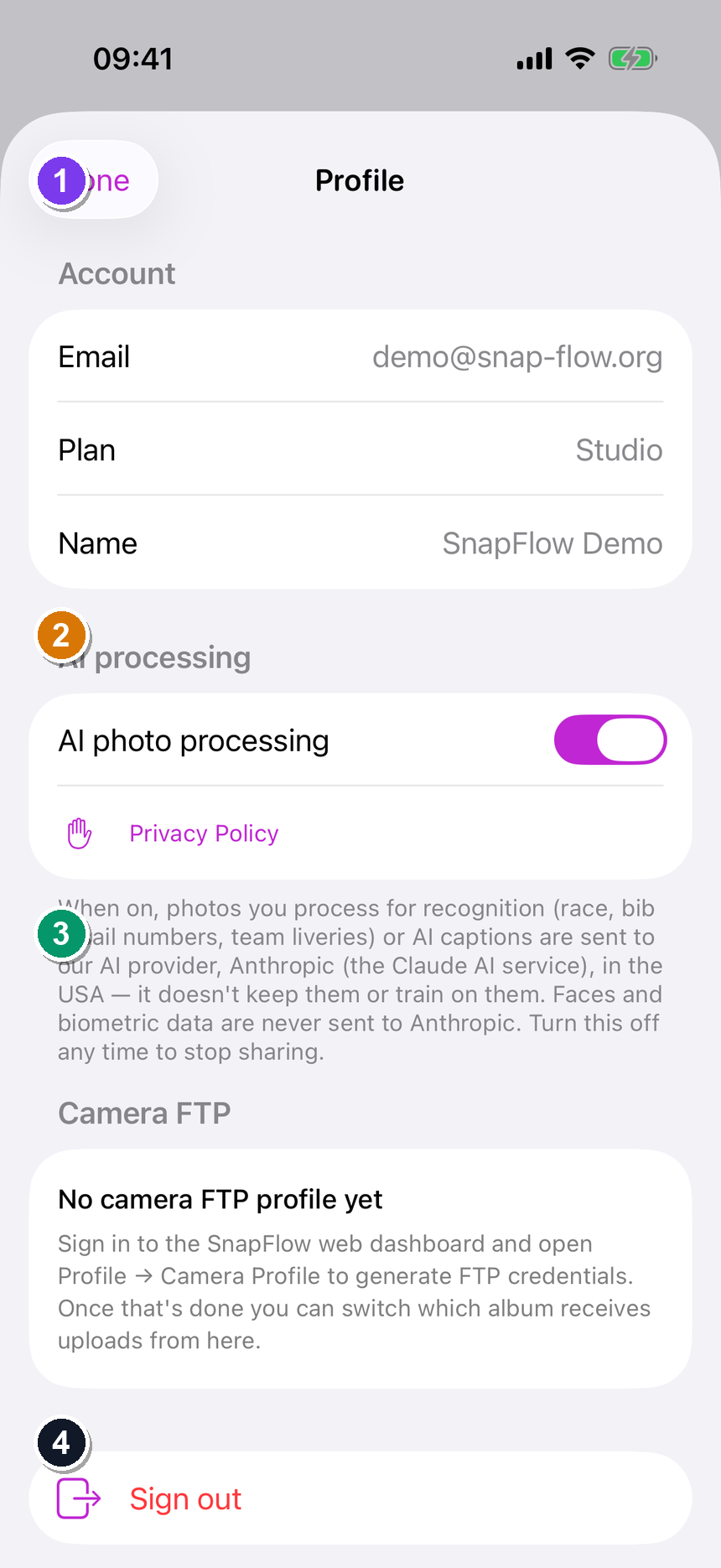 The Profile sheet, top to bottom: ① the Account card (Email, Plan, Name), ② the AI processing toggle "AI photo processing" with the Privacy Policy link below it, ③ the Camera FTP card with Host / Port / Username and the Active album picker, ④ the Sign out button, and ⑤ the red Delete account button at the very bottom.
The sheet has these cards, top to bottom.
Account
A read-only summary of who you're signed in as:
- Email — the address you signed in with.
- Plan — your current plan (Free, Pro or Studio).
- Name — your full name, if you set one.
To change your plan or billing, use the web dashboard — the iPhone app is a quick view here, not an editor.
AI processing iOS
This is the master switch that lets SnapFlow send your photos to its AI helper. You'll find a single toggle labelled AI photo processing, a Privacy Policy link, and a paragraph explaining exactly what gets sent.
- To turn it on, flip AI photo processing to green. — a small "Updating…" line appears under the label while it saves, then settles.
- To read the fine print, tap Privacy Policy (just below the toggle). — your browser opens the SnapFlow privacy page.
What 'AI processing' actually does
When this is on, photos you process for recognition (race, bib and sail numbers, team liveries) or for AI captions are sent to SnapFlow's AI provider — Anthropic, the Claude AI service in the USA — which doesn't keep them or train on them. Faces and biometric data are never sent. Turn it off any time to stop sharing. This is the same consent the app asks for the first time you tap Recognize on an AI album (the "Use AI to recognize your photos" sheet, with Allow & continue / Not now) — see Recognition on iPhone.
Camera FTP — point your camera at the right album
This card is the on-location star of the show: walk into a new event, switch the Active album in two taps, raise your camera, and the very next FTP upload lands in the new album — without ever touching your camera's settings.
If your camera's FTP credentials are set up, you'll see:
- Host, Port and Username — the connection details your camera uses (read-only here).
- Active album — the picker that decides which album receives your camera's uploads.
To switch which album receives uploads:
- Tap Active album. — a list drops down with None — pause uploads at the top, then every one of your albums.
- Tap the album you want (or None — pause uploads to stop uploads entirely). — a small spinner and "Updating…" appear while it saves, then the new album shows as selected.
- That's it. — your next camera upload lands in the album you just chose; the change "takes effect on the next upload."
No FTP credentials yet?
If you've never set up camera FTP, the card reads "No camera FTP profile yet" instead. Sign in to the SnapFlow web dashboard and open Profile → Camera Profile to generate your FTP credentials. Once that's done, the Active album picker appears here and you can switch albums on the go. Full FTP setup is covered in Account & settings and Uploading photos.
Sign out
Tap Sign out (the red button). — you're returned to the sign-in screen and the app forgets your login on this device.
Delete your account iOS
At the very bottom of Profile is a red Delete account button. This permanently removes your account and everything in it.
- Tap Delete account. — an alert titled "Delete account?" appears with a Password field.
- Type your current password into the Password field.
- Tap Delete account in the alert (the red one) to confirm, or Cancel to back out. — once confirmed, your account and all your albums, photos and posts are erased and you're signed out.
This can't be undone
Deleting your account permanently removes every album, photo and post you have. There is no recovery. If you only want to stop using the app for now, use Sign out instead. (The Delete account button is hidden for admin accounts, and the wrong password aborts the delete.)
Account, storage and billing changes still live on the web — the iPhone Profile is a quick view, the on-location camera-album switch, your AI-processing consent, and the in-app account-delete control.