Marketing consent
Record per-person consent and filter to marketing-cleared photos.
When you want to publish event photos — on your website, in a brochure, on social media — you usually need the person's permission to use their image for marketing. The marketing consent feature is the place to write down who has granted that permission, so later you can hand your marketing team only the photos that are cleared to publish.
Web Corporate Pro and up
Where this lives
Marketing consent is a feature for organizations and agencies on a corporate Pro plan (or higher). It sits on your People registry — the list of named athletes and guests you already use for face recognition. If you don't see the controls below, your plan doesn't include it yet. New to People? Start with Recognition: people & faces.
In plain words: you tick a box on each person to say "this person said yes," SnapFlow stamps the date, and a single Marketing-cleared filter then shows you the photos where everyone in the frame has said yes. Nothing publishes automatically — you stay in control of the final hand-off.
Record consent on a person
You record consent one person at a time, on their detail page in the People registry.
- In the top navigation, click People. — the People page opens, listing everyone you've named so far. People with consent on file show a small green tick; people without show a muted No consent label.
- Click a person's card to open their detail page. — their page opens with a profile photo, Reference Faces, Appears in N albums, and (because your plan includes it) a Marketing consent card on the right.
- Look at the Marketing consent card. The badge in its corner tells you the current state: a green Granted pill, or a grey No consent on file pill.
- To record consent, type an optional reference in the box (it's pre-filled with the hint "Optional reference (e.g. 'release signed 2026-05-27')") — use it to note where the signed release lives. Then click Mark consent granted. — the card flips to the green Granted badge and shows a line like "Recorded 2026-06-24 — release signed 2026-05-27."
No date field — SnapFlow stamps it for you
You never type the consent date. The moment you click Mark consent granted, SnapFlow records today's date automatically. The text box is only for an optional reference note (a release number, a filename, "verbal OK at registration") — leave it blank if you like.
Revoke consent later
If someone withdraws permission, take it back the same way.
- Open that person's detail page (People → click their card).
- In the Marketing consent card, click Revoke consent. — a confirm box asks "Revoke marketing consent for {name}?"; click OK.
- The badge flips back to the grey No consent on file, and the Recorded line disappears. — any photo that relied on this person is no longer marketing-cleared.
Revoking re-locks photos instantly
The Marketing-cleared filter (next section) is recomputed live, not cached. The moment you revoke one person's consent, every photo they appear in drops out of the cleared set — even photos a teammate already viewed. Do a final filtered check before you hand anything to your marketing team.
Filter to marketing-cleared photos
Once you've recorded consent on the people you need, switch to an album (event) and use the Marketing-cleared filter to narrow the grid to publish-safe photos only.
- Open the album from your dashboard. — the album page opens with its photo grid and a thin filter bar above it (rating chips, a date range, and so on).
- In that filter bar, click the Marketing-cleared chip (it carries a small tick icon). — the chip turns green to show it's active, and the grid immediately narrows to only the cleared photos.
- Click the green chip again to turn it off. — the full grid comes back.
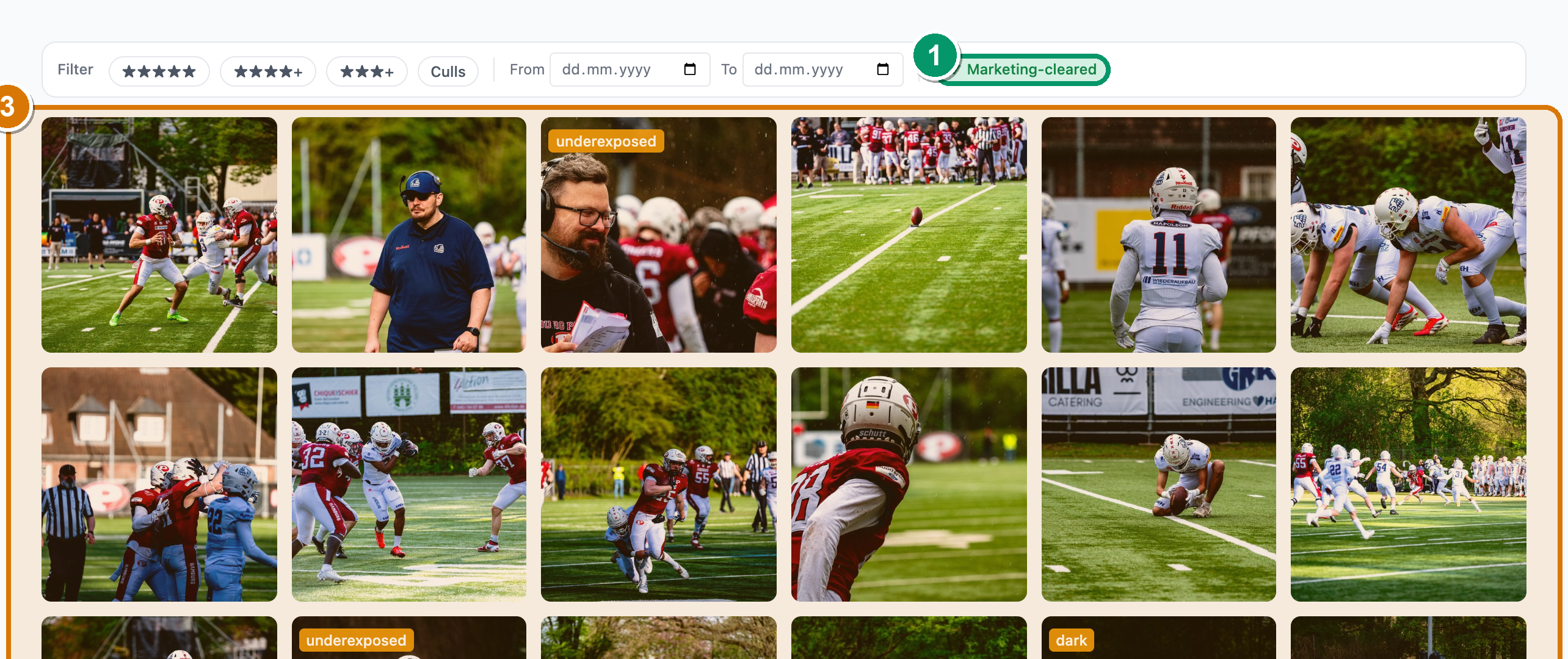 The filter bar above the photo grid. ① the Marketing-cleared chip — grey when off, ② green with a tick when active; ③ the grid below, narrowed to only the photos where everyone has consent on file. Click the chip again to clear it.
What "Marketing-cleared" actually means
Marketing-cleared isn't a flag you set on each photo — it's computed from the per-person consent records, recalculated every time you toggle the chip. A photo counts as cleared only when all of these are true:
- The photo has been scanned for faces (recognition has run on it).
- Every detected face is linked to a named person who has consent Granted on file.
- There are no unnamed faces still waiting to be identified.
A frame with no people in it (and that has been scanned) counts as cleared — an empty stadium shot is safe to publish. Faces you've marked as ignored bystanders don't count against a photo either.
Un-scanned photos are excluded on purpose
A photo that hasn't been scanned for faces yet is never shown as cleared — even if it looks like an empty frame. SnapFlow can't tell an un-scanned photo apart from one full of un-named people, so it stays out of the cleared set until recognition has run. If a photo you expect is missing, re-run recognition on the album first. See Recognition: people & faces.
Hand off a publish-safe set
The filter narrows your internal album grid, so you can review the cleared
photos and pass that exact subset to your marketing team while keeping
everything else for delivery only. If you download the album while the
Marketing-cleared chip is on, the ZIP contains just those photos and its
filename gains a -marketing-cleared suffix so you can tell it apart from a full
export. For the full delivery story, see
Internal review, proofing & delivery.
It's a record, not legal advice
SnapFlow stores that consent was recorded (the date, plus your optional note) so you have an audit trail. It does not judge whether your legal basis is sufficient or chase down signed forms for you. Capture consent the way your event and jurisdiction require, then reflect it here so the filter can do its job.