Signing in
How clients reach the portal — magic link or password.
The client portal is the private space your clients use to see their
galleries, pick their favourites, leave retouching notes, and download photos.
Each client reaches it at a link like https://snap-flow.org/portal/your-studio
— your studio's own portal address. Send them that link and they take it from
there.
This chapter is written for your clients
Everything below describes what your client sees and does. As the photographer you set delivery up from your albums (covered in Album settings and Galleries & sharing); this is the other side of that hand-off. If you want to follow along, open your own portal address in a private browser window.
Two ways to get in
The portal sign-in is one short form: an Email box and a Password box marked (optional). The single Sign in button does one of two things, depending on whether your client types a password.
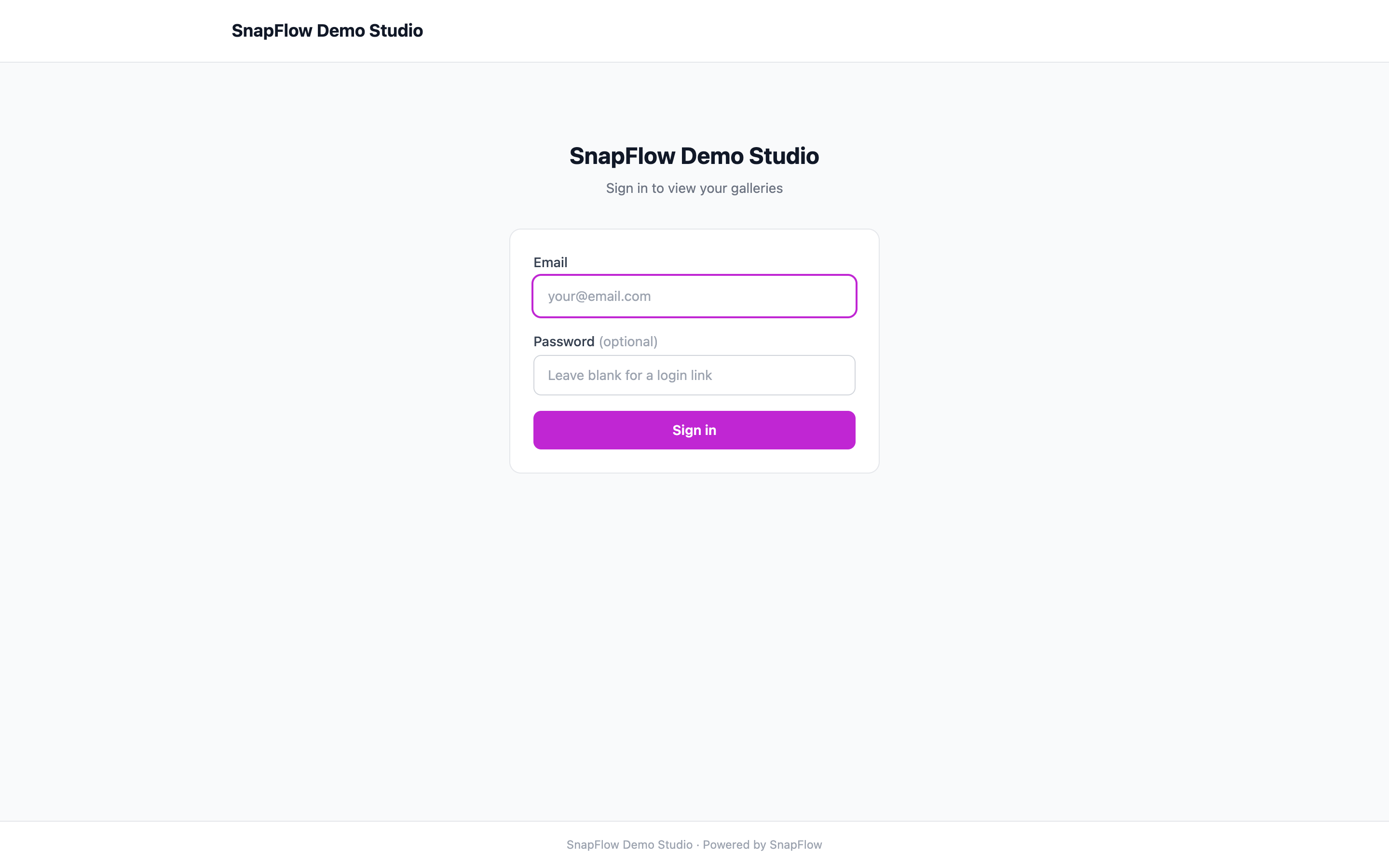 The portal login form. ① the Email box (required), ② the Password box labelled (optional) with the placeholder "Leave blank for a login link", ③ the Sign in button. Leave ② empty to get a one-tap email link instead of typing a password.
Way 1 — the login link (no password needed) Web
This is the easiest way in, and the way every client uses the very first time.
- Open your portal link (e.g.
https://snap-flow.org/portal/your-studio). — the Sign in card appears with your studio name (and logo, if you set one) at the top. - Type your email address in the Email box. — this must be the email the photographer attached to your gallery.
- Leave the Password box empty. — the greyed-out hint "Leave blank for a login link" tells you this is fine.
- Click Sign in. — the page turns into a Check your email screen confirming a link was sent to your address.
- Open the email titled "Your login link" and click the big Open Gallery Portal button. — you land straight on My Galleries with no password to remember.
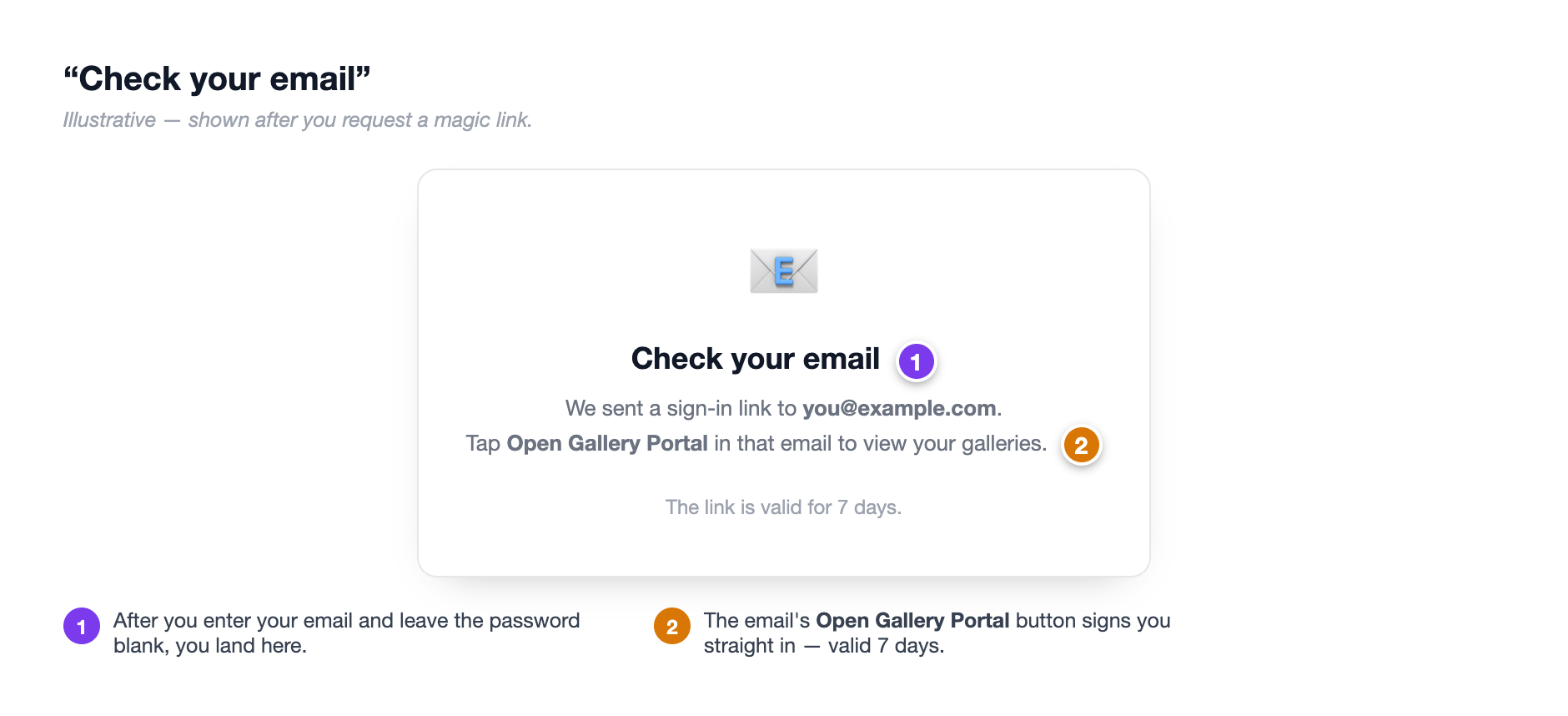 After you click Sign in with the password left blank, this screen confirms the link is on its way. ① the "Check your email" heading, ② your email address it was sent to, ③ the ← Back to sign in link if you mistyped your address. The login link inside the email stays valid for 7 days.
The login link lasts 7 days
The Open Gallery Portal button in the email works for 7 days. After that, just come back to the sign-in page and request a fresh one — there's no limit on how many times you can do this.
Way 2 — sign in with a password Web
Once you've set a password (see the next section), you can skip the email step.
- Open your portal link. — the Sign in card appears.
- Type your email in the Email box.
- Type your password in the Password box.
- Click Sign in. — you go straight to My Galleries, no email round-trip.
A password only works after you've set one
The first time you visit, you have no password yet, so typing anything in the Password box returns "Invalid email or password." That's expected — just leave the box blank and use the login link (Way 1) to get in. You can set a password afterwards.
Set a password for faster access (optional)
Setting a password is optional. The login link keeps working forever either way — this is just a convenience if you visit your galleries often.
- Sign in once with a login link (Way 1, above). — you land on the My Galleries page.
- In the top-right of that page, click Set a password for faster access. — a small form slides open.
- In the Choose a password (6+ characters) box, type a password at least six characters long.
- Click Set Password. — a green bar appears: "Password set! You can now sign in with your email and password."
From now on you can use Way 2 (type your password) on the sign-in screen instead of waiting for an email.
Forgot your password?
There's no separate "reset password" page in the portal — and you don't need one. Just leave the Password box blank and request a login link (Way 1). You'll be back in within a minute, and you can set a new password from My Galleries if you like.
When sign-in doesn't work
A few things can stop a client getting in. Here's how to tell them apart.
Only invited clients receive a login link
A client only sees the galleries shared with their email. If an email address has not been given access to any gallery, the sign-in screen still shows the friendly "Check your email" page — but no link is actually sent, so nothing can leak between clients. If a client says the link never arrived, it's almost always because their email isn't attached to a portal-visible gallery yet. As the photographer, set the album's client email and send the link from the album page.
Too many tries in a row
To block abuse, the portal limits how often you can sign in or request a link — roughly 5–10 attempts per minute from one place. If you've been tapping repeatedly and start seeing errors, wait a minute and try once more. It almost always clears up on its own.
Photographers: what makes the portal reachable
For a client to get in, all of these must be true on your side: the client portal is enabled with a portal address set, the gallery is shown in the client portal (the default), and the album's client email matches theirs. You set the album's client email and send the link from the album page — see Album settings.
Agencies: one login across many photographers
If your photos come from a multi-photographer agency or organisation, your single login can span every photographer's events at once, all under one portal address. It works exactly like the studio portal described here — see The agency / organisation portal for the differences.
Signing out
The Sign out link lives in the portal header on every page.
- Click Sign out in the top bar. — you're returned to the sign-in screen and your session ends.
On a shared or public computer, sign out when you're done. On your own device you can leave it — the session stays active for a while, so you can pop back into My Galleries without requesting a new link each time.
What you'll see inside
Once you're in, every gallery shared with you shows as a card on the My Galleries page. Tap one to open it, heart your favourites, leave retouching notes, and download finished photos. Those steps are covered in Your galleries, Picking favourites, and Downloading your photos.