Recognition: vehicles
Cluster cars, bikes, boats and horses; manage drivers.
Motorsport, cycling, sailing and equestrian events are about the machine as much as the person. Vehicle detection looks at each photo, spots the cars, motorbikes, bikes, boats and horses in it, and groups the ones that look alike — so you can pull every shot of one car across corners, laps and lighting, even where no number is showing.
This is a separate tool from reading numbers (the numbers chapter) and from team-kit matching (the teams chapter). Here you'll learn to switch vehicle detection on, find the groups it makes, tidy them up, and (optionally) save a car as a permanent vehicle you can track across events.
What runs where
Vehicle detection Beta Web runs locally — no Claude. It uses on-device object detection to find cars, motorbikes, bikes, boats and horses, then groups the visually similar ones. It does not read liveries or paint schemes — that is the Match athletes to their team kit pipeline, covered in teams.
Turn it on
Vehicle detection builds on People detection. Turn People detection on first, then add Vehicle detection. On a solo plan it is a Studio feature.
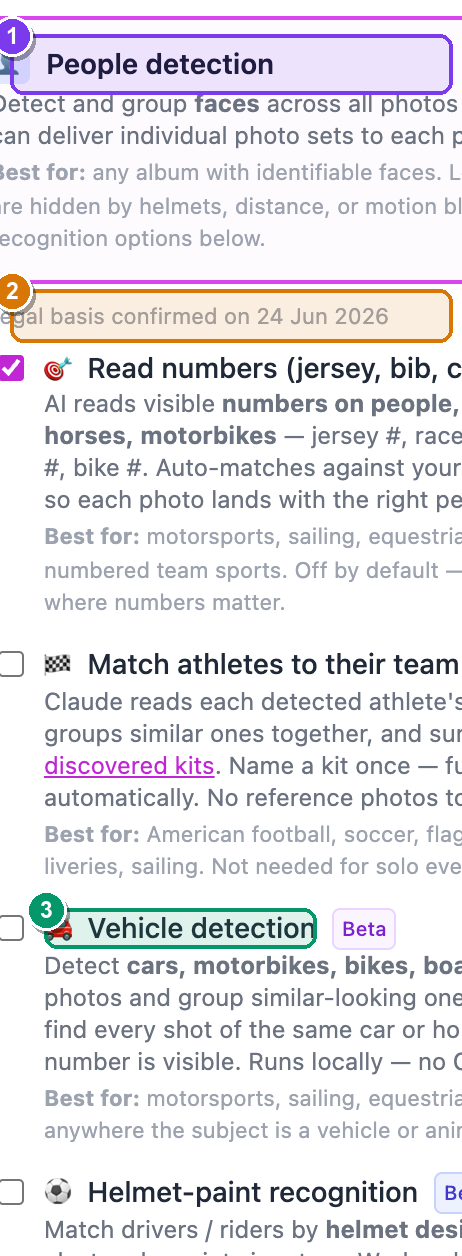 The Workflows card on the album Edit page. ① the People detection checkbox, ② the amber "I have a legal basis to process biometric data in this album." box that appears when you tick it, ③ the nested 🚗 Vehicle detection sub-toggle with its Studio and Beta badges.
Here's the whole thing, step by step:
- From your dashboard, open the album you want — Dashboard → Albums → click the album. — the album page opens with your photos.
- Click More ▾ (top-right) → Edit album…. — the Edit album page opens in two columns.
- In the right-hand Workflows card, tick People detection. — an amber box appears below it: "I have a legal basis to process biometric data in this album."
- Tick that amber box. — it has to be ticked, or saving fails. (Face data is "special category" data under GDPR; you're confirming you're allowed to process it.)
- A short list of recognition sub-options appears underneath. Tick 🚗 Vehicle detection (it carries a Beta badge, and a Studio badge on solo plans). — its description reads "Detect cars, motorbikes, bikes, boats and horses in your photos and group similar-looking ones together…"
- Click Save changes (bottom-left). — vehicle detection now runs on every photo as it is processed.
Why People detection has to be on first
The whole-vehicle crop can include a driver's or rider's face. Because of that, Vehicle detection sits inside the People-detection group and inherits the same one-line GDPR legal-basis timestamp you confirmed in step 4 — your audit trail. Turn People detection off and the nested options (including Vehicle detection) clear with it.
Pick the sport so the AI knows what to look for
On the left column of the same Edit page, set Shoot type to Sports and choose the discipline(s) under Advanced AI detection (motorsport, sailing, equestrian, cycling…). This tunes what the recognition tools expect to see.
Find the groups it made
Vehicle detection feeds the album's People tab. Open it from the album page (the People link, or the face-count link in the header).
 The People tab, scrolled to the visual-clusters section. ① the section header "N visual clusters detected" with its purple Beta pill, ② the line "Photos grouped by visual similarity", ③ a cluster card — a sample crop, a photo count, and the subject type (e.g. car, horse) in small grey text.
To get there:
- On the album page, click People. — the People tab opens, faces first.
- Scroll down to the heading "N visual clusters detected" (it carries a Beta pill). Click it to expand. — the grouped cards drop down under the line "Photos grouped by visual similarity".
- Each card shows a sample photo, how many photos are in the group, and the kind of thing it found (e.g. car, boat). Click a card. — the cluster detail page opens.
It groups any subject, not only vehicles
This is a general "group by appearance" section. It will cluster cars, horses, boats — and sometimes a distinctive person or backdrop — by visual similarity. Each card labels what it thinks the subject is. Don't be surprised to see a non-vehicle group here; you can ignore the ones you don't want (below).
Tidy up a cluster
Open a cluster card to rename it or hide it. There are exactly two actions here — this page is for grouping, not for re-assigning individual photos.
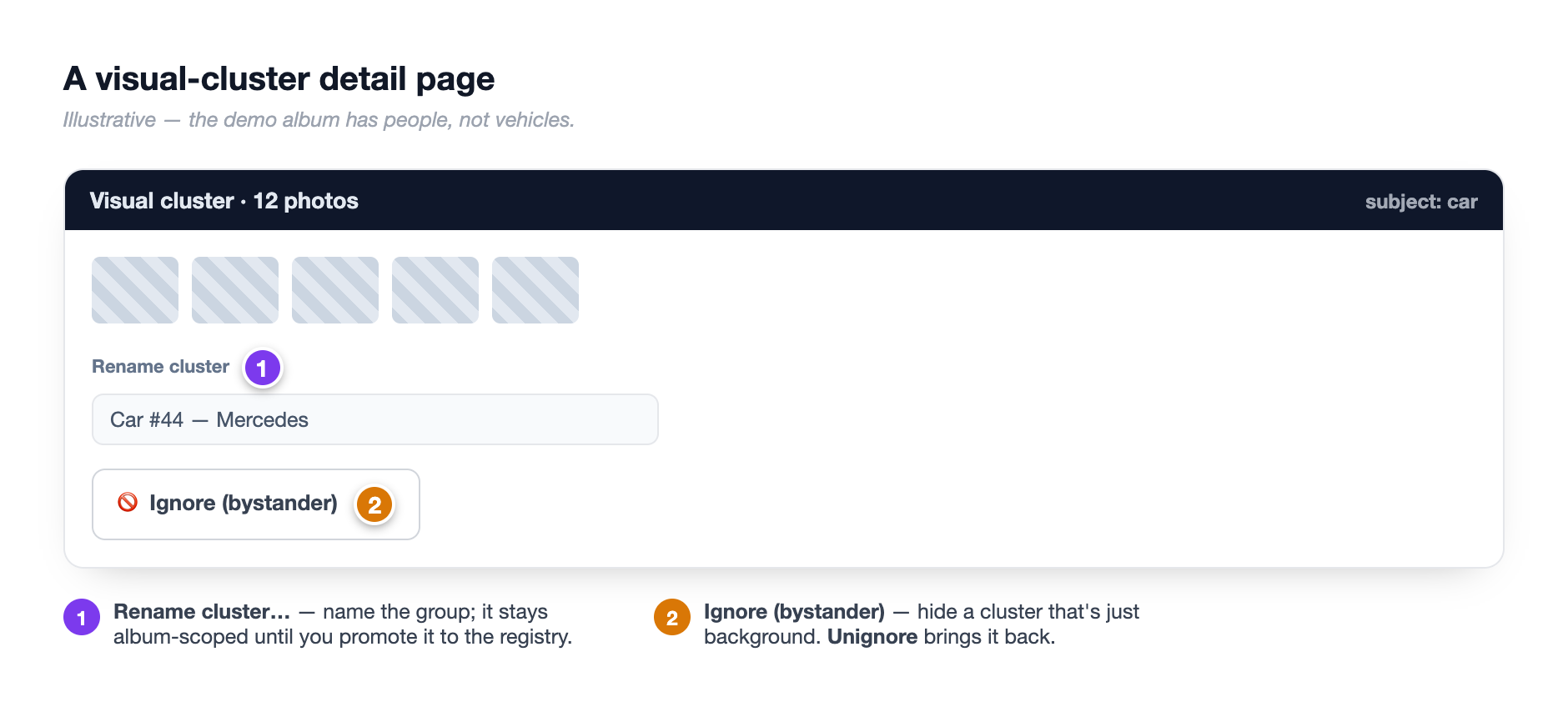 A visual-cluster detail page. ① the "Beta · Visual cluster" badge by the title, ② the rename field (placeholder "Rename cluster…") with its Save button, ③ the Ignore (bystander) button, ④ the blue "About visual clusters" note at the bottom.
- Open a cluster card from the People tab. — the cluster detail page opens, with a "Beta · Visual cluster" badge by the title and a photo grid below.
- To name it, type in the box (placeholder Rename cluster…) and click Save. — the title updates to your name.
- To hide a group that isn't a competitor — a course car, a recovery truck, the start gantry — click Ignore (bystander). — the cluster drops out of the People grid (its photos are kept; nothing is deleted). The button now reads Unignore so you can bring it back.
Hover to check the grouping
On the cluster's photo grid, hover any thumbnail to see the purple detection box SnapFlow drew. That's a quick way to confirm it really grouped the same subject.
No 'set the vehicle' here
This page only renames or ignores a whole group. To move a single photo into a different group, or to attach drivers, work from the numbers detail page instead — see the next section.
Vehicles and their drivers
A cluster is a loose "these look alike" group. A vehicle is something stronger: a saved entry with a number, a team and one or more drivers that persists across events. You create a vehicle by promoting a detected car, or from the Vehicles registry directly.
Promote a detected car
- On the People tab, find the "N vehicles detected" section (cars and liveries the number reader found). Click a car card — e.g. Car #44. — the number detail page opens.
- Near the top, click 🏁 Store as vehicle. — a grey panel slides open titled Add to the Vehicle registry.
- Type a name in the box (e.g. McLaren MCL39) and click Add. — the car is saved as a vehicle, and you land on its detail page in the registry.
This doesn't change your album
Storing a car as a vehicle is for cross-event tracking only. The panel says it plainly: "Doesn't affect photo assignments on this album." Your photos stay exactly where they are.
Add the driver line-up
One vehicle can carry several drivers — endurance co-drivers, reserves, sailing crew. Once a car number is linked to a vehicle, a Drivers of {name} panel appears on that number's detail page (and on the vehicle's own page in the registry).
- In the Drivers panel, open the Add a driver… dropdown and pick a person. — the name appears in the box.
- Optionally type a Role (optional, e.g. reserve / crew). — the role tags onto that driver.
- Click Add. — the driver appears as a chip in the panel.
- With two or more drivers, a Primary driver dropdown appears — pick one and click Set primary. — a filled badge marks the primary driver (who photos default to).
Every photo of the vehicle is then attributed to each driver, so each driver's gallery is complete — including frames where only the car is visible.
The Vehicles registry
The registry is your library of saved vehicles, kept across every event. Reach it
at /dashboard/vehicles (type it into the address bar) — or land there
automatically the first time you Store as vehicle a detected car.
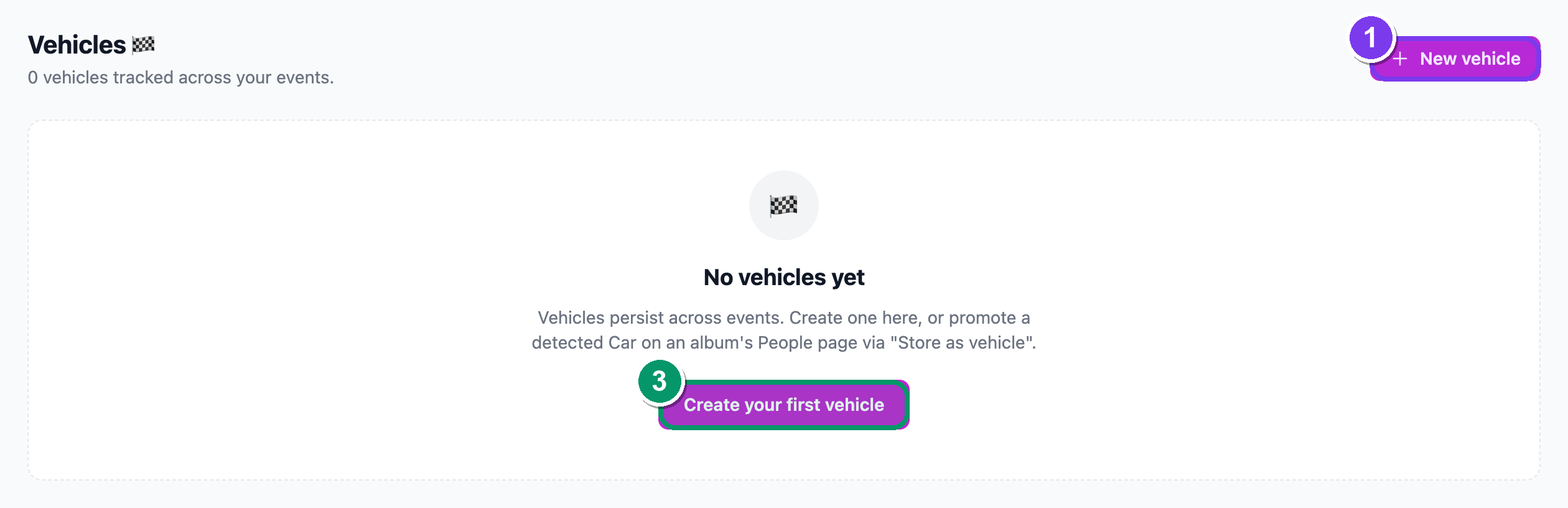 The Vehicles 🏁 registry. ① the New vehicle button (top-right), ② a vehicle card with its livery-colour swatch, name, number and driver list, ③ the empty-state card prompting "Create your first vehicle.".
To add one by hand:
- Open
/dashboard/vehicles. — the Vehicles 🏁 page lists everything you've saved. - Click New vehicle (top-right). — the New vehicle form opens.
- Fill in Name (e.g. McLaren MCL39). — required.
- Under Kind, pick one: 🚗 Car, ⛵ Boat, 🏍️ Bike or 🐴 Horse. — the choice tells matching which sport this belongs to (a boat won't show up under car prompts).
- Optionally add a Number (e.g. 4, or GBR123 for sail numbers), choose a Team, and type a Description (livery notes, era, anything distinctive).
- Optionally pick a Driver (primary) — optional from the dropdown. — you can add reserves and crew after saving.
- Click Create vehicle. — a green "Vehicle created." banner appears with a prompt to add more drivers, or click Done.
Once a vehicle is in the registry, SnapFlow can recognise the same car at your next event and link it automatically — no need to rebuild the line-up each time.
Kinds vs what's detected
The saved Kind is one of car, boat, bike or horse. Detection also finds motorbikes — those are stored under bike. So motorbikes are fully supported; they just live under the Bike kind in the registry.
Share one vehicle's gallery
On a car's number detail page, Copy guest gallery link copies a guest URL that shows only that vehicle's photos — no login needed. Hand it to a team or sponsor and they see just their car.
Where to correct what
Two different surfaces, two different jobs — keep them straight:
- A visual cluster (the "N visual clusters detected" section) → open the card → Rename cluster… + Save, or Ignore (bystander) / Unignore. That's it — grouping only.
- A car number (the "N vehicles detected" section → a Car #… card) → 🏁 Store as vehicle, the multi-driver line-up, and per-photo fixes (the × to remove a misclassified photo, or Reassign to move it) all live here. See numbers.
Numbers and clusters reinforce each other
The number names the entry; the visual cluster catches the frames where the number is hidden. When both run, identifier labels propagate into the clusters, so a back-of-car or distance shot still gets tagged. Together they give you every shot of car #44 — plate visible or not.
Next: identifying drivers and riders by their helmet.