Recognition: helmets
Identify drivers and riders by helmet paint.
When a driver or rider is wearing a helmet, two things go missing at once: their face is hidden behind a visor, and their number is often on the car or bike, not on them. Helmet-paint recognition solves this by identifying people by the design painted on their helmet — the one thing that stays visible lap after lap — and groups every shot of that helmet together. Beta Web Studio
This is the most reliable signal in motorsport, motocross and American football, where you may shoot a competitor a hundred times and never see their face.
Before you start
Helmet-paint recognition builds on People detection, so you must turn that on first (see Recognition: people & faces). On solo plans it is a Studio feature — the toggle shows a Studio pill when your plan can't use it yet.
Turn it on
You enable helmet-paint recognition in the same place as every other recognition pipeline: the Workflows card on the album's Edit page.
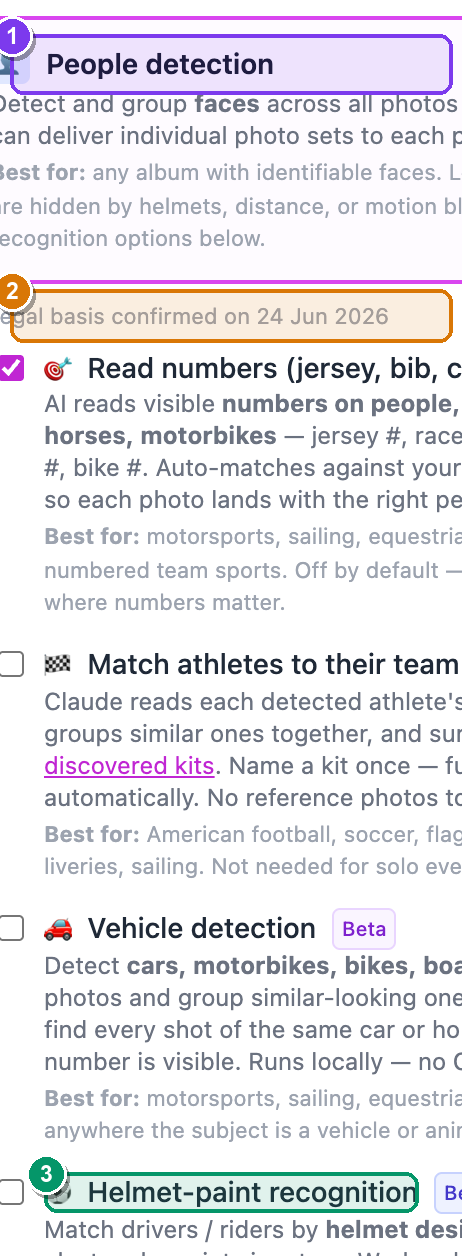 The Workflows card with People detection on. ① People detection (the parent toggle), ② the amber legal-basis box, ③ the nested sub-options — Helmet-paint recognition is the fourth and last one, carrying a Beta badge.
- From your dashboard, open the album: Albums → click the album. — the album page opens.
- Click More ▾ (top-right) → Edit album…. — the Edit album page opens in two columns.
- In the right-hand Workflows card, find People detection and tick it. — an amber box appears with the line "I have a legal basis to process biometric data in this album."
- Tick that amber box. — four nested sub-options slide open below it.
- The fourth and last sub-option is ⚽ Helmet-paint recognition (it has a Beta badge). Tick it. — its checkbox fills in.
- Click Save changes (bottom-left). — saved. From now on, SnapFlow clusters helmets by their paint signature on every photo as it is ingested.
It's the fourth sub-option, after Vehicles
Under People detection, the four nested toggles appear in this order: Read numbers → Match athletes to their team → Vehicle detection → ⚽ Helmet-paint recognition. Helmets is always the last one in the list.
Enabling it records a legal-basis timestamp
A helmet's paint design is biometric data, exactly like a face. When you tick the amber box and save, SnapFlow records the date and time you confirmed you have a lawful basis (for example, explicit consent — GDPR Art. 9(2)(a)). This is the same consent gate that covers face and vehicle detection — you only confirm it once per album.
Helmet clusters on the People page
Once detection has run, your grouped helmets appear on the album's People page.
- On the album page, open the People tab. — the People page opens, with faces and number cards near the top.
- Scroll down to the section headed "N athletes by helmet" (it carries a Beta badge; click the header to expand it if it's collapsed). — a grid of helmet cards appears, each showing a sample helmet crop, the cluster name, and a photo count.
- Each card is a shortcut. Its intro line reminds you to click "Save as athlete" to link a helmet to the same person as their face cluster. Click any card to open it. — the helmet-cluster detail page opens.
The "… athletes by helmet" section. ① the section header with its Beta badge, ② a helmet card (sample crop, name, photo count, plus a green · linked tag once it's tied to a person).
Inside a helmet cluster
Open a helmet card to reach its detail page. The header shows the cluster name with a Beta · Helmet paint badge (and a green Linked badge once you've tied it to a person). On the photos below, each detected helmet is outlined so you can see exactly what SnapFlow grouped.
From here you can:
- Rename it. In the header, type a new name into the Rename cluster… box — for example "Hamilton — red/black helmet" — then click Save. — the cluster (and every card that points to it) takes the new name.
- Link this helmet to a person. In the Link this helmet panel, use the athlete-link picker to attach the cluster to either a named athlete in your registry, an unnamed face cluster in this album, or a brand-new person. — the helmet and the face now describe the same competitor, and their photos line up on one detail page.
- Ignore a bystander. Click Ignore (bystander) to hide a helmet that isn't a competitor (a marshal, a mechanic, a spectator). The button flips to Unignore so you can bring it back later. — the cluster disappears from (or returns to) the People grid.
Link once, auto-link forever
Link this helmet uses the same athlete-link picker as faces and numbers. The real payoff comes at the next event: once a paint design is tied to a registry athlete, future albums auto-link the same helmet when it's detected again — no manual tagging, no re-naming. Link a driver once and they carry their helmet across the whole season.
Where it fits
Helmet paint is the most reliable signal in motorsport and motocross — more so than a face you rarely see or a number that's on the bodywork. Link a helmet to its driver, and to the vehicle they drive, and every gallery — by person, by car, by helmet — lines up to the same competitor. The numbers and teams & kits pipelines catch the frames where the helmet isn't clearly visible.
Layer the signals
No single pipeline catches everything. Faces, numbers, kits, vehicles and helmets each cover the frames the others miss — turn on the ones that match your sport and let them reinforce each other.
That completes the recognition pipelines. Next: Metadata & IPTC.