Search & smart collections
Search albums/photos/people, filter, and save queries as smart collections.
This chapter is about the desktop app's Search destination — one place to find any album, photo, or person across your whole library, and to save the searches you run all the time as smart collections (a saved search that re-runs itself with one click).
Everything here is in the SnapFlow Sync desktop app, so every section carries the Desktop app badge.
Two different search boxes — don't mix them up
The desktop app has two search boxes, and they do different jobs:
- The small Search albums (⌘F) box at the top of the left album list only filters the album list — type a few letters and the sidebar shows just the matching albums. It does not search photos or people.
- The big Search albums, photos, people… box inside the Search destination searches your whole library. This chapter is about that one.
Open the Search destination Desktop app
There is no icon for Search on the bottom stage bar (the row of stages Library · Edit · People · Deliver · Styles · Metadata · Settings). Search lives in the Manage ▾ overflow menu at the right end of that bar, next to the other cross-album tools.
- Look at the bottom stage bar and click Manage ▾ (far right). — a small menu pops up listing Clients, Reports, and Search (org accounts also see Projects and Organization).
- Click Search. — the Search destination fills the window. You'll see the heading Search top-left, a wide text box, and a Filters: row underneath.
⌘6 is Metadata, not Search
Don't reach for ⌘6 — on this app that's the Metadata stage. There is no keyboard shortcut for the Search destination; you always open it from Manage ▾ → Search.
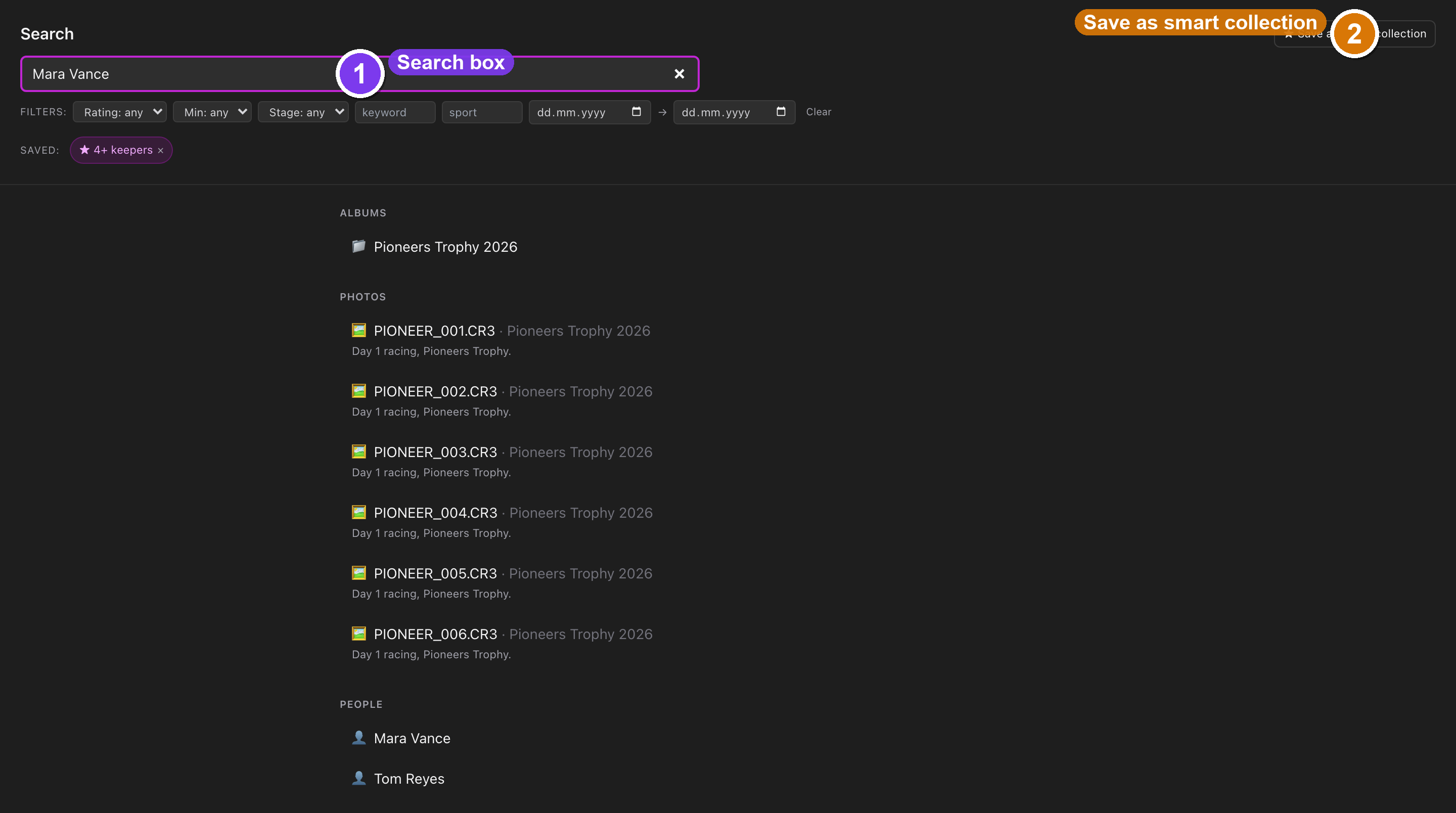 The Search destination. ① the pane heading Search; ② the big Search albums, photos, people… box; ③ the Filters: row (Rating, Min, Stage = Raws / Reviewed / Proofed / Finals, keyword, sport, date range); ④ the ★ Save as smart collection button (top-right, appears once you've typed two characters); ⑤ the Saved: chip strip of your smart collections.
Searching across your library Desktop app
- Click in the Search albums, photos, people… box and start typing. Before you type, the panel below reads "Type at least 2 characters to search." — so nothing happens until you've typed at least two letters.
- Type two or more characters (for example a name, a filename, or a venue). — results appear as you type, grouped into sections: - Albums — matched by album name (each row starts with a 📁). - Photos — matched by filename and caption (each row starts with a 🖼, and shows which album it's in). - People — recognised names from your athlete/people registry (each row starts with a 👤).
- Click any result. — the app jumps to that album (or to the People destination for a person) so you can keep working.
If nothing matches your text, the panel reads "No matches." — try fewer or different words.
Narrowing with filters
Under the search box is a row that starts with Filters:. These dropdowns and fields narrow the photo results. You can use them on their own — pick a filter with no text in the box and the app will browse photos that match the filter alone.
- Rating: any — pick an exact star rating (0 ★ through 5 ★).
- Min: any — or pick a minimum rating instead (≥1 ★ through ≥5 ★), to see everything at or above that many stars.
- Stage: any — narrow by workflow stage: Raws (straight off the camera), Reviewed, Proofed, or Finals (edited deliverables).
- keyword — a free-text box; type a word that should appear in a photo's keywords.
- sport — a free-text box; type a sport/discipline to match.
- The two date boxes with a → between them set a from / to date range.
- Clear (at the end of the row) resets every filter back to "any" and returns you to a plain text search.
Filter name is Stage, not Phase
The dropdown is labelled Stage in the app. Its four options map to the same workflow stages you see elsewhere: Raws · Reviewed · Proofed · Finals.
Smart collections Desktop app
A smart collection is just a search you've given a name to, so you can re-run it with a single click instead of re-typing the query and re-setting the filters every time. They're perfect for views you check often, like "5★ finals this month" or "unrated raws from the cycling shoot."
Save a search
- Run a search first — type two or more characters in the Search albums, photos, people… box (and set any filters you want). — the ★ Save as smart collection button appears at the top-right of the Search pane.
- Click ★ Save as smart collection. — a small Save as smart collection window opens.
- In the Name field, type a name for the collection (for example 5★ finals — June). The window also shows your current Query below the name, so you can double-check what you're saving (this field is read-only — it just reflects what you searched).
- (Optional) Tick Auto-refresh daily. — under it a line explains "A nightly job re-runs this query so the strip shows a fresh result count." Leave it off and the collection only re-runs when you click it.
- Click Save. — the window closes and your new collection appears as a chip in the Saved: strip under the search box.
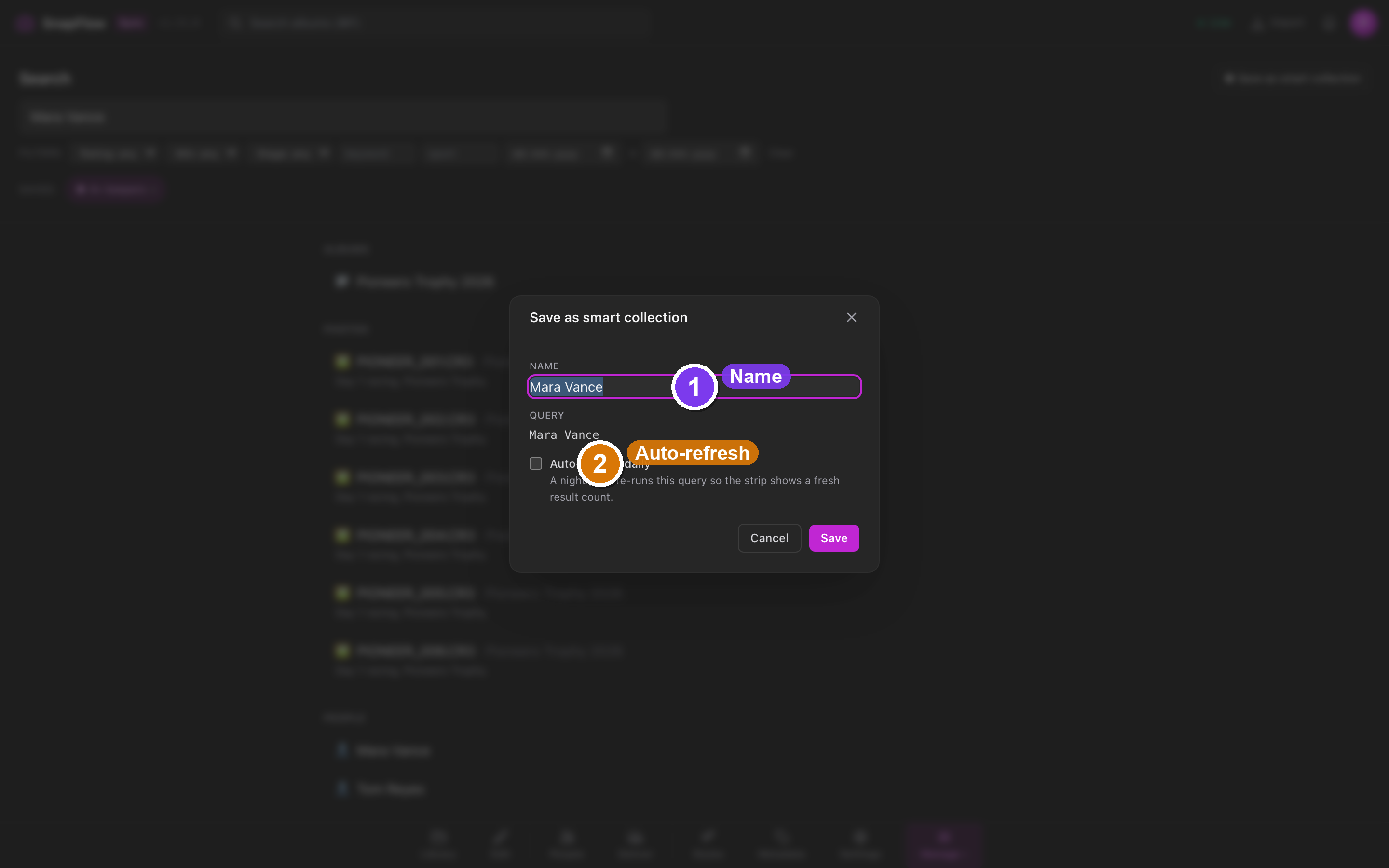 The Save as smart collection window. ① the Name field (pre-filled with your query as a suggestion); ② the read-only Query line that mirrors what you searched; ③ the Auto-refresh daily checkbox with its helper line; ④ Save (and Cancel beside it).
Use your saved collections
Saved collections live in a strip labelled Saved: just under the search box.
- Click a chip to re-run that search instantly. — the results refill the pane, exactly as if you'd typed the query again.
- An Auto-refresh daily collection carries a 🔄 badge. Hover it and the tooltip reads "Auto-refresh on. Synced N ago." so you know how fresh the count is. (A normal chip's tooltip instead says when you last opened it.)
- To remove a collection, click the × on its chip. — the chip disappears and the collection is deleted.
Smart collections follow you everywhere
Saved collections are stored on your SnapFlow account, not just this Mac. Sign in on another machine and the same Saved: strip is waiting for you — handy for recurring views you rely on every shoot.
Searching your metadata
Photo search matches on filename and caption. To get the most out of it, make sure your captions and keywords are filled in — see Metadata tools for the desktop inspector, Stationery Pad, and keyword tree, and Metadata workflows for how those fields travel between Lightroom, SnapFlow, and the file your agency downloads.