Downloading
Downloading delivered photos as a ZIP, and the quality options.
This is the happy ending of the whole story: your client clicks one button and the finished photos land on their computer as a single ZIP file. This page walks the client through it, and tells you (the photographer) exactly which switch controls whether that button even shows up.
A quick word on who does what:
- The client does the downloading. They never choose the size or quality — they just click Download and save the file.
- You decide the quality, in the album's settings, before they ever arrive.
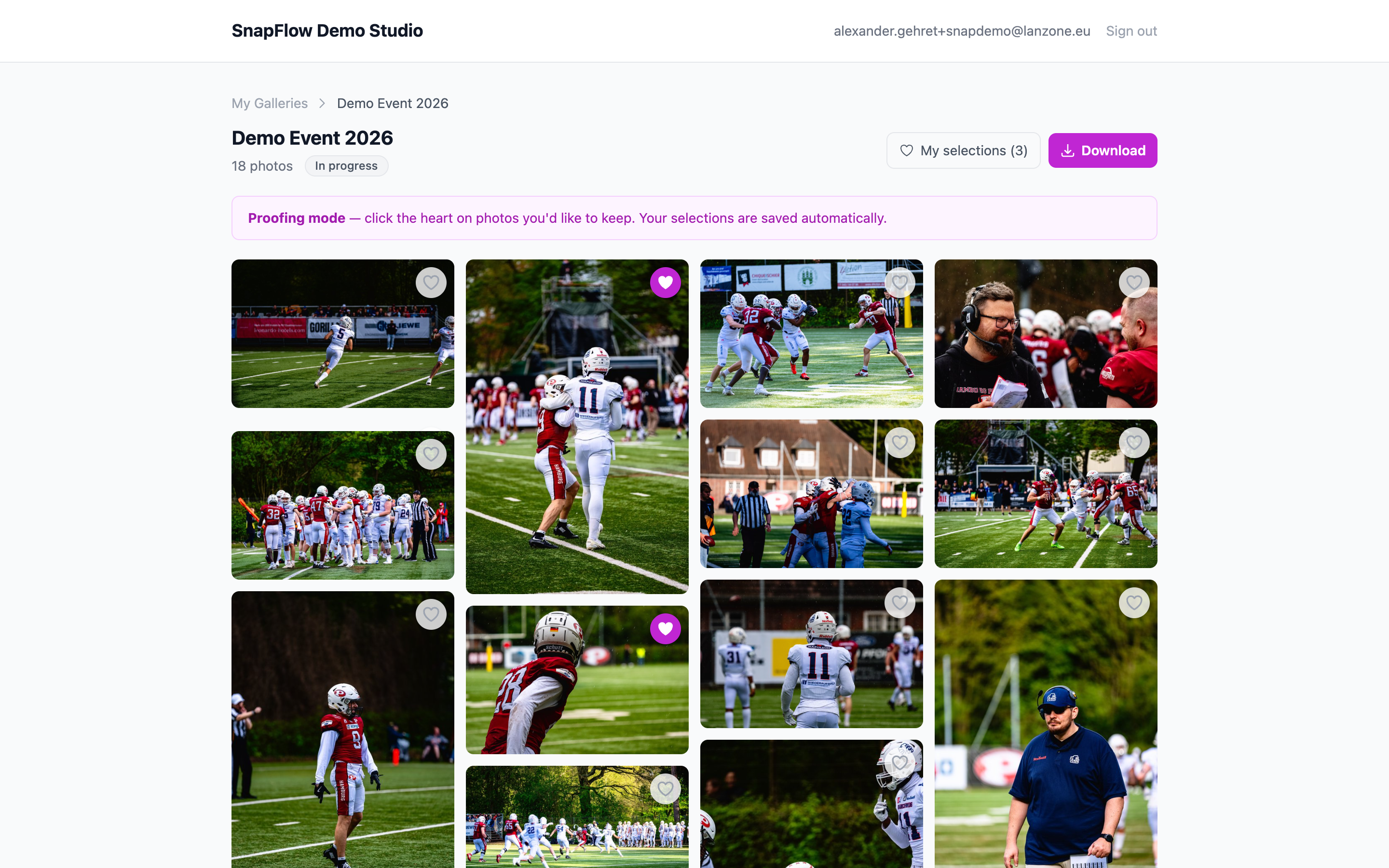 The top of an album in the client portal. ① the status badge (here it reads Delivered); ② the My selections (N) button (only shows when proofing is on); ③ the purple Download button that builds the ZIP. The client clicks ③.
How the client downloads the album
These are the exact steps your client follows. Send them this section if they get stuck.
- Open the portal link you sent and click Sign in (or open the magic link from their email). — the My Galleries page opens, listing every album shared with them. (See Logging in to the portal if this part is new.)
- Click the album you want. — the album page opens, showing the photo grid and a header with the album name and a status badge.
- In the top-right of the album, click the purple Download button. — the
browser starts saving a file named after the album, for example
Sarah & Tom Wedding.zip. - Wait for the download to finish, then open the ZIP. — every photo is inside as a normal image file the client can open, print, or forward.
The Download button isn't there?
If your client can't see a Download button, downloads are switched off for that album. That's a setting on your side, not a bug on theirs — see Turning downloads on (photographer) below.
Big galleries take a moment
SnapFlow builds the ZIP on the fly and streams it to the client as it goes, so a large event (hundreds of high-resolution files) can take a minute or two to finish saving. As long as the browser shows the download in progress, it's working — there's no separate "preparing…" screen to wait for.
What's in the ZIP
The ZIP isn't just a bag of raw image files. SnapFlow prepares each photo for delivery as it builds the archive, so the file your client (or their agency) opens is press-ready:
- Your captions, keywords and IPTC are baked into every JPEG. Before each photo goes into the ZIP, SnapFlow stamps the metadata you entered — caption, keywords (flat and hierarchical), credit, copyright, location, colour label, and any recognised names — straight into the file. An agency or news desk can open the ZIP in Lightroom, Photo Mechanic, Bridge or Capture One and the metadata is already there. No re-keywording on their end. See Metadata workflows for the full round-trip story and Metadata fields for what each field means.
- Files can be renamed to your delivery template. If you set up a delivery
filename pattern (for example
{album_slug}_{date}_{frame:04d}), the photos inside the ZIP are named to match — not the camera'sIMG_4821.JPG. You set the template per album under Agency delivery; see Album settings. - Quality matches what you chose. Full-resolution originals, or 2000px web copies, depending on your Downloads setting (next section).
Editorial mode (agency delivery)
If you switch on Editorial mode for the album, the delivered files carry no AI-generated captions or keywords, and each image is marked as a genuine photograph (an IPTC authenticity assertion). This is for press and news work where AI-touched metadata isn't allowed. Your own typed captions and keywords still travel — only the AI-generated ones are suppressed. See Album settings and Live delivery.
Turning downloads on (photographer)
Web
Whether the Download button appears, and the quality the client gets, is set on your side in the album's Edit page. The client never picks it.
- From your dashboard, open the album, then click More ▾ (top-right) → Edit album…. — the Edit album page opens in two columns.
- In the left column, find the Gallery card. The download control is the Downloads radio group, right under Public gallery and just above Gallery expiry (optional).
- Pick one of the three options. — the choice you make is exactly what the client
gets; they have no quality picker of their own:
- No downloads — "Guests cannot download photos." The portal Download button disappears and the gallery stays view-only.
- Web resolution (2000px) — "Suitable for sharing, not large prints." The client gets 2000px JPEGs, good for screens and social, not for big prints.
- Original full resolution — "Full-quality original file." The client gets the untouched, full-size files. This is the default and the right pick for delivering finished work.
- Click Save changes (bottom of the page). — the next time the client opens the album, the Download button matches what you chose.
Open downloads only on the finals
You don't have to keep downloads on the whole time. A common workflow is to keep a proofing gallery on No downloads while the client picks favourites, then switch it to Original full resolution once you've moved the album to Delivered. The portal honours the setting instantly — see Album settings for the full Edit-page tour.
Two switches, one button
On the web, choosing No downloads is all you need — it hides the Download button automatically. There's a second, lower-level flag (set by the mobile app's album API) that can hide the button on its own. If the button is hidden even though you picked a quality other than No downloads, that flag is off; check the album in the iOS app. In the rare case the two disagree, the Download link safely returns a "Downloads not available" error rather than serving the file.
When download makes the most sense
Downloads follow whatever you allow per album — there's no rule that the album must be Delivered first. But delivery is the natural moment to open them:
- The album status badge in the portal shows the client where things stand: Delivered, Editing, Proofing, In review, or In progress.
- A typical flow is: client picks favourites while the album reads Proofing with downloads off → you finish editing → you switch downloads to Original full resolution and the album reaches Delivered → the client downloads the finished set.
For how clients pick their favourites before this step, see Choosing favourites. For the bigger picture of how an agency client logs in across many photographers, see The agency / organisation portal.