Branding & white-label
Put your brand colours on the gallery and portal; full white-label on request.
Your client galleries and the client portal can carry your brand instead of SnapFlow's. There are two separate controls, and they sit on different plans:
- Portal branding — two brand colours on the public gallery and portal.
- White-label — your studio name on galleries, the SnapFlow footer hidden, and an optional custom domain.
Both live on the same page: Account settings. This chapter shows you how to find that page and set your colours. The deeper white-label controls (studio name, hiding SnapFlow, custom domains) have their own chapter — White-label & custom domains. Web
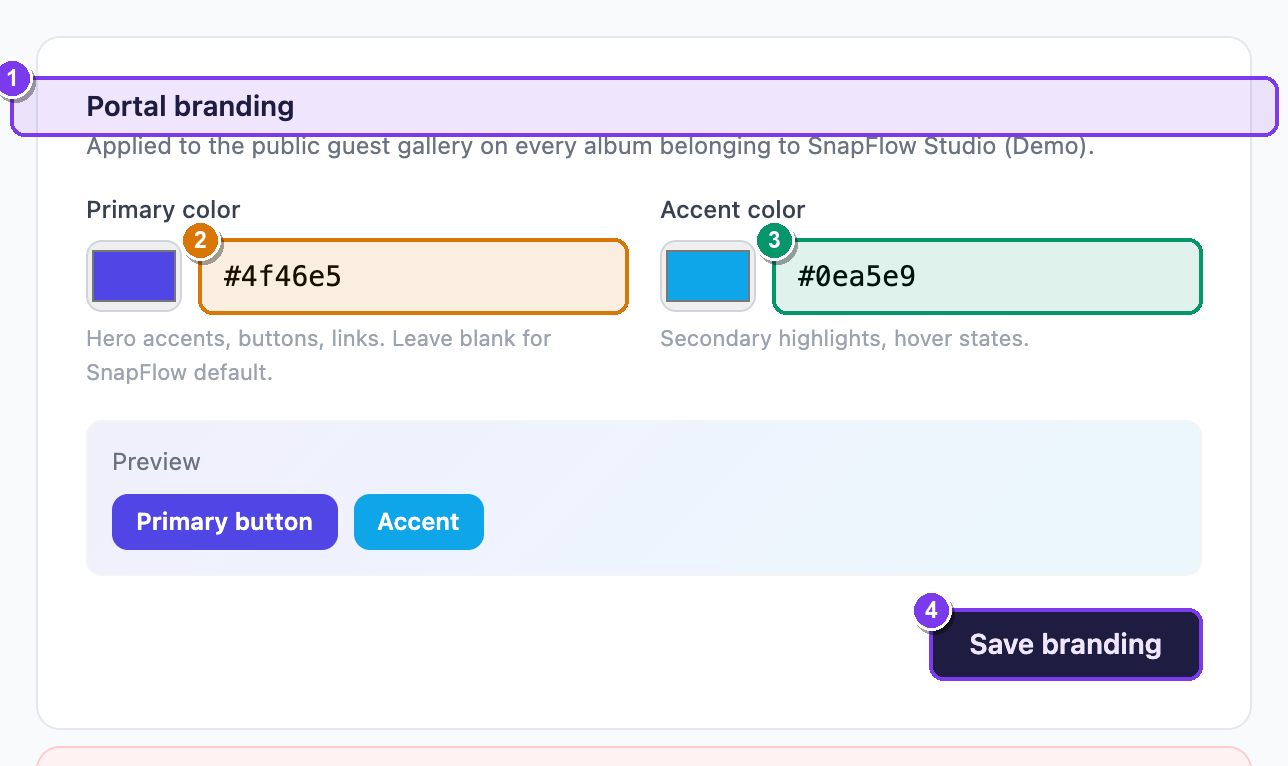 The Account settings page (
/admin/settings). ① the Portal branding card with the Primary color and Accent color pickers and Save branding button; ② the White-label card (Studio name on galleries, Hide SnapFlow branding entirely, Custom domain) — covered fully in its own chapter.
Open the Account settings page
This is the one place where branding lives. It is not the same as the top-bar Settings link, so follow this path exactly.
- Click your avatar (your initials, top-right) → Settings. — your personal Settings page opens with a left-hand list of tabs.
- In that left-hand list, near the bottom, click the "<your org> (org) →"
link (it shows your organisation's name). — the page titled Account settings
opens, at the address
/admin/settings.
You'll know you're in the right place when the heading reads Account settings and you can see cards for Profile, Organisation, Change password and Storage plan.
Why two routes look similar
The dark top-bar Settings link is your personal account. The branding controls are on the organisation page — the one you reach through the "(org) →" link. If you can't find the colour pickers, you're probably on the personal page; go back and click the (org) link.
Set your brand colours (Portal branding)
The Portal branding card lets you pick two colours. Once saved, the public guest gallery and the client portal for your org's albums pick them up — so a client opening their gallery sees your palette instead of SnapFlow's default blue.
Portal branding needs corporate Pro or up
The Portal branding card only appears when your org plan includes the branding feature (corporate Pro and the higher corporate tiers). If you don't see the card at all, that's the plan gate — see Billing & ownership to upgrade.
Each colour has two ways to set it: a swatch (the little coloured square — a
native colour picker) and a hex box (where you type a value like #0ea5e9).
Changing one updates the other, so use whichever you prefer.
- On Account settings, scroll to the Portal branding card. — you'll see two fields side by side: Primary color and Accent color.
- Set Primary color — this drives hero accents, buttons and links. Click the
swatch and pick a colour, or type a 6-digit hex value (e.g.
#0ea5e9) into the box next to it. — the swatch and the hex box stay in sync as you change either one. - Set Accent color — this drives secondary highlights and hover states. Same two ways: swatch or hex box.
- Once at least one colour is set, a small Preview strip appears under the fields. — it shows a Primary button and an Accent chip in your chosen colours, so you can sanity-check before saving.
- Click Save branding (bottom-right of the card). — a green Saved badge appears in the card header, and your galleries and portal now use the new palette.
Leave a colour blank to keep the default
The hex boxes are optional. Leave Primary color blank to fall back to the SnapFlow default blue; leave Accent color blank to fall back to the default amber. You don't have to set both.
Invalid hex
A hex colour must be a # followed by exactly six (or eight) hex digits, like
#1a2b3c. If you type something else and click Save branding, the card
header shows a red Invalid hex badge and your colours are not changed.
Fix the value and save again.
Where the colours show up
Brand colours change the client-facing surfaces only — the public guest gallery and the client portal — not your internal admin dashboard. Set them once and every album your organisation delivers inherits the palette. Your team's working views stay in the standard SnapFlow look.
Go further: white-label
Portal branding only changes two colours. To put your studio name on galleries, hide the SnapFlow footer entirely, or serve galleries from your own custom domain, you want the White-label card lower down on the same Account settings page.
White-label is now self-serve for agency Pro and the higher agency plans — it is no longer an "enterprise on request" arrangement. Because it's a different feature with a different plan gate and several controls, it has its own chapter:
- White-label & custom domains — studio name on galleries, hiding SnapFlow branding, and pointing a custom domain at SnapFlow.
Two different plan gates
These two features are unlocked by different plans, so you may see one card and not the other:
- Portal branding (the colour pickers above) — corporate Pro and up.
- White-label (studio name, hide branding, custom domain) — agency Pro and the bespoke agency plans.
If you only see the colour pickers, your plan includes Portal branding but not full white-label. To check or change your plan, see Billing & ownership.
They stack
If your plan unlocks both, set your colours in Portal branding and your studio name in White-label. A guest then sees your palette and your studio name, with no SnapFlow branding — the whole gallery feels like yours.