White-label & custom domains
Studio name on galleries, hide SnapFlow branding, and a custom domain (agency Pro+).
White-label makes your public galleries feel like your studio, not SnapFlow. Three things ship together: your studio name on the gallery footer, a switch that hides the SnapFlow credit entirely, and an optional custom web address (your own domain) for galleries. This chapter shows you exactly where the controls are, what each one does, and what a guest sees afterwards.
Who this is for
This is an organisation (agency) feature. The controls described here live on the org Account settings page and are gated to agency Pro and above — see Who gets white-label below. If you run a single photographer account (not an org), you brand galleries with the Brand Studio instead — see Galleries & sharing.
Who gets white-label
White-label is a separate, higher-tier feature from the colour-only Portal branding card. They are gated differently, so it is worth knowing which one you have:
| Feature | What it does | Who gets it |
|---|---|---|
| Portal branding | Sets two brand colours (Primary + Accent) on your public galleries | corporate Pro+ (colours only) |
| White-label | Studio name on galleries, hide the SnapFlow credit, custom domain | agency Pro and above |
Agency Pro+ The White-label card only appears for organisations on an agency Pro, agency Enterprise, or a bespoke agency plan. If your org is on a corporate plan (or a starter agency plan), you will see Portal branding but not the White-label card. To change tier, see Billing & ownership.
How to tell which you have
Open the Account settings page (next section). If you can see a card headed White-label with a Studio name on galleries field, you have it. If you only see Portal branding (the two colour pickers), you are on a colour-only plan.
Open the White-label page
The White-label card lives on your organisation's Account settings page, not on the top-nav Settings. Here is the exact route.
- In the top-right of any page, click your avatar (the round initials button). — a small menu drops down.
- Click Settings. — the photographer Settings area opens, with a left-hand list of tabs (Account, Brand kit, Client portal, and so on).
- In that left-hand list, near the bottom, click {your org name} (org) →. — the org Account settings page opens (its web address is
/admin/settings). - Scroll down past Profile, Organisation, Change password and Storage plan. — you will reach the White-label card.
Don't confuse the two Settings pages
The top-nav Settings is your personal photographer settings. White-label is one level deeper, on the org Account settings (/admin/settings), reached only through the {org name} (org) → link in step 3. If you never see that link, you are not signed in as an org member.
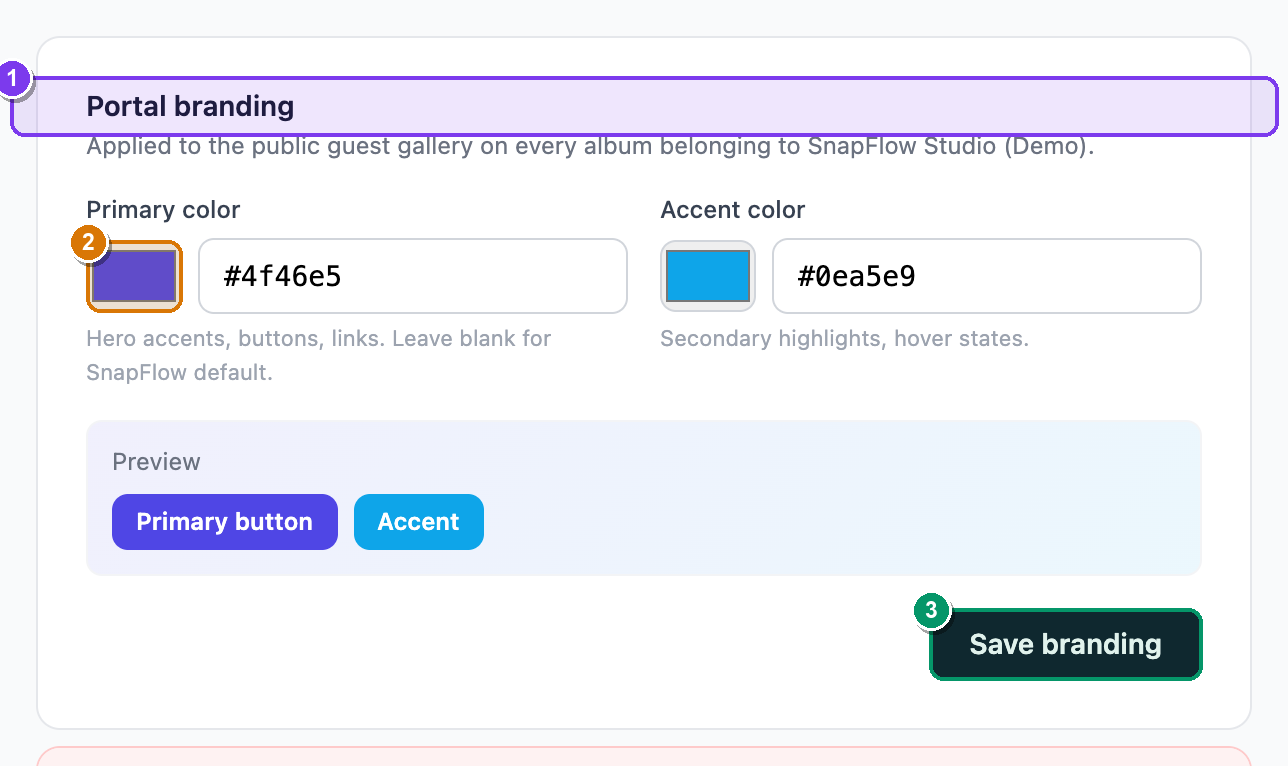 The org Account settings page (
/admin/settings). ① the Portal branding card (two colour pickers — a separate, colour-only feature); ② the White-label card with ③ the Studio name on galleries field, ④ the Hide SnapFlow branding entirely checkbox, and ⑤ the Custom domain field; ⑥ the Save white-label button.
Put your studio name on galleries
By default, the footer of every public gallery reads "Powered by SnapFlow." This step swaps the word "SnapFlow" for your studio's name.
- On the White-label card, find the field labelled Studio name on galleries. — under it you'll see the helper line "Replaces 'Powered by SnapFlow' with your studio's name. Leave blank to keep SnapFlow."
- Type your studio name (for example,
Lanzone Studio). — the field shows what you typed; the field's faint placeholder is your org name. - Click Save white-label (bottom-right of the card). — the page reloads and a green Saved badge appears in the card's top-right corner.
- Open any of your public galleries and scroll to the very bottom. — the footer now reads "Powered by {your studio name}" instead of "Powered by SnapFlow."
Before and after
Before: the gallery footer reads Powered by SnapFlow. After: the same footer reads Powered by Lanzone Studio (or whatever you typed). The little camera icon stays; only the name changes.
Leave it blank to revert
Clearing the Studio name on galleries field and saving puts the SnapFlow name back. White-label is also tied to your plan — if your org is ever downgraded below agency Pro, galleries quietly revert to the SnapFlow name on their own.
Hide the SnapFlow credit entirely
If you would rather show no credit at all, hide the whole footer line.
- On the White-label card, tick the box Hide SnapFlow branding entirely. — under the label you'll see "Remove the footer credit from your public galleries."
- Click Save white-label. — the green Saved badge appears.
- Open a public gallery and scroll to the bottom. — the "Powered by …" footer line is gone completely.
Where the credit lives — and where hiding it reaches
The footer credit appears on all four gallery themes (Classic, Hero, Dark, Magazine) and on the client portal footer. Ticking Hide SnapFlow branding entirely removes it from both the galleries and the org portal. (Your studio name swap from the previous step shows on the galleries; the portal footer honours the hide-branding switch but shows the studio name from your portal/Brand kit settings, not this field.)
Name swap vs hide — pick one feel
Most agencies pick one of the two: either show "Powered by {studio}" (keeps a tasteful credit) or hide the line entirely for a fully unbranded feel. You can do both — hiding wins, so if Hide SnapFlow branding entirely is ticked, the studio name never shows because there's no footer line to show it on.
Add a custom domain
A custom domain lets guests reach your galleries at your own web address (for example gallery.yourstudio.com) instead of a snap-flow.org link. This needs two pieces: a DNS change you make at your domain registrar, and a one-time certificate setup our team does for you.
Do the DNS step FIRST
Point your domain's CNAME record at snap-flow.org before you enter the domain here. If you save the domain before the DNS change has spread, the certificate can't be issued and the address won't load.
- At your domain registrar (where you bought the domain), create a CNAME record for the subdomain you want to use (for example
gallery) pointing atsnap-flow.org. — DNS changes can take anywhere from a few minutes to a few hours to spread. - Back on the White-label card, find the field Custom domain (optional). — the helper line reads "Point a CNAME at snap-flow.org first, then save here. DNS + certificate provisioning is handled by our team — contact support to activate."
- Type the full subdomain you set up (for example
gallery.yourstudio.com). — the placeholder shows the examplegallery.yourstudio.com. - Click Save white-label. — the green Saved badge appears; your domain is now registered with SnapFlow.
- Email support@snap-flow.org to ask us to provision the TLS certificate. — there is a contact support link right in that helper text you can click.
Why support is in the loop
SnapFlow only mints an HTTPS certificate for a domain it actually recognises. Saving the domain here registers it; our team then flips on certificate provisioning, after which the secure certificate is issued automatically the first time someone visits your address. Until that's done, the address may show a certificate warning — that's expected and clears once provisioning finishes.
- Once live, visit your custom address. — galleries load over HTTPS at
https://gallery.yourstudio.com/…, with your white-label name (or no credit) in the footer.
How it all fits together — what a guest sees
Put the three pieces side by side so you know exactly what changes for the people viewing your work:
| You turned on | What the guest sees |
|---|---|
| Studio name on galleries | Gallery footer reads Powered by {your studio name} |
| Hide SnapFlow branding entirely | No footer credit at all (galleries and portal) |
| Custom domain | Galleries load at your own web address over HTTPS |
| Portal branding colours (separate card) | Your two brand colours on gallery accents and buttons |
These stack with everything else your guests already get: the gallery theme, brand colours, hero banner and layout you set in Brand Studio (see Galleries & sharing), and — for org clients logging in — the same look across the whole agency / organisation portal. White-label sits on top: it changes the name and address, not the layout.
Org portal branding too
Hiding the SnapFlow credit applies to your organisation's client portal as well, so a client logging in to browse galleries from several of your photographers sees one consistent, unbranded experience. See The agency / organisation portal.
Troubleshooting
I saved but the gallery still says 'Powered by SnapFlow'
Three things to check, in order: (1) Did you click Save white-label and see the green Saved badge? (2) Is your org actually on agency Pro or above? On a lower plan the name and hide switches don't take effect (and the card may not appear at all) — see Billing & ownership. (3) Hard-refresh the gallery page; browsers cache the footer.
My custom domain doesn't load
Almost always DNS. Confirm the CNAME for your subdomain points at snap-flow.org and has had time to spread (try again in an hour). Make sure you typed the exact subdomain into the Custom domain field that you set up at the registrar — a mismatch means SnapFlow won't recognise the host.
The page loads but shows a certificate / 'not secure' warning
The TLS certificate is still pending. After you save the domain, email support@snap-flow.org — certificate provisioning is a manual one-time step our team does. Once it's on, the secure certificate is issued automatically on the first visit and the warning clears.
The studio name shows on galleries but not on the portal footer
That's expected. The Studio name on galleries field swaps the name on galleries. The portal footer shows your portal/Brand kit studio name and honours the Hide SnapFlow branding entirely switch — but it doesn't read this specific gallery field. Set your portal studio name in your Brand kit / portal branding if you want it there too.
Reverting white-label
To go back to SnapFlow branding: clear the Studio name on galleries field, untick Hide SnapFlow branding entirely, clear the Custom domain field, then Save white-label. Galleries return to the standard SnapFlow footer and address.