Team & roles
Owner, manager, proofer, viewer, photographer — invites and event assignment.
An organization is a team, and SnapFlow gives each member exactly the access they need — from a manager who runs everything to an external photographer who can only upload. You manage everyone on one page: the Team page. Web
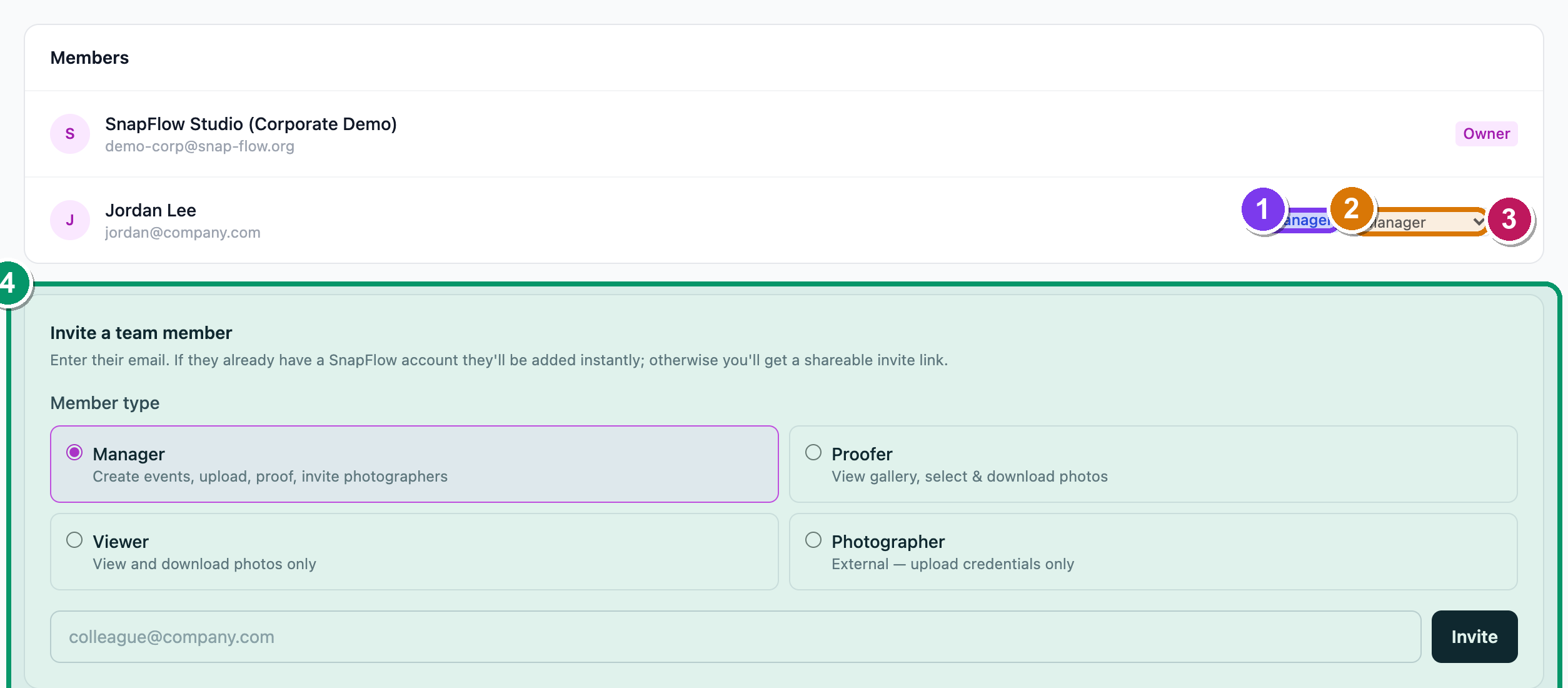 The Team page at
 /admin/team. ① each member row shows a coloured role pill (Owner / Manager / Proofer / Viewer / Photographer); ② the owner can change a member's role with the small role dropdown on the right; ③ the remove × beside it drops a member; ④ the Invite a team member card at the bottom starts with the Member type radio cards, then the email field and the Invite button.
To open it: top nav → Team. — you land on the Team page with a Members card listing everyone in your org.
Roles
Every person in your org has one role. The role decides what they can touch.
| Role | What they can do |
|---|---|
| Owner | Everything, plus billing, ownership transfer and deletion. One per org. |
| Manager | Create events, upload, proof, and invite Photographers. |
| Proofer | View the gallery, select & download photos. |
| Viewer | View and download photos only. |
| Photographer | External — upload credentials only, scoped to the events they're assigned to. They upload over FTP (or a web-upload link), never through the web dashboard. |
Pick the least-access role that still lets someone do their job. A freelance shooter you bring in for one event is a Photographer. A client-side reviewer is a Proofer (can select picks) or a Viewer (can only look and download). A studio lead who runs shoots end-to-end is a Manager.
Who can change roles and invite people
Only the Owner can add Managers, Proofers and Viewers, change anyone's role, or remove a member. A Manager can invite Photographers only — nothing higher. If you're a Manager and don't see the full set of member types, that's why.
Invite a member
The invite form starts with Member type, not the email. Choose the role first, then type the email.
- On the Team page, scroll to the Invite a team member card (bottom). — you'll see four Member type radio cards: Manager, Proofer, Viewer, Photographer, each with a one-line description.
- Click the Member type card for the role you want. — the chosen card gets a blue border so you know it's selected. (If you're a Manager, only Photographer is offered.)
- Type the colleague's address in the email field (e.g.
colleague@company.com). — the field outlines blue when you click into it. - Click Invite (the dark button to the right of the email). — what happens next depends on whether they already have a SnapFlow account.
If they already have a SnapFlow account, they're added to your Members list straight away and a green "Team member added successfully." bar appears.
If no account exists for that email, SnapFlow can't email them automatically. Instead an amber Invite link for <their email> box appears with a long link and a Copy button.
- Click Copy in the amber box. — the button reads "Copied!" for a moment.
- Send that link to your colleague yourself (email, chat — whatever you use). — when they sign up and open the link, they're added to your team automatically.
There is no automatic invite email
SnapFlow does not send the invite for you. When you see the amber box, you must copy the link and pass it on. Until they sign up and open it, their row shows an amber Pending pill and "Invite pending."
Change a role or remove someone
These controls live on each Members row and are owner-only — the owner's own row is locked so the org always has an owner.
- On a member's row, open the small role dropdown (right side). — it lists Manager, Proofer, Viewer, Photographer.
- Pick the new role. — the change saves immediately; the coloured role pill updates.
- To drop a member, click the × remove control on their row. — a confirm box asks "Remove this team member?"; click OK to confirm.
Seats are limited by your plan
Each plan caps how many members you can have (the Owner doesn't count against the cap). Corporate Pro allows 25 team members, Corporate Starter 5. If you hit the limit, the invite is rejected with "Your plan allows up to N team members (excluding the owner). Upgrade your plan for more seats." See Billing & storage to raise the cap.
Assign a photographer to an event
Photographers are external and scoped to the events they're assigned to. You assign them on the event page, not the Team page — that's what generates the upload credentials for that one event. This is the org alternative to a solo photographer handing out per-album FTP logins: assignment gives the shooter exactly one event's worth of access, with nothing else of yours visible.
You'll find this card on any org event. The path is: top nav → Albums (or Projects → open a project) → open the event → scroll to the Assigned photographers card. (This card only appears on org events, and only for the Owner and Managers.)
- In the Assigned photographers card, click Assign photographer (top-right of the card). — a short form slides open below.
- To use someone already on your team, open the Existing team photographer dropdown and pick them. — the New photographer fields below collapse out of the way.
- To bring in someone new, leave the dropdown on "— or add a new one below —" and fill in Full name and Email address under New photographer. — these two boxes sit side by side.
- Click Assign & send credentials (the blue button). — the form closes and a green "✓ Credentials sent by email." bar appears; the new shooter shows up in the card's list.
What the photographer receives: an email with their FTP host, username and password plus a web-upload link — credentials for this event only. They can't see your other clients, projects or galleries.
Manage assigned shooters
Each row in the Assigned photographers card has a Resend button (mails the credentials again) and a Remove button (revokes their FTP access for this event — you'll be asked to confirm). Adding a brand-new photographer here also counts against your team-seat limit, the same as inviting one on the Team page.
Roles map to the workflow
The roles line up with the phases in Projects & event phases: Photographers fill the Upload phase, Managers run Internal review, and Proofers/clients drive Client proofing before someone with the right role marks the event delivered. For who can see and approve what at each stage, see Internal review & approval.
Next: Clients.