Recognition: numbers
Read jersey, bib, car, sail, saddle and bike numbers.
Faces tell you who; numbers tell you which competitor. With number detection on, SnapFlow reads the visible numbers in your photos — jersey, bib, car, sail and bike numbers — and groups every shot of each competitor by their number. Combine that with faces and you can hand athlete #23 a gallery of just their own shots.
This is the companion to the main recognition chapter. That one covers faces; this one covers numbers.
Turn it on
Number reading is a sub-option of People detection, so you turn it on in the same place. Web Studio
- Go to Dashboard → Albums → open your album → More ▾ → Edit album…. — the Edit album page opens in two columns.
- In the right-hand Workflows card, find Advanced AI detection and tick People detection (if it isn't on already). — an amber box appears asking you to confirm "I have a legal basis to process biometric data in this album."
- Tick that amber box. — the recognition sub-options unfold underneath it.
- Tick 🎯 Read numbers (jersey, bib, car, sail, saddle, bike). — the toggle turns on; SnapFlow will now read each photo's numbers as it is ingested.
- Click Save changes (bottom-left). — you're returned to the album. From now on, numbers are read on every new upload.
Needs People detection + Studio
Number reading sits under People detection — if that's off, the numbers toggle stays disabled. On solo plans it's a Studio feature; if the toggle is locked behind an Upgrade pill, that's the plan gate, not a bug.
The label says 'saddle' — but saddle numbers aren't read as numbers
The toggle copy reads "jersey, bib, car, sail, saddle, bike", but SnapFlow only turns car, bib, jersey, sail and bike into number cards you can search and fix. A saddle cloth (eventing, polo) is matched through team / kit recognition instead — see team kit — not number reading. Don't expect a Saddle # card.
Action shots can be hard to read
A number only reads when it's visible and reasonably sharp. A number that's motion-blurred, turned away or cropped out won't be caught — that's normal. Correct or add the missed ones by hand using the tools below.
Find the number cards
Detected numbers show up on the album's People page, alongside the face clusters.
- On the album page, open the People tab (or Dashboard → Albums → your album → People). — the People page loads.
- Scroll past the face clusters. — the number cards sit below them, grouped by type (a Car # group, a Jersey # group, a Bib # group, and so on).
- Click a number card, e.g. Car #44. — its detail page opens, listing every photo of that competitor.
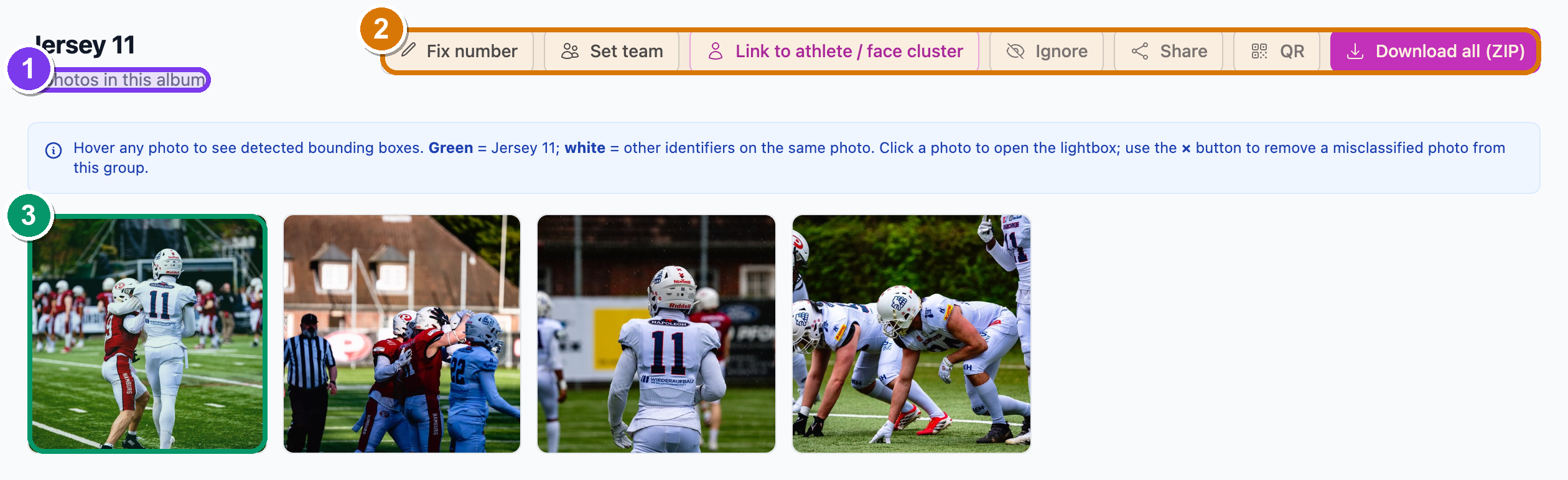 A number card's detail page. ① the photo count for this competitor, ② the action bar (Fix number, Set team, Link to athlete, Ignore, Download all), ③ the photo grid with green boxes around the matched number.
No cards yet?
If detection is still running you'll see a "Detecting numbers & identifiers…" notice. If it finished and found nothing, you'll see "No identifiers found" with the line "no readable numbers (car, bib, jersey, sail, bike) were found." That's the same five types you can fix below.
Where two opposing teams wear the same number, livery-colour chips split them into separate cards so #11 on the red team and #11 on the blue team don't merge.
Correct and assign a number
Open a number's detail page (above) and you get a row of buttons across the top, in this order. Name and use whichever you need.
-
Click Fix number (top-left of the action bar). — a panel slides open with a "Correct number" field and a Fix number button. Type the right number and submit; SnapFlow re-matches every photo on the card. — use this when the read came back wrong (an
8read as a3).Fix number works for car, bib, jersey, sail AND bike
All five readable number types can be corrected here. (Earlier the manual said sail and bike were "reassign-only" — that's no longer true.) If a same-number card with the same livery already exists, your photos merge into it; a different livery makes a separate card.
-
Click Set team (it reads Set team, or Team:
once one is pinned). — a panel opens with chips for Detected on these photos, Other teams at this event, and From your registry. Click a chip to pin the team, or type a new name under Add a new team → Add team. — this overrides the auto-detected team. Set team is available for car, jersey, bib and helmet cards. - Click Link to athlete / face cluster. — a picker opens. Choose an athlete
already in this album, an unsaved face cluster (listed as "Person N · X photos"),
a registered athlete, or type a new name. — the number and the face now describe
the same person, so every photo of the number lands in that athlete's bucket too.
Once linked, this button is replaced by a green Athlete:
pill. - Click Ignore (toggles to Un-ignore). — confirm the prompt and the card drops off the People page. — use it for a safety car, a medical bike, or a bystander. Un-ignore brings it back.
- Click Download all (ZIP) (the blue button on the right). — your browser downloads a ZIP of every shot of that competitor, with their name and team baked into the file metadata.
 The Fix-number panel. ① the "Correct number" field, ② the Fix number submit button. It re-matches every photo on the card at once — and it works for sail and bike numbers, not just car/bib/jersey.
 The Set-team panel. ① the Detected on these photos chips (one click pins that team), ② the From your registry chips, ③ the Add a new team field for a name that isn't listed yet.
Shared numbers: add co-people
A sailboat crew, rally co-drivers, and relay teams all share one number. The
Others sharing
- Scroll to the Others sharing
panel. — it lists anyone already attached, plus an Add a person… dropdown. - Pick a person from Add a person…, optionally type a Role (e.g. co-driver / crew), then click Add. — that person is attached, and every photo of the number now lands in their bucket too.
Fix one stray photo
Sometimes a single photo is grouped under the wrong number. Hover any photo in the detail grid and two small buttons appear under it.
- Click the red × (Remove from this group). — confirm the prompt; the photo stays in the album but loses this number tag.
- Or click the blue arrows (Move this photo to a different
). — a small picker opens. Filter by number or team, click the right card to move the photo, or type a value under Or create new → Move to start a fresh card. — the photo jumps to that card and the grid updates in place.
Green box vs white box
On the detail grid, hover a photo to see the detected boxes: green is the number this card is about; white is any other number in the same shot.
Link faces to numbers automatically
You usually don't have to connect faces and numbers one by one. The People page has a one-click action that does it for you.
- On the People page, find the Auto-link faces to numbers button in the action row at the top. — it's beside the other bulk actions (Re-scan, Re-group, Re-detect all).
- Click Auto-link faces to numbers. — for every face cluster that has no athlete yet, SnapFlow checks which number dominates that cluster's photos, and if one number clearly wins and it's already linked to an athlete, it binds the face to that athlete. — it's deliberately conservative: it links only when the overlap is strong and skips anything ambiguous, so you can trust the result and clean up the rest by hand.
Faces + numbers = the full picture
A face follows someone across events; a number identifies them within an event. Link the two and searching either one finds all their photos — and team galleries, captions and tags all fall into place.
Also in the desktop app
The desktop app's identifier cards carry the same Fix # and Set team controls. See recognition on the desktop. Desktop app
Next: grouping competitors by their team kit.