Metadata workflows
How tags travel from camera/Lightroom into the file your agency downloads.
This chapter is the map. It shows how a single tag — a name, a keyword, a credit line — travels all the way from your camera or from Lightroom, through SnapFlow, and into the JPEG your agency downloads.
It does not re-list every field or explain every button. Those live in their own chapters, and this one links out to them:
- For the web table — caption, keywords, the Stationery Pad, AI buttons — see Metadata & IPTC.
- For the desktop tools — the inspector, IPTC presets, photographer profiles, code replacements — see Metadata tools (desktop).
- For how empty fields inherit album-wide defaults, see Metadata cascade.
Read this chapter when you want to understand the whole journey, especially the Lightroom round-trip and the moment metadata gets baked into the delivered file.
The big idea in one minute
SnapFlow handles metadata on three simple principles. Learn these three and everything else clicks into place.
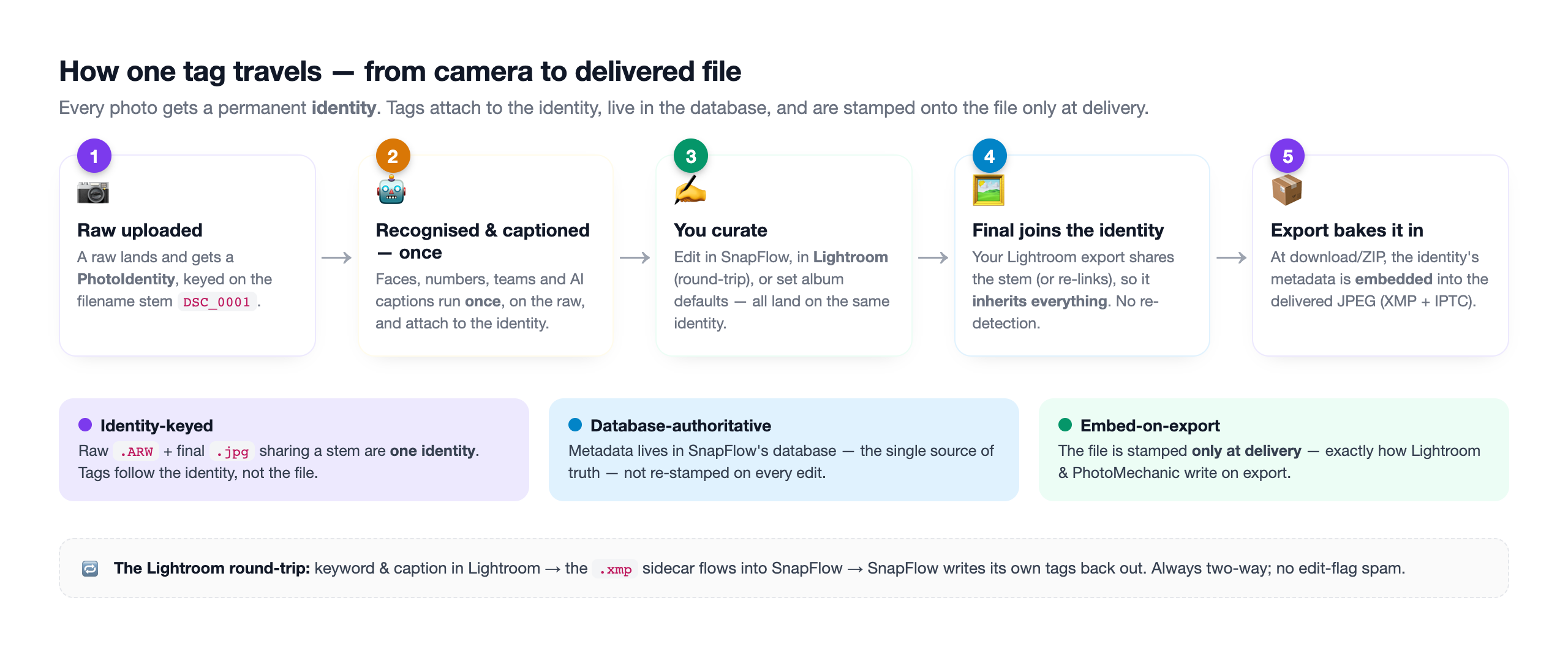 The whole journey on one line. ① A raw is uploaded and gets a PhotoIdentity (keyed on the filename stem). ② Recognition and AI run once on the raw. ③ You curate the identity — in SnapFlow, in Lightroom, or by setting album defaults. ④ The final (your Lightroom export) joins the same identity. ⑤ At download, export bakes everything onto the delivered file.
1. Identity-keyed. Every photo gets a PhotoIdentity (think of it as the
photo's permanent file card). The identity is keyed on the album plus the
filename stem — the bit of the name before the dot. So DSC_0001.ARW (your
raw) and DSC_0001.jpg (your Lightroom export) are treated as one identity.
Tags, names and edits attach to the identity, not to the individual file. Edit
the raw, deliver the final — the final already knows everything.
2. DB-authoritative. Your metadata lives in SnapFlow's database, not re-stamped into the stored JPEGs every time you change a word. (Those stored copies are processed in the background; re-baking them on every edit would be a constant rewrite treadmill.) The database is the single source of truth.
3. Embed-on-export. The metadata is stamped into the file only when the file is delivered — at download or in a ZIP. This is exactly how Lightroom and PhotoMechanic work: they hold metadata in their catalog and write it into the file on export.
Everything below is either a way metadata gets IN (onto the identity) or the one way it gets OUT (the export).
What's a 'stem'?
The stem is the filename without its extension. DSC_0001.ARW and
DSC_0001.jpg share the stem DSC_0001. That shared stem is what links your
raw and your final into one identity — so do not rename files between the
raw and the export if you can avoid it. (If you do rename in Lightroom,
SnapFlow has a backup plan — see Re-linking a renamed final.)
The six ways metadata gets IN
There are six sources that feed an identity. They stack — a photo can have a recognised name and an AI caption and a credit line from the album default, all at once.
A. Recognition — automatic, on the raw
When a photo is uploaded, SnapFlow runs face / number / team recognition once
per identity, on the raw. The names, numbers and teams it finds attach to the
identity and later become PersonInImage, face-region boxes and identifier
keywords (like CAR #44) in the exported file.
This chapter doesn't cover how to turn recognition on or fix a wrong name — that is its own chapter. See Recognition: people & faces.
Recognition runs on the raw, never twice
Because recognition is claimed once per identity, the final never re-runs detection. No double work, no double cost — and the final inherits the recognition that happened on the raw.
B. AI captions & keywords — automatic and on-demand Studio
SnapFlow can ask Claude to write a caption and keywords for a photo. There are two ways this fires:
- Automatically at ingest — a background task captions new photos.
- On demand — the ✨ Generate buttons in the web table and desktop inspector (preview, then save).
AI captioning is gated by three things — all must be true:
- Your plan includes AI metadata (Studio, or an agency plan).
- The album's AI metadata toggle is on — find it on the album Edit page (its helper line reads "Auto-generate a caption and keywords for every photo. Embedded into downloaded files for press & editorial delivery.").
- You've given AI-processing consent in your account (see below).
AI never overwrites what you typed
If a photo already has a caption or keywords you set yourself — typed in SnapFlow, or baked in by your Lightroom export — SnapFlow marks it as manual and the AI pass leaves it alone. Your words always win.
The exact fields, the ✨ All button and the table layout live in Metadata & IPTC.
C. Typed inside SnapFlow
You can type metadata directly — in the web Metadata editor table or in the desktop inspector. Both surfaces write to the same identity, so a caption you type on the desktop shows up in the web table, and vice-versa. (Two devices can't clobber each other; SnapFlow uses an edit-version check so the last clean save wins.)
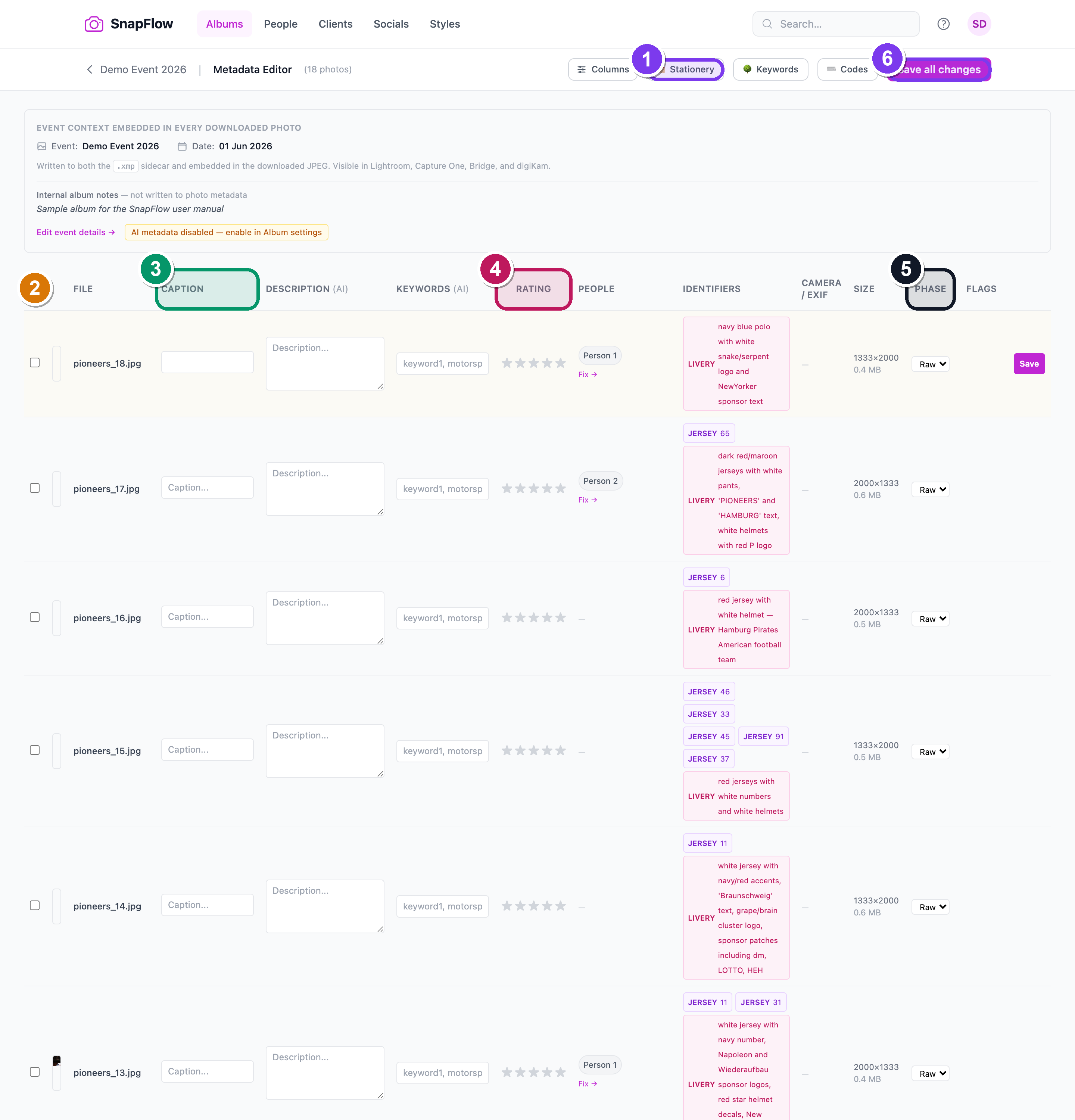 The web Metadata editor (Dashboard → open your album → More ▾ → Metadata editor). ① The toolbar holds 🗂 Stationery, 🌳 Keywords and ⌨ Codes. ② Each row is one photo. ③ Caption, keywords and rating edit in place; an amber row means "unsaved." Full walkthrough in Metadata & IPTC.
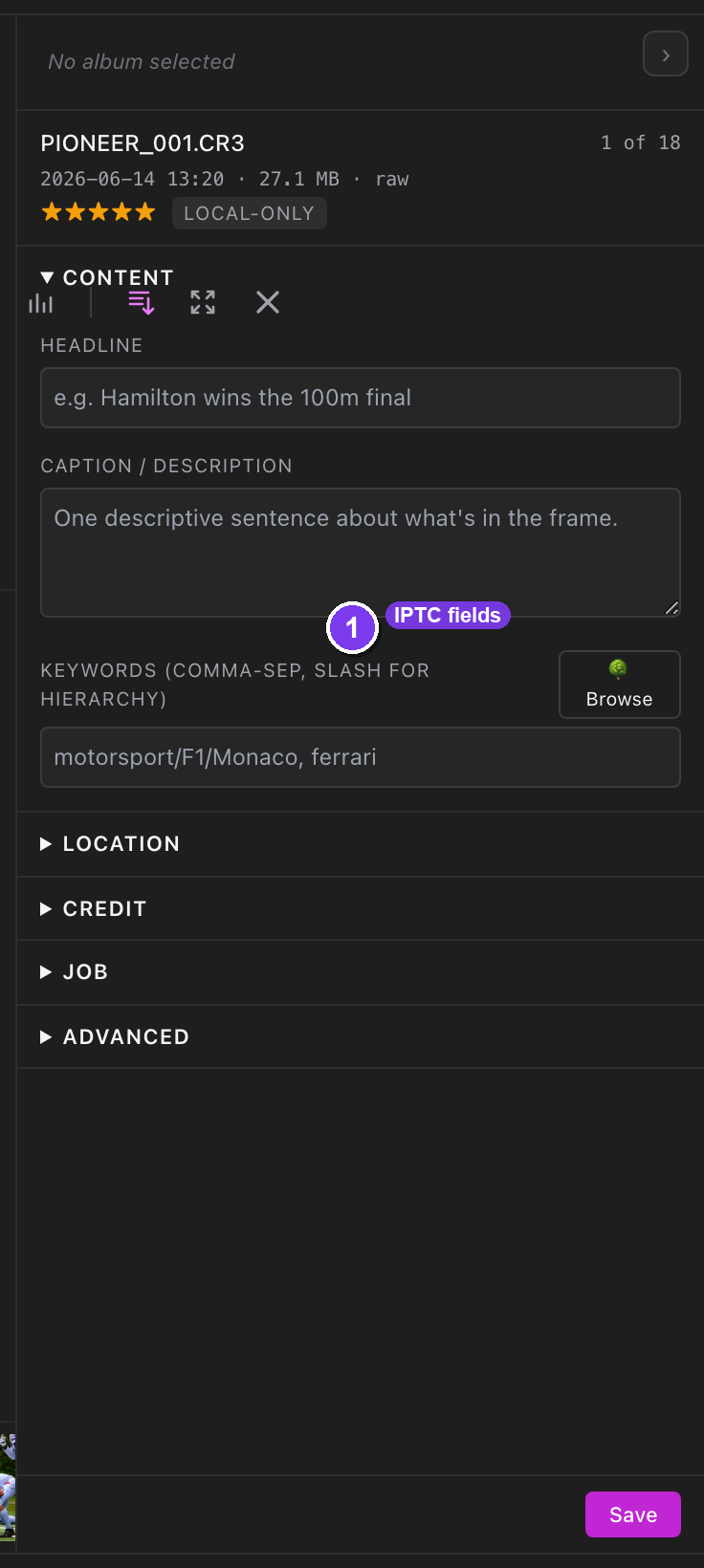 The desktop inspector (Library ⌘1 → click a photo → right sidebar). ① Headline / Caption / Keywords with autocomplete. ② Code replacements expand as you type. ③ ✨ Generate appears only when the album's AI metadata toggle is on. Full walkthrough in Metadata tools.
D. The Lightroom / PhotoMechanic round-trip
You edit keywords and captions in Lightroom, and they flow back into SnapFlow automatically. This is the heart of the chapter — it gets its own section below (see The Lightroom round-trip).
E. Finals that arrive with their own IPTC
When you export a final from Lightroom, it usually already has IPTC and XMP baked in (your caption, keywords, credit). When that final lands in SnapFlow, ingest reads that embedded metadata into the database and marks the photo manual — so, as in (B), the AI pass won't overwrite the captions and keywords you crafted in Lightroom. Your editorial work survives the trip.
F. Album defaults & the cascade
You set a credit line, copyright, city / state / country and a venue once at the album level — directly on the album Edit page, or via reusable IPTC presets (shoot bundles) and photographer profiles (your credit identities).
When a photo's own field is empty, it inherits the album default when read and when exported. Set the credit once, and every photo in the album ships with it.
The full list of the seven default fields, and how inheritance is shown in the editors, lives in Metadata cascade and Metadata & IPTC.
The Lightroom round-trip (the centre)
This is the workflow agencies adopt SnapFlow for. You keyword and caption in Lightroom — the tool you already know — and SnapFlow keeps everything in sync, in both directions, with no extra clicks.
How it works, step by step
The transport is the desktop sync app. (Install and connect it first — see Install & sign in and The sync model.)
- You edit a photo's keywords, caption, star rating or colour label in
Lightroom Classic. Lightroom writes those edits into a small
.xmpsidecar file (a plain-text twin that sits next to your raw). — nothing in SnapFlow changes yet. - The desktop sync app's metadata worker notices the changed sidecar, reads it, and pushes those tags up to the identity. — your Lightroom keywords now appear on the photo in SnapFlow (web table, desktop inspector, gallery search).
- When SnapFlow has tags the sidecar is missing (a recognised name, an AI
keyword), it writes them back into the same
.xmp. — open the photo again in Lightroom and the SnapFlow tags are there too.
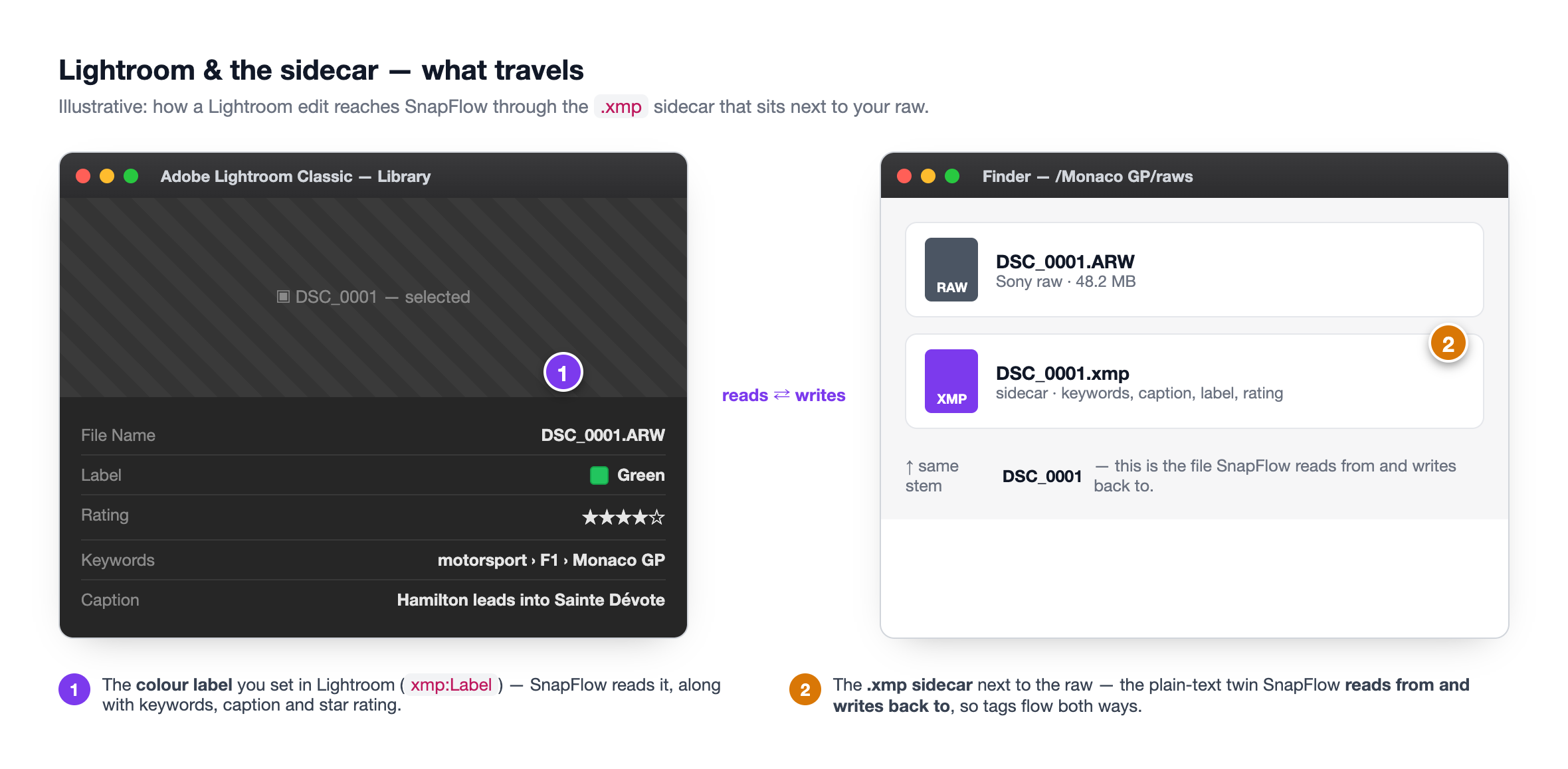 Lightroom and the sidecar. ① The colour label you set in Lightroom (
xmp:Label) travels — SnapFlow reads it. ② The .xmp sidecar next to the raw is the file SnapFlow reads from and writes back to.
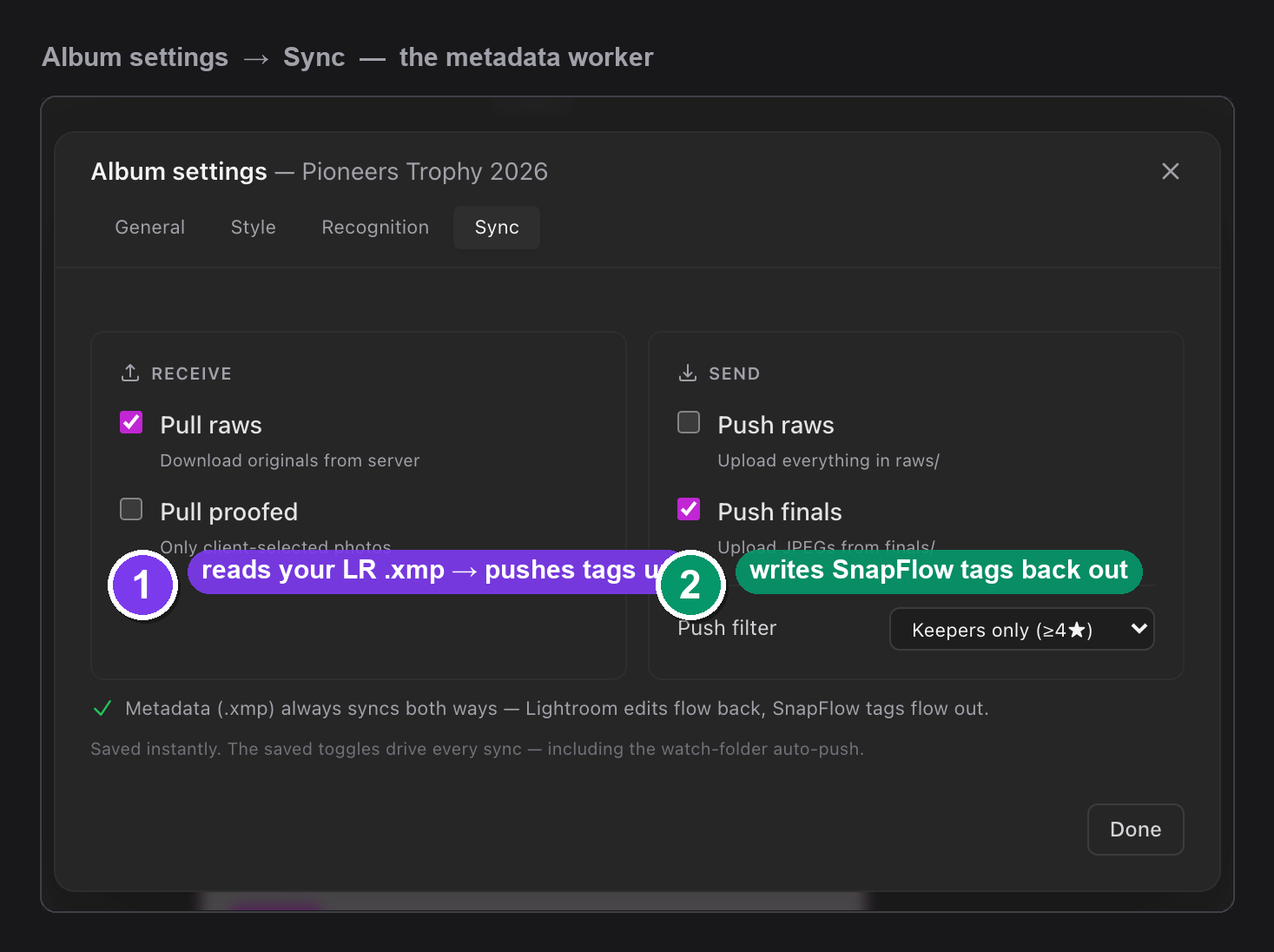 The desktop metadata worker. ① It reads your Lightroom
 .xmp and pushes the tags up. ② It writes SnapFlow's tags back out into the same sidecar. The card states it plainly: "Metadata (.xmp) always syncs both ways — Lightroom edits flow back, SnapFlow tags flow out."
Metadata sync is always on — it's not a direction toggle
In Album settings → Sync, you choose which photos to pull and push
(raws, proofed, finals). Metadata is different: the .xmp always syncs both
ways, regardless of those toggles. There is no "Pull XMP" switch to forget.
No edit-flag spam in Lightroom
A two-way sync sounds like it would set off an endless loop — SnapFlow writes the sidecar, Lightroom flags it as changed, SnapFlow re-reads it, and round it goes. It doesn't.
SnapFlow keys its imports on Lightroom's xmp:MetadataDate stamp and caches a
signature of each sidecar it has already seen. Once an edit has been imported, the
same value re-appearing does nothing. Only a genuine new Lightroom edit —
which bumps MetadataDate — triggers a fresh import. The practical result:
your Lightroom catalog doesn't fill up with phantom "metadata changed" flags.
Hierarchical keywords survive both ways
If you keyword in a hierarchy — motorsport > F1 > Monaco GP — SnapFlow keeps the
structure intact. Lightroom carries hierarchies in lr:hierarchicalSubject;
SnapFlow reads that, stores the slash-path motorsport/F1/Monaco GP, and writes
it back out as both a proper hierarchy and flat keywords — so the tag is
searchable whether the reader understands hierarchies or not.
Type a slash in any SnapFlow keyword field to build a hierarchy. More in Hierarchical keywords.
Colour labels sync too
SnapFlow speaks the five standard PhotoMechanic / Lightroom colour labels — Red, Yellow, Green, Blue, Purple. Set a colour label in Lightroom and it rides into SnapFlow; set one in SnapFlow and it rides back out (and into the delivered file). See Troubleshooting if a label doesn't appear.
Re-linking a renamed final
What if you rename the file when you export from Lightroom, so the stem no longer matches the raw? SnapFlow re-links it anyway, trying these clues in strict order and stopping at the first hit:
- Filename stem — the fast, 95%-of-the-time match (you didn't rename).
snapflow:<id>— the provenance id SnapFlow stamps into every file it delivers, so a file you re-upload re-links to the exact identity it came from.OriginalDocumentID— Adobe's stable document id that Lightroom carries through a rename and export.- Capture fingerprint — the capture time plus camera make / model / serial, a last-resort match for files that lost their XMP provenance.
- A brand-new identity — only when all of the above miss.
So even a renamed Lightroom export usually re-joins its raw's identity — keeping the recognition, curation and round-trip intact, with no re-detection.
The recognition-to-sidecar privacy toggle
By default, SnapFlow writes recognised names into your raw sidecars (so the names show up in Lightroom too). This is a privacy choice, so it's a toggle. In the desktop app's settings, the control is Write recognised names to sidecars (default on).
Privacy: names in sidecars
The names SnapFlow writes are already gated server-side by your recognition consent and settings. If you'd rather names never land in the local sidecar files, switch Write recognised names to sidecars off — the rest of the round-trip (keywords, caption, rating, colour label) keeps working.
The one way metadata gets OUT — embed-on-export
Everything you've fed an identity converges at one moment: delivery. When a photo is downloaded singly or packed into a ZIP, SnapFlow embeds the database metadata into the delivered JPEG as XMP + IPTC. Nothing is baked in earlier; this is the only place it happens.
What gets stamped onto the delivered file:
- Caption and headline
- Keywords — both flat and hierarchical
- Credit and copyright notice (cascaded from the album default if blank)
- Location — city, state, country, venue / sub-location
- Colour label (
xmp:Label) - Face names + regions (
PersonInImage+mwg-rsface boxes) - Identifier keywords — numbers and teams (e.g.
CAR #44)
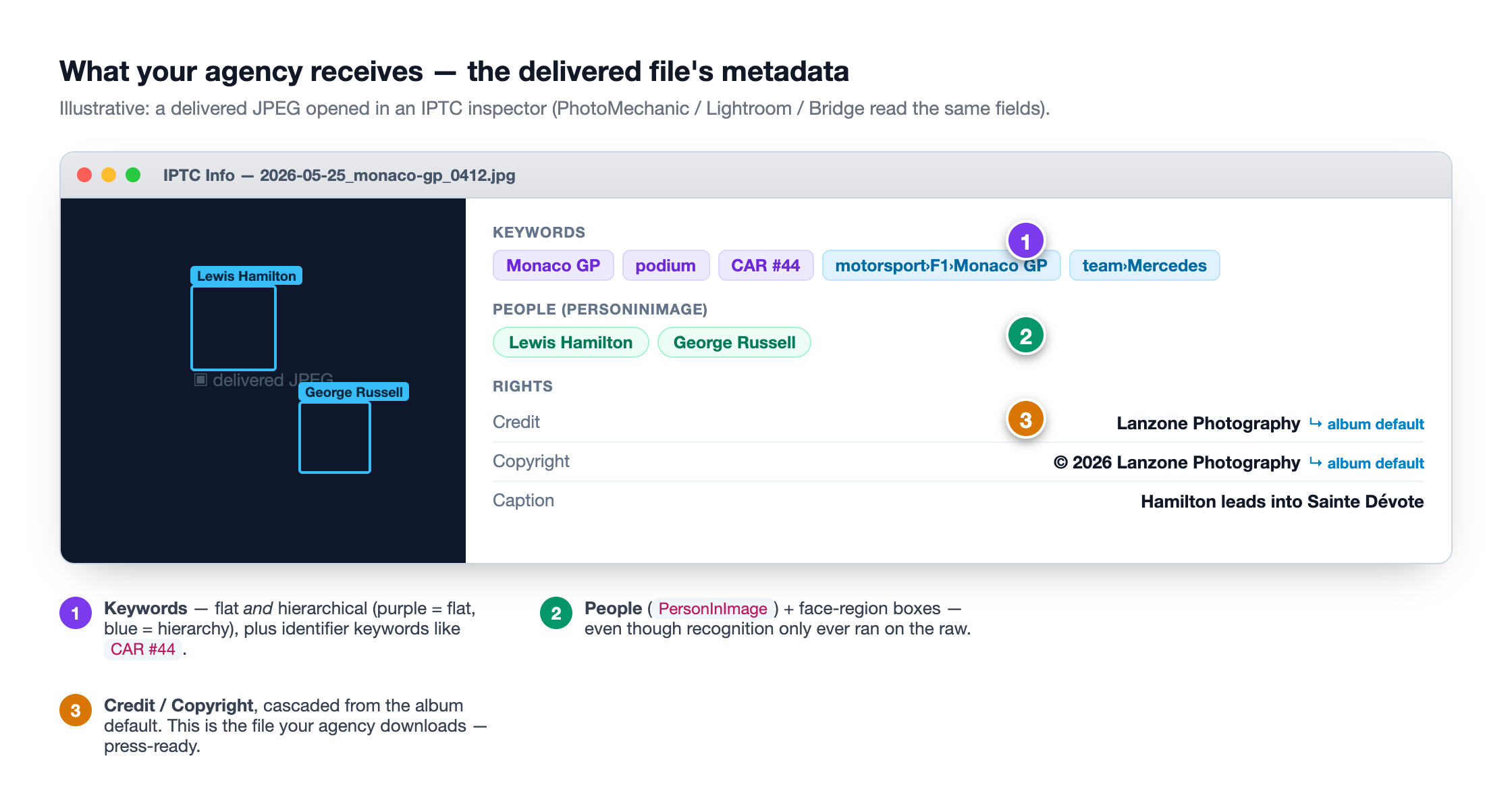 The proof shot — a delivered file opened in PhotoMechanic. ① Keywords, flat and hierarchical. ② People (
PersonInImage) plus face boxes — even though recognition only ever ran on the raw. ③ Credit / Copyright, cascaded from the album default. This is what your agency receives.
This is the same XMP/IPTC that Lightroom, PhotoMechanic, Bridge, Capture One and digiKam all read. Your files arrive labelled, searchable and press-ready — with no re-keywording at the agency end.
Same gates apply on the way out
Export honours the album's gates. If you turned AI metadata off, AI
captions and keywords are not embedded. And if you switch on Editorial
mode (in the Agency delivery card on the album Edit page), delivered
files carry no AI-generated captions or keywords and assert the image is a
genuine photograph (IPTC DigitalSourceType) — the right setting for press
and wire delivery. You can also Rename delivered files with a template
there. Full coverage in Album settings & workflows
and Proofing & client delivery.
The live-event run, end to end
Here's how A–G fit together for the classic live-event setup: a photographer in the field, an editor in the back, an agency waiting on finals.
| Step | What happens |
|---|---|
| 1. Raw uploaded live | Ingest creates the identity (by stem). Recognition (A) and AI (B) run once on the raw. Album defaults (F) already apply. |
| 2. Editor curates | The editor edits in Lightroom or in SnapFlow. Their curation (C / D) lands on the same identity. |
| 3. Final joins the identity | The Lightroom export shares the stem (or re-links by OriginalDocumentID), so it joins the same identity. Detection does not re-run. Any baked-in IPTC is read (E). |
| 4. Agency downloads | Export (G) stamps the identity's complete metadata onto the final — including the recognition that ran on the raw. |
The key point
Recognition happens once, on the raw. Curation happens anywhere, anytime, on the identity. Everything is baked onto the final at delivery. Nothing re-runs on the final, nothing is stored twice — yet the file the agency receives carries the names, numbers, keywords (as proper hierarchies), credit, location and colour label.
Power tools recap
The metadata you feed an identity can be entered fast with PhotoMechanic-style tools. Each is one line here; full instructions are in the chapters they belong to.
- IPTC presets — reusable shoot bundles of default fields. See IPTC presets.
- Photographer profiles — your saved credit / copyright identities. See Photographer profiles.
- Hierarchical keywords — slash-separated tags like
motorsport/F1/podiumthat survive the round-trip. See Hierarchical keywords. - Code replacements — type a short code, get a long expansion (e.g.
\44→ a full team name). See Code replacements. - Stationery Pad — apply a batch of IPTC fields to many photos at once (blank fields are left alone; keywords merge). On the desktop, select photos (the corner ✓), then press ⌘⌥T or use the Stationery button. It's on the web too. See Metadata tools (desktop) and Metadata & IPTC.
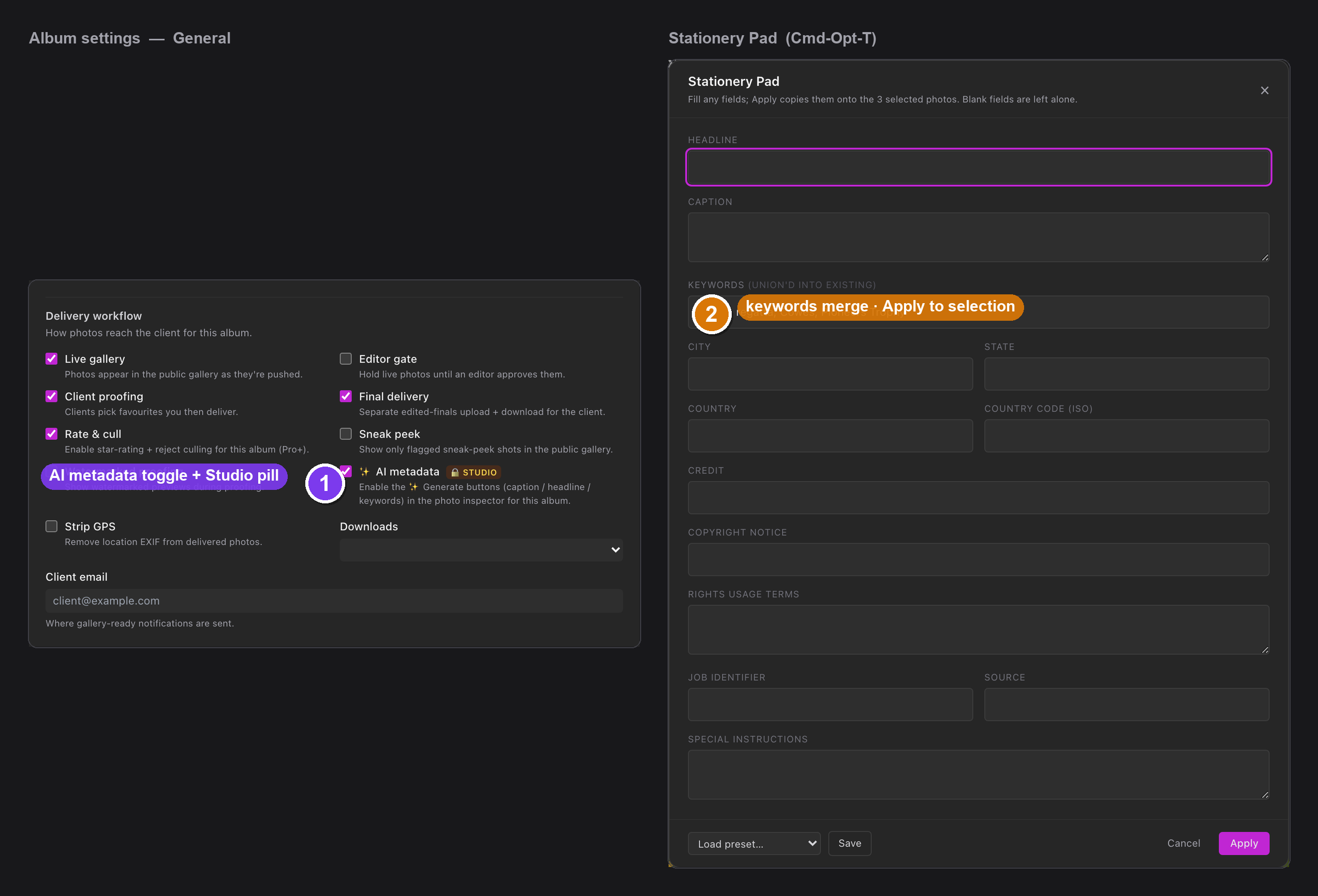 Two power moves in one shot. ① The album's ✨ AI metadata toggle (with its Studio pill) turns AI on per album. ② The Stationery Pad over a selection — ⌘⌥T applies your fields to every selected photo, and keywords merge rather than replace.
Finding it again — deep search
Because every tag lands in the database, you can search across every IPTC text field — caption, headline, city, credit, keywords (including each level of a hierarchy) — plus filter by rating, stage and date. A name your camera never knew and a keyword you typed in Lightroom are both findable.
Search reaches every IPTC field, not just filename and caption. On the desktop, open it via Manage ▾ → Search. Full walkthrough — including saving a query as a smart collection — in Search & smart collections.
Troubleshooting / FAQ
My Lightroom keywords aren't showing up in SnapFlow
- Make sure Lightroom is writing the sidecar. In Lightroom, select the photo and choose Metadata → Save Metadata to File (or enable Catalog Settings → Metadata → Automatically write changes into XMP). No sidecar, nothing to read.
- Confirm the desktop sync app is running and the album is set to pull — the metadata worker only runs through the desktop app. See The sync model.
- Remember the dedupe: SnapFlow imports on a new
xmp:MetadataDate. If the date didn't change, make a real edit in Lightroom and save again.
The AI rewrote my caption
It shouldn't — AI never overwrites metadata you set yourself; those photos are marked manual. If you see an AI caption where you expected your own, the photo's caption was probably still empty when the AI pass ran. Type your caption (web table or desktop inspector) — it will now be protected, and you can re-run ✨ Generate elsewhere without touching it.
My agency got no names in the files
Recognition lands names on the file at export. Check that: (1) recognition actually ran on the album (open the People tab — see Recognition: people & faces); (2) you delivered via a download or ZIP (that's where embed-on-export happens — a screenshot shared outside SnapFlow carries nothing); and (3) Editorial mode isn't stripping fields you wanted (it suppresses AI captions/keywords, not recognised names).
My colour label didn't travel
SnapFlow only carries the five standard labels — Red, Yellow, Green, Blue,
Purple. A custom-named Lightroom label (e.g. "To review") has no standard
xmp:Label value, so there's nothing to sync. Use one of the five standard
colours and it will round-trip and embed on export.