Command-line reference
The snapflow-sync CLI and integrity verification.
Desktop app
The SnapFlow Sync app installs a small companion tool you run from the
Terminal — the black-and-white text window where you type commands instead of
clicking buttons. It's called snapflow-sync. You use it for scripting and
"headless" jobs (jobs that run on their own, with no window open) — for example,
a nightly backup script that pulls an album down and checks every file is intact.
You don't need it for everyday work. The app's buttons do everything. Reach for the command line only when you want to automate something or run it from a script.
Sign in once, use it everywhere
The command-line tool shares its sign-in with the app through the macOS Keychain (the password vault built into your Mac). Log in from either one, and both work — you never type your password twice. If the app is already signed in, the commands below just work.
Open the Terminal
If you've never used the Terminal before, here's the whole trick:
- Press ⌘ Space to open Spotlight (the search bar). — a search box appears in the middle of your screen.
- Type Terminal and press Return. — a plain window opens with a blinking cursor. That's the command line. You type a command, press Return, and it runs.
- Type
snapflow-sync versionand press Return. — you'll see something likesnapflow-sync 1.53.0. If you see that, the tool is installed and ready.
If snapflow-sync isn't found
The companion tool ships inside the desktop app. Install SnapFlow Sync first (see Install the desktop app), then try again.
The commands
Here is everything the tool can do. Type the command, press Return, read the result.
snapflow-sync version
snapflow-sync login  --server https://snap-flow.org --email you@example.com [--password ...]
snapflow-sync logout
snapflow-sync albums list [--json]
snapflow-sync sync   --album <id|name> [--push-finals] [--verbose]
snapflow-sync verify --album <id|name> [--json]
- version — prints the installed version (e.g.
snapflow-sync 1.53.0). Handy when support asks "which version are you on?" - login — signs you in and saves the session.
--serverand--emailare required. You can leave--passwordoff — the tool then asks for it with a hidden Password: prompt, which keeps your password out of your shell history. On success you'll seesigned in as you@example.com @ https://snap-flow.org. - logout — clears the saved token from the Keychain. You'll see
signed out (keychain token cleared). - albums list — lists your albums (see the format below). Add
--jsonfor machine-readable output you can pipe into other tools. - sync — pulls an album down to your sync folder and (optionally) pushes finals back up. This is the headless version of the app's Sync now button.
- verify — checks every local file in an album against the SHA-256 hash the server recorded when the photo first arrived. This is the file-integrity check.
Name OR id for --album
Both sync and verify take --album. You can pass the album's id, its
exact name, or even a partial name — the tool matches on id first, then an
exact name, then a "contains" match. Wrap names with spaces in quotes:
--album "Monaco GP 2026".
Signing in from the command line
- Type
snapflow-sync login --server https://snap-flow.org --email you@example.comand press Return. — because you left the password off, you'll see a Password: prompt. - Type your password (the characters stay hidden as you type — that's normal)
and press Return. — you'll see
signed in as you@example.com @ https://snap-flow.org.
That's it. Every other command now works, and so does the app.
Listing your albums
- Type
snapflow-sync albums listand press Return. — you'll see one line per album.
Each line looks like this:
  * 8f3c…  Monaco GP 2026  (412 photos)
    a1b2…  Studio headshots  (88 photos)
The leading * marks albums that have a finals delivery (an edited set
ready to hand over); a blank space means no finals yet. After the marker comes the
album id, the album name, and the photo count in brackets. Add
--json if you'd rather feed the list into a script.
Sync an album headless
snapflow-sync sync is the scriptable twin of the app's Sync now button. It
pulls down every photo that's missing from your local album folder, and — if you
add --push-finals — pushes your local finals back up to the server.
- Type
snapflow-sync sync --album "Monaco GP 2026"and press Return. — the tool starts pulling missing files. - To watch it work file-by-file, add
--verbose— each transferred file prints its ownPULL(orPUSH) line. - To also send your edited finals back up, add
--push-finals. — local photos marked as finals ride up to the server.
When it finishes you'll see a summary like:
album: Monaco GP 2026 (8f3c…)
  pulled 40 · pushed 0 · errors 0
That tells you how many files came down, how many went up, and how many failed.
Exit codes you can script against
sync sets a Unix exit code so a backup script can react:
- 0 — every photo synced cleanly.
- 1 — couldn't run: not signed in, or the album wasn't found.
- 2 — the sync ran but some files failed (the failure count is in the
summary; each failing file also printed an
ERRline to stderr).
Run a sync from the app for everyday work
The command line is for automation and scripts. For normal day-to-day syncing, just press Sync now in the app — see Sync: pull and push. The CLI and the app share the same engine and the same saved push filter, so they behave identically.
Verify file integrity
verify is the one to reach for before archiving an album, after a drive
scare, or to sanity-check a USB transfer. It SHA-256-hashes every local file
in the album and compares it to the hash the server stored at ingest.
- Type
snapflow-sync verify --album "Monaco GP 2026"and press Return. — the tool hashes each local file and prints a report.
A clean report looks like this:
verified 412 / 412 files
  drift:   0
  missing: 0
  no-hash: 0
If something's wrong, you'll instead see lines naming the offending files:
- drift — a local file's bytes no longer match the server's recorded hash; it changed or was corrupted. Re-pull the album to recover.
- missing — the file isn't present locally. Run a sync (or Sync now in the app) to fetch it.
- no-hash — the photo was uploaded before integrity tracking existed, so there was nothing to compare against. Re-ingest it to capture a hash.
Each drift or missing file is named in the report (up to the first 20 of each), so you know exactly what to fix.
Exit code for backup scripts
verify exits non-zero when it finds any drift or missing files, and 0
when everything matches. That lets you wire it straight into a backup script:
snapflow-sync verify --album "Monaco GP 2026" || echo "drift detected!"
Add --json to capture the full report as machine-readable data instead of the
human summary.
Doing the same thing in the app
You don't have to touch the Terminal to verify an album — the same SHA-256 check is one click away in the app.
- In the Library stage (⌘1), find the album in the left sidebar, then click its ⋯ menu (or right-click the album). — a menu opens with Album settings…, Show in Finder, Rescan folder and more.
- Click Verify integrity…. — the app runs the same hash check and shows a visual OK / drift / missing report.
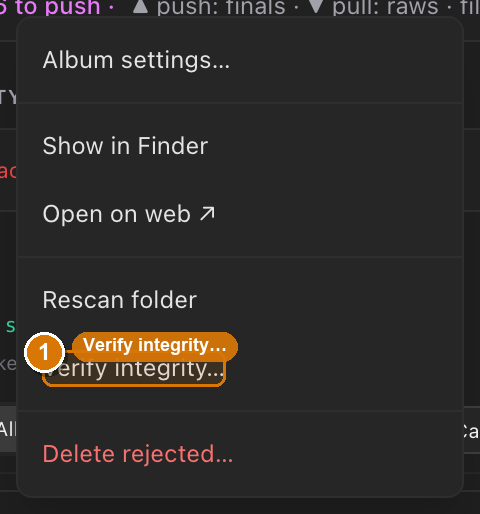 The album ⋯ menu in the Library stage. ① the ⋯ button on the album row, ② the open menu, ③ the Verify integrity… item that runs the same SHA-256 check as
 snapflow-sync verify.
Everything else lives in the app too
The command line covers version, login/logout, albums list, sync and
verify. For culling, develop edits, metadata, recognition and one-tap syncing,
use the app — start at Install the desktop app and
Sync: pull and push.