The agency / organisation portal
One client login spanning every photographer in an organisation.
Some photos don't come from a single studio — they come from an agency (or any "organisation": a media team, a sports federation, a wedding collective) where several photographers shoot under one roof. SnapFlow gives that whole organisation one shared client portal, so a client signs in once and sees every photographer's work for them in a single place.
This chapter explains how that "agency portal" differs from the ordinary single-studio portal. The good news: for the client, almost nothing changes. Signing in, hearting favourites, leaving notes, and downloading all work exactly as described in the other portal chapters. This chapter just covers the handful of differences — plus a short section for the agency admins who set it up.
Who this chapter is for
The first three sections are written for the client — the person an agency invited to view their photos. The last section, For agency admins, is for the person inside the organisation who runs it. If you're a single photographer (not part of an agency), this chapter doesn't apply to you — see Signing in to the client portal instead.
Org portal vs single-studio portal
A normal SnapFlow portal belongs to one photographer. It shows you the
galleries that one photographer shot for you, at a web address like
https://snap-flow.org/portal/jane-photography.
An organisation portal (we'll call it the "agency portal") belongs to a
whole organisation instead. Its address looks like
https://snap-flow.org/portal/org-acme — note the org- at the start. When
you sign in there, you see every event the agency shot for you, no matter
which of their photographers actually held the camera that day. One login, one
list, every shoot.
Here's the difference at a glance:
| Single-studio portal | Agency / org portal | |
|---|---|---|
| Belongs to | One photographer | A whole organisation |
| Typical address | …/portal/jane-photography |
…/portal/org-acme |
| Galleries you see | That photographer's events | Every org event shared with you |
| Spans multiple photographers? | No | Yes |
| Sign in, favourites, notes, download | Identical | Identical |
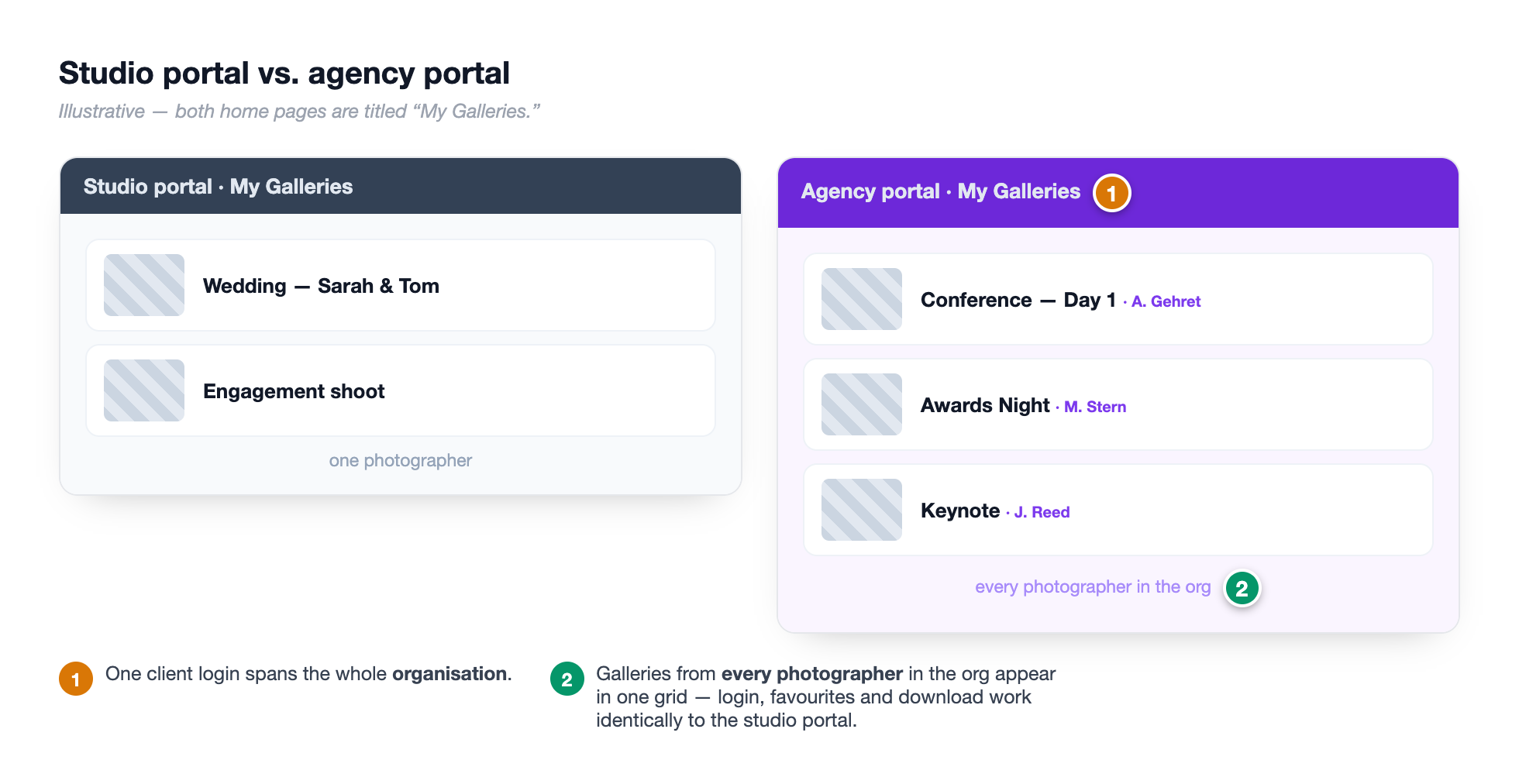 The same My Galleries page, two flavours. ① a single-studio portal — every card came from one photographer. ② an agency portal at an
 org-… address — the cards span several photographers and events, but they're all gathered under one login. The grid, badges and cards are identical; only the scope is wider.
The only visible giveaway is the address
There's no special "agency mode" screen. If your portal link contains
org- near the end (for example …/portal/org-acme), you're on an
organisation portal and your one login spans the whole agency. Everything you
do there works the same as a studio portal.
Signing in and using it (it's identical)
Because the agency portal uses the same screens as a single-studio portal, every step you already know still applies. We won't repeat the detail here — we'll just point you to it.
- Open the agency's portal link (the one with
org-in it). — the Sign in card appears, showing the agency's name and logo at the top. - Type your email in the Email box and leave the Password box blank, then click Sign in. — you get a Check your email screen, then the email's Open Gallery Portal button drops you on My Galleries. Full walkthrough: Signing in to the client portal.
- On My Galleries, you can Set a password for faster access exactly as in a studio portal. — once set, you can type your password next time instead of waiting for the email link.
Once you're in, the rest is unchanged:
- Browsing your galleries — every shared event shows as a card with a cover, a coloured status badge, a photo count and the date. See Viewing albums & delivery status.
- Picking favourites and leaving notes — tap the heart on any photo; add a Retouching note on your selections page. See Picking your favourites.
- Downloading — the purple Download button gives you a ZIP, at whatever quality the agency allowed. See Downloading your photos.
One inbox, every photographer
The whole point of the agency portal is that you don't juggle a separate login for each photographer. As long as the agency attached your email to an event, it lands in your single My Galleries list — whether it was shot by their wedding specialist on Saturday or their corporate team on Monday.
Why a gallery might not show up
If you expected an event but it's missing from My Galleries, it's almost always one of these — and all of them are on the agency's side to fix, not yours:
- The agency hasn't ticked Show in client portal on that event yet.
- The event was shared to a different email than the one you signed in with.
- The event was created under a different organisation (or under one photographer's personal studio, not the agency).
Ask the agency to check three things
If a shoot is missing, ask your agency contact to confirm the event has your correct email, that Show in client portal is on, and that it lives under the agency you're signed in to. Those three together are what put a gallery in your list.
Branding — it's the agency's, not SnapFlow's
A single-studio portal wears that one photographer's name and colours. An agency portal wears the organisation's branding across every gallery in it, regardless of which photographer shot each event.
That means, on an agency portal:
- The header shows the organisation's name and logo.
- The buttons, links and accents use the organisation's brand colours.
- If the agency has chosen to, the "Powered by SnapFlow" line in the footer is hidden entirely — so the portal feels like the agency's own product.
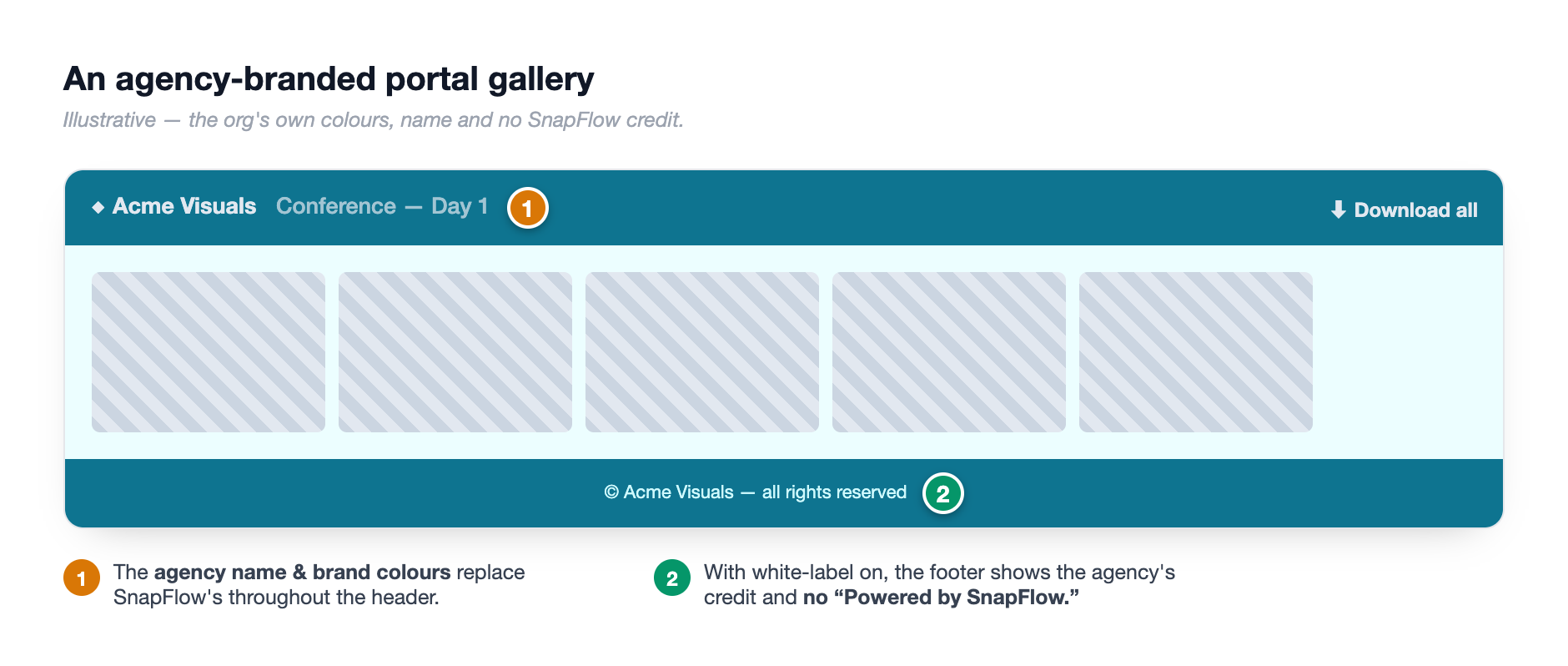 An organisation portal dressed in the agency's brand. ① the agency's name and logo in the header (not an individual photographer's); ② buttons and links in the agency's brand colour; ③ the footer with no "Powered by SnapFlow" credit — present only when the agency has turned on full white-label. The same branding applies to every gallery in the portal, no matter who shot it.
You don't set branding — the agency does
As a client, you can't change any of this; it's controlled by the agency. Agency admins set it up under their organisation settings — see White-label & custom domains and Branding & white-label.
For agency admins: making it work
This section is for the person inside the organisation who runs the portal. The plumbing is the same as the rest of SnapFlow's org tooling — you just need three pieces lined up so a gallery reaches the right client.
Where the org portal comes from
When you create your organisation, SnapFlow automatically sets up its portal
for you. The portal address is built from your org's name as org-<your-org>
(for example, an org slugged acme gets …/portal/org-acme), and it's switched
on from day one. There's no separate "create the portal" step.
Find and preview your portal address
Your org portal lives at https://snap-flow.org/portal/org-<your-org>. To
see exactly what a client sees, open that address in a private / incognito
browser window (so your own admin login doesn't interfere) and sign in with
a test client email.
The three things that put a gallery in a client's list
For an org event to appear in a particular client's My Galleries, all three of these must be true. Get any one wrong and the gallery silently won't show:
- The event belongs to your organisation. Events you create from the agency side carry your organisation automatically — that's just "create the event as the org," which you already do. See Projects & event phases.
- The client's email is matched to the event. Either attach a saved Client record, or type the address into the event's Client email field. SnapFlow matches on email, so it must be the address the client signs in with.
- Show in client portal is ticked. This is the switch that actually reveals the event in the portal. It's on by default for new org events.
Step 1 — add the client (once)
- From the agency dashboard, open Clients (top nav) → click New client (top-right). — the New client form opens.
- Fill in Name (required, marked with a red
*) and Email. — the email here is what the client will sign in to the portal with. - Click Create client. — the client is saved to your organisation's client list and can now be attached to any event. (Full client management: Clients.)
Step 2 — attach the client to an event and reveal it
- Open the event, then open its edit screen and find the Client card. — you'll see a Client dropdown and a Client email box.
- Pick the saved client in Client, or type the address straight into Client email (optional — for gallery-ready notifications). — either one matches the client to this event.
- Tick Show in client portal. — the helper line reads "Clients can see this event in their portal gallery list." This box is already ticked on new events, so usually you just confirm it's on.
- Save the event. — from now on, when that client signs in to your
org-…portal, this event appears in their My Galleries.
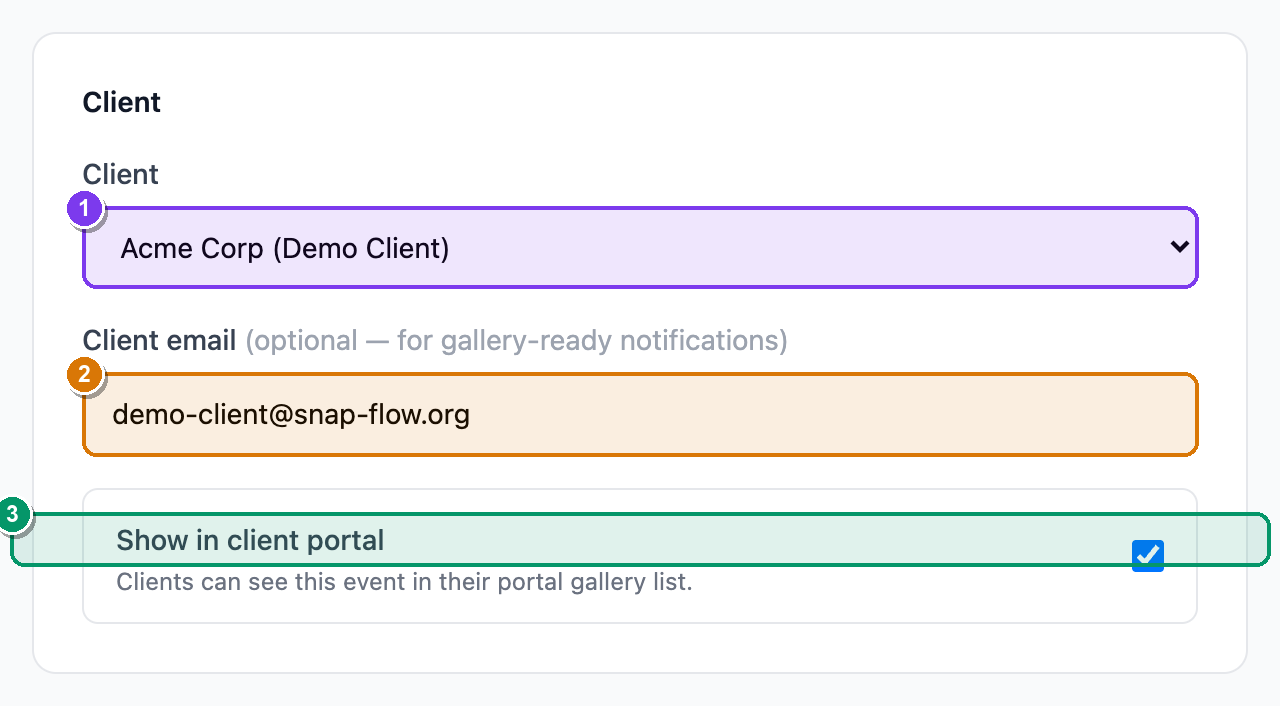 The Client card on an org event's edit screen. ① the Client dropdown (pick a saved client); ② the Client email field, labelled (optional — for gallery-ready notifications) — type the address here if you'd rather not use a saved record; ③ the Show in client portal checkbox with its helper "Clients can see this event in their portal gallery list." All three pieces together are what put the gallery in the client's list.
The email must match exactly
SnapFlow matches a client to a gallery by email address. If the client
signs in with sam@acme.com but the event was shared to s.jones@acme.com,
the gallery won't appear. When something's missing, check the email first.
Branding is set per organisation
Your org's name, logo, colours and the "Powered by SnapFlow" footer credit are configured once, at the organisation level, and apply to the whole portal. The controls (studio name on galleries, hide SnapFlow branding, custom domain, brand colours) live in your org settings — see White-label & custom domains and Branding & white-label. You don't set branding on each event.
Edge case: the same person in two portals
It's possible for the same human to be both a client of your agency and a client of a single photographer who works outside the org. When that happens, they have two separate portals:
- the agency portal (
…/portal/org-acme), which shows the agency's events for them, and - the studio portal for that individual photographer
(
…/portal/that-studio), which shows that photographer's personal events.
The two don't merge. Each portal address only ever shows the galleries that belong to that portal's owner. A client simply uses whichever link matches the photos they're after.
When in doubt, share the right link
Because the galleries a client sees depend entirely on which portal address
they open, the simplest fix for any "I can't find my photos" message is to
re-send the correct link — the org-… one for agency events, or the
individual studio link for a personal shoot.